#Summarized

File Systems (Introduction)
A file system is an OS service that manages how data is stored, located, and retrieved on non-volatile storage devices (like the SSD in your MacBook or iPhone).
File System Design Has Two Aspects:
- User-facing design: How files, attributes, and directories appear to users
- Implementation design: Algorithms and data structures that map logical files to physical storage
Core Components:
- Files: Collections of related data
- Directories/Folders: Organizational structures (think of Finder in macOS)
I/O Systems (Introduction)
- Computer systems have two main jobs: processing and I/O (input/output)
- OS manages and controls I/O operations and devices
- I/O technology trends:
- Increasing variety of devices
- Push for standardized interfaces (i.e., want the to use the same commands/operations/interfaces).
Apple handles this well with USB-C standardization while supporting many I/O device types through a single interface
File Concept
What is a File?
A file is fundamentally a sequence of data blocks:
- From a user perspective: A collection of related data
- From a system perspective: A sequence of bytes/blocks (typically 512 bytes each)

File คือไรวะ? → ก็ Data ไง, Series of a binary number (ถ้ามองใน Low Level อะนะ)
เราจะ Divide เป็นแต่ละ Group เรียกว่า Data block (file block) ซึ่งจะเป็น same size (bits, bytes)
Facts about Files
- A file represents a collection of data stored in a physical storage device (e.g., hard drive, SSD in your Mac)
- A file is an abstraction entity and a logical view provided by the operating system
- A file is the smallest logical storage unit
- A role of the operating system on files:
- The operating system abstracts from the physical properties of its storage devices to define a logical storage unit called a file (file system's user interface)
- Files are mapped by the operating system onto physical devices (file system's implementation). Specifically, a computer system can read/write the files stored in physical devices
File Attributes (Metadata)
Files have attributes (metadata) that describe them:
- Name, Type/extension, Size, Creation/modification dates, Location, Protection attributes
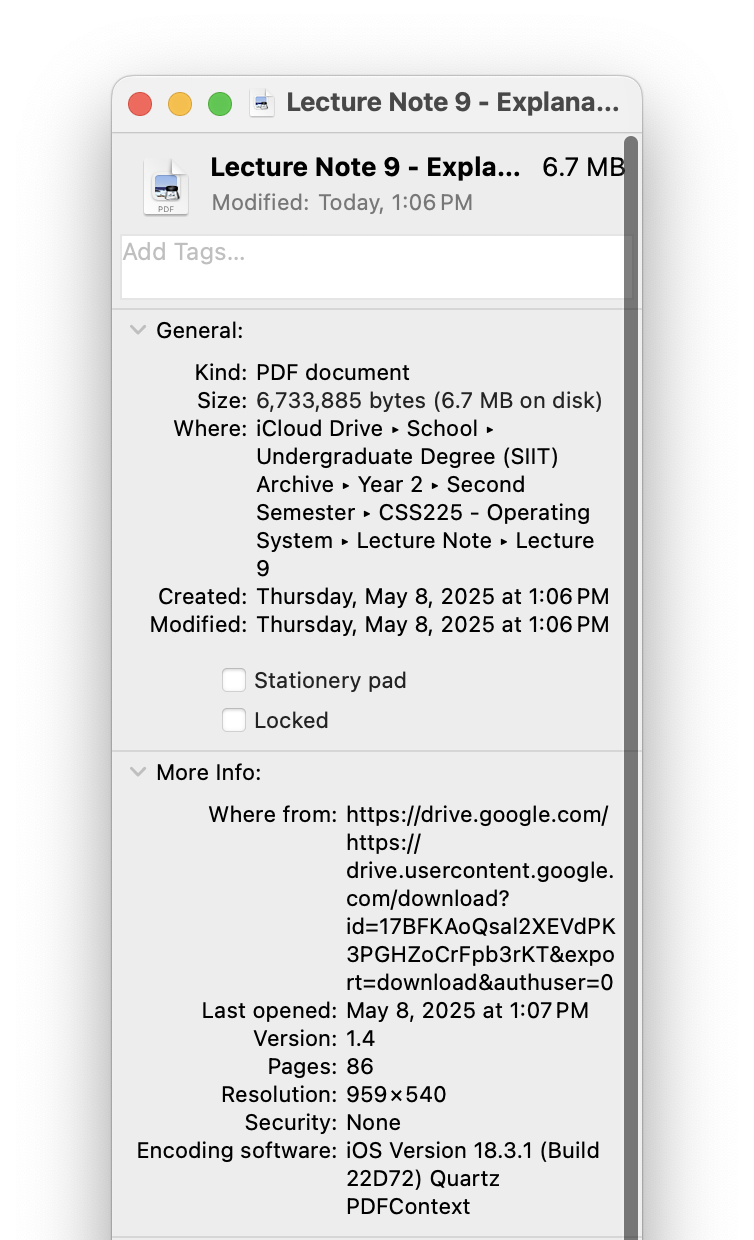
In macOS, you can see these attributes by selecting a file in Finder and pressing ⌘+I (Get Info)
File Types/Structures
- Files are identified by extensions (like .swift, .docx, .pdf)
- The extension helps the OS know which app should open the file
- On macOS
- Preview opens PDFs
- Xcode opens .swift files, etc.
- The OS must understand at least one file type: executables (.exe on Windows)
File Operations
The OS provides system calls for these basic file operations:
- Creating files
- Writing to files
- Reading from files
- Repositioning within files (moving the cursor)
- Deleting files
- Truncating files (erasing content while keeping the file)
ครูใช้เวลาตรงนี้เยอะ
Open-File Tables
The OS tracks open files using two tables:
- Per-process open-file table: Tracks files opened by each specific process
- System-wide open-file table: Tracks all open files across the system with a count of how many processes have each file open
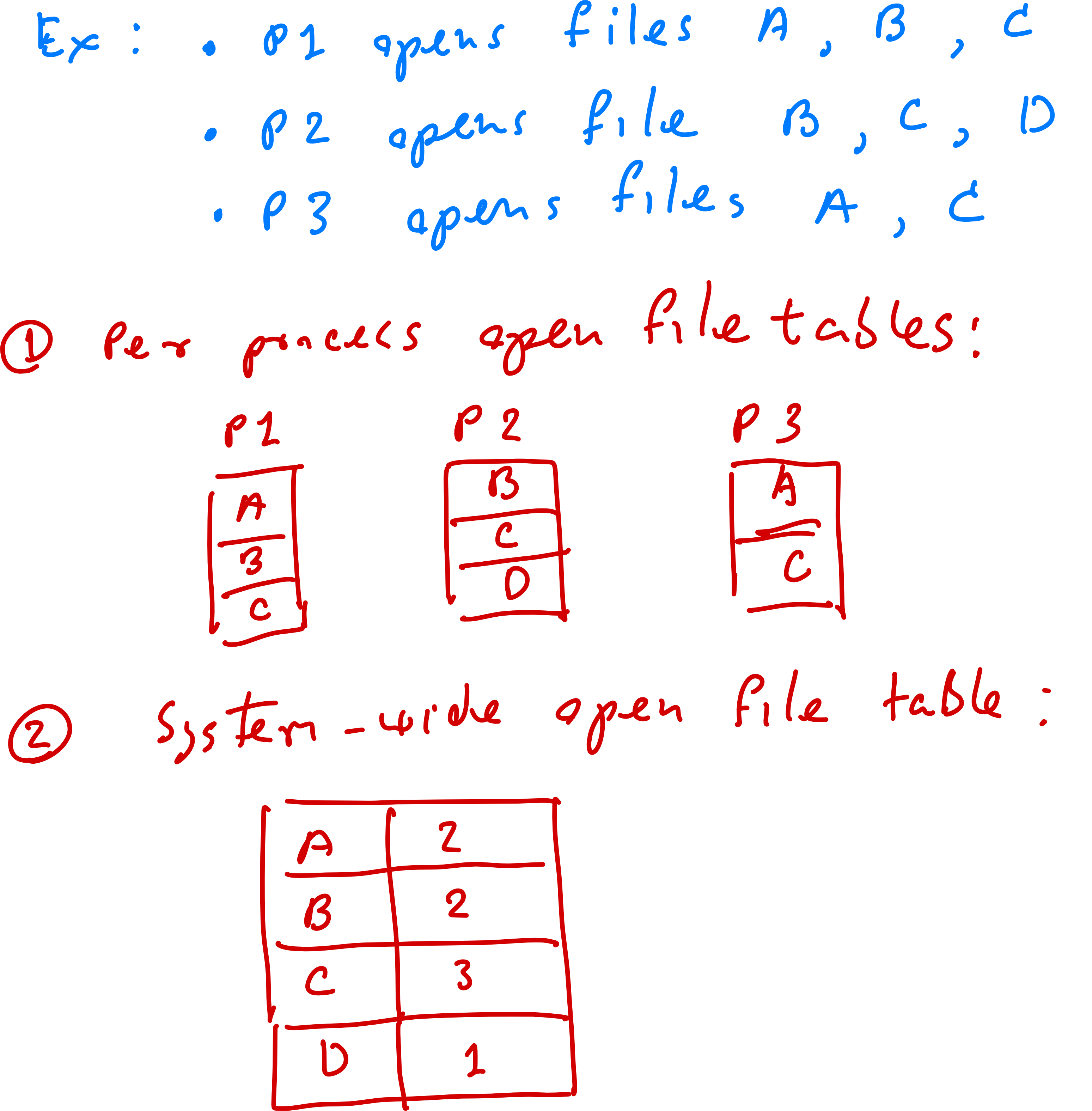
OS จะ Record ได้ยังไงว่า Files อะไร open อยู่— The system needs to know which apps are using which resources
File Access Methods
Two primary ways to access data in files:
- Sequential Access:
- Data is processed in order, one record after another
- Like reading a book from start to finish
- Based on a tape model of storage

- Direct Access:
- Random access to any block of the file
- Like jumping to any chapter in an ebook
- Based on disk model of storage
- Allows reading/writing blocks in any order
Directory Structure
#Review
How we organized files in the computer system
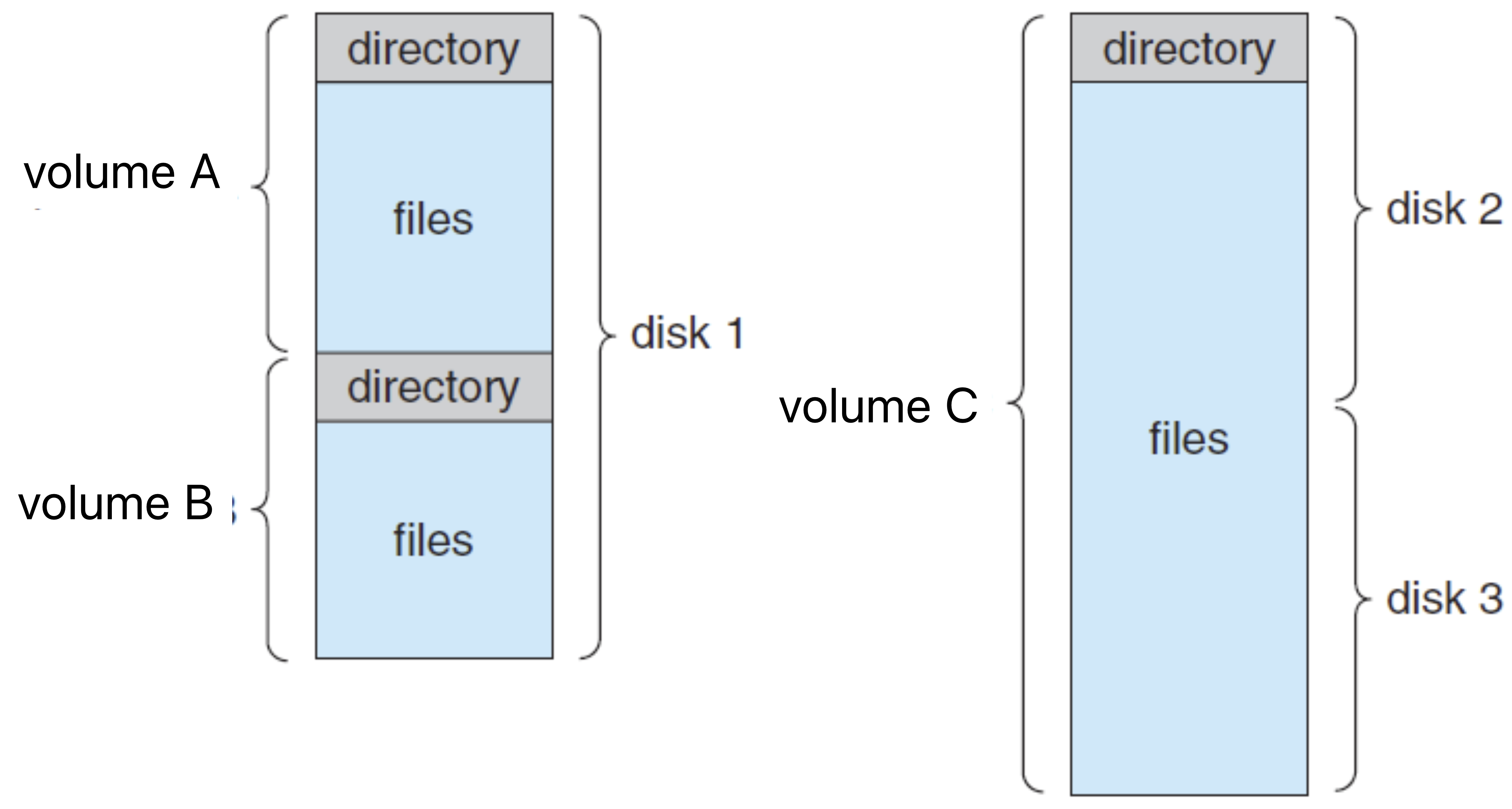
Partition vs Volume
Partition
- A storage device (e.g., disk) can be divided into multiple partitions
- Partitioning helps limit the sizes of individual file systems
- Each partition is a raw space that will have a file system installed on it
Volume
- A volume is a partition that has been formatted with a file system
- Think of a volume as a virtual disk
- A volume contains:
- Files
- Volume table of contents (device directory)
- The difference between a partition and volume.
- A partition is a space crafted out of a disk.
- A volume is a partition that has been formatted into a filesystem.
When you buy a new USB drive for your Mac and format it, you're ACTUALLY installing a file system on it, transforming a raw partition into a usable volume
Directory Structures
Directories help organize thousands or millions of files into manageable groups, similar to how folders work in macOS Finder.
Common Directory Structure Types:
1. Single-Level Directory
- Simplest structure: one directory (root) containing all files
- All users share this directory
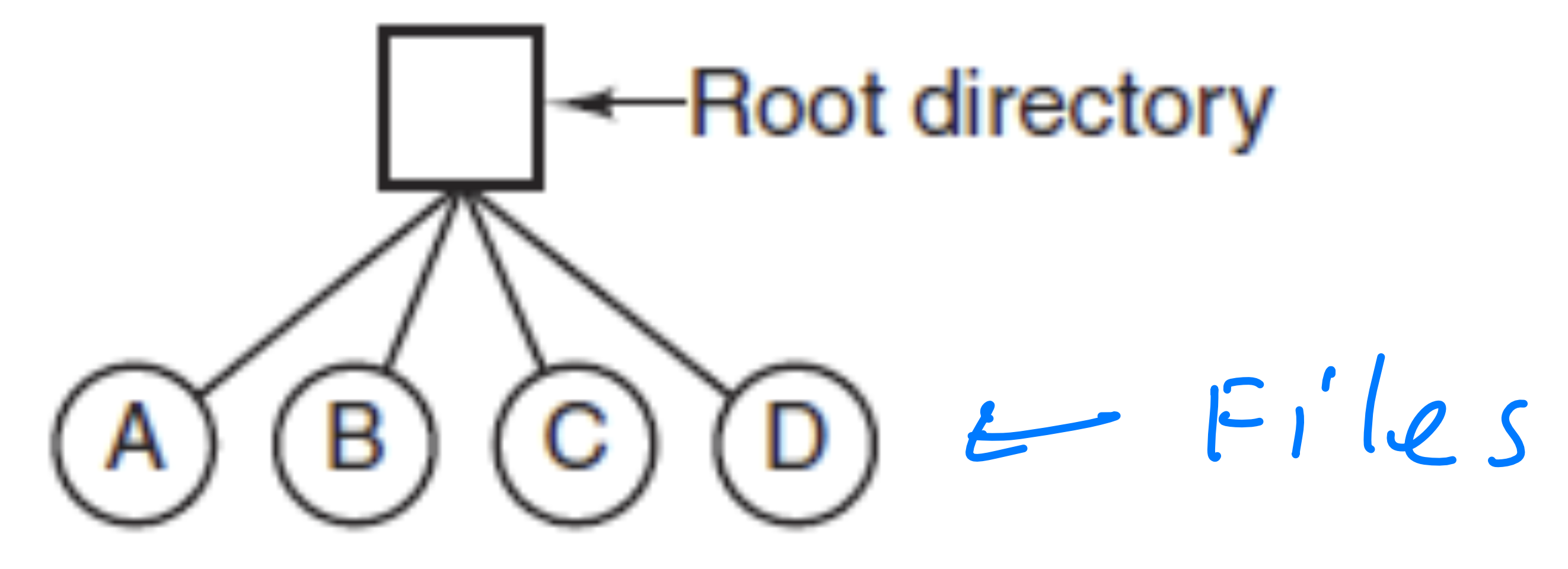
- Pros: Very simple
- Cons:
- Naming conflicts (no duplicate filenames allowed)
- Inefficient file searching with many files
2. Two-Level Directory
- Extension of single-level that gives each user their own directory
- Consists of:
- Master File Directory (MFD) - separates users
- User File Directory (UFD) - contains directories for each user
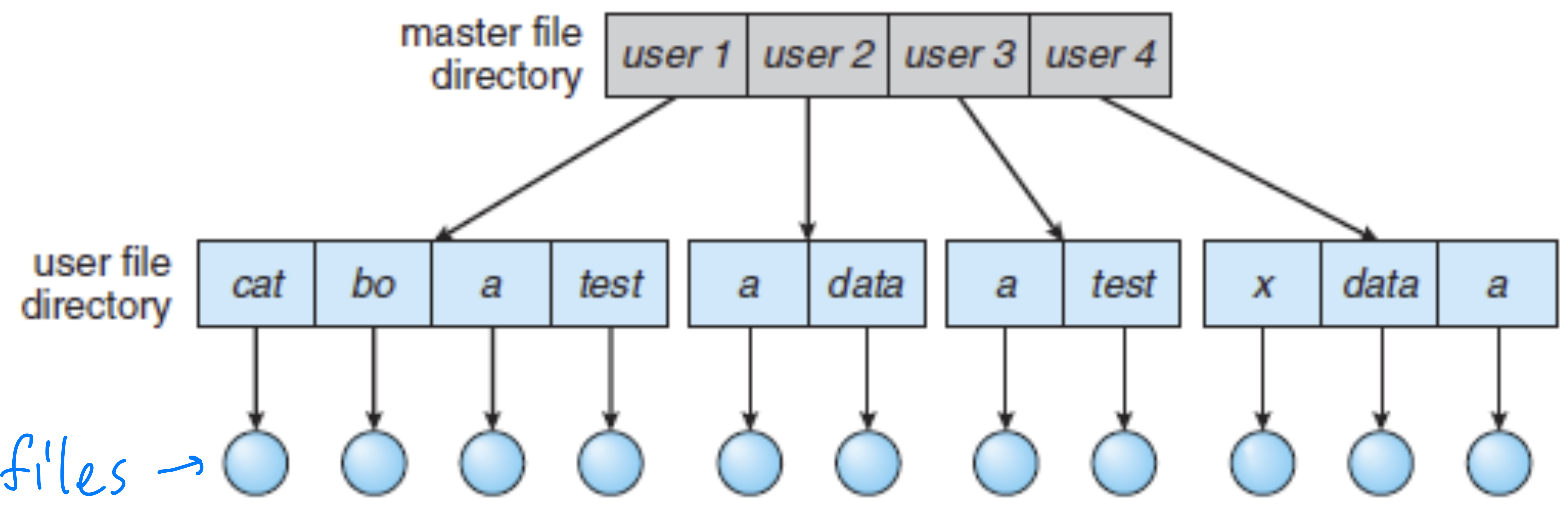
- Can be visualized as a tree of height 2
- Pros: Solves naming conflicts between users
- Cons: Isolates users (no access to others' files)
3. Tree-Structure Directory
- Directory structure with arbitrary levels (commonly used today)
- Key features:
- Each user has their own directory
- Users can create subdirectories freely
- Each file has a unique path name
- Users can access directories/files of other users
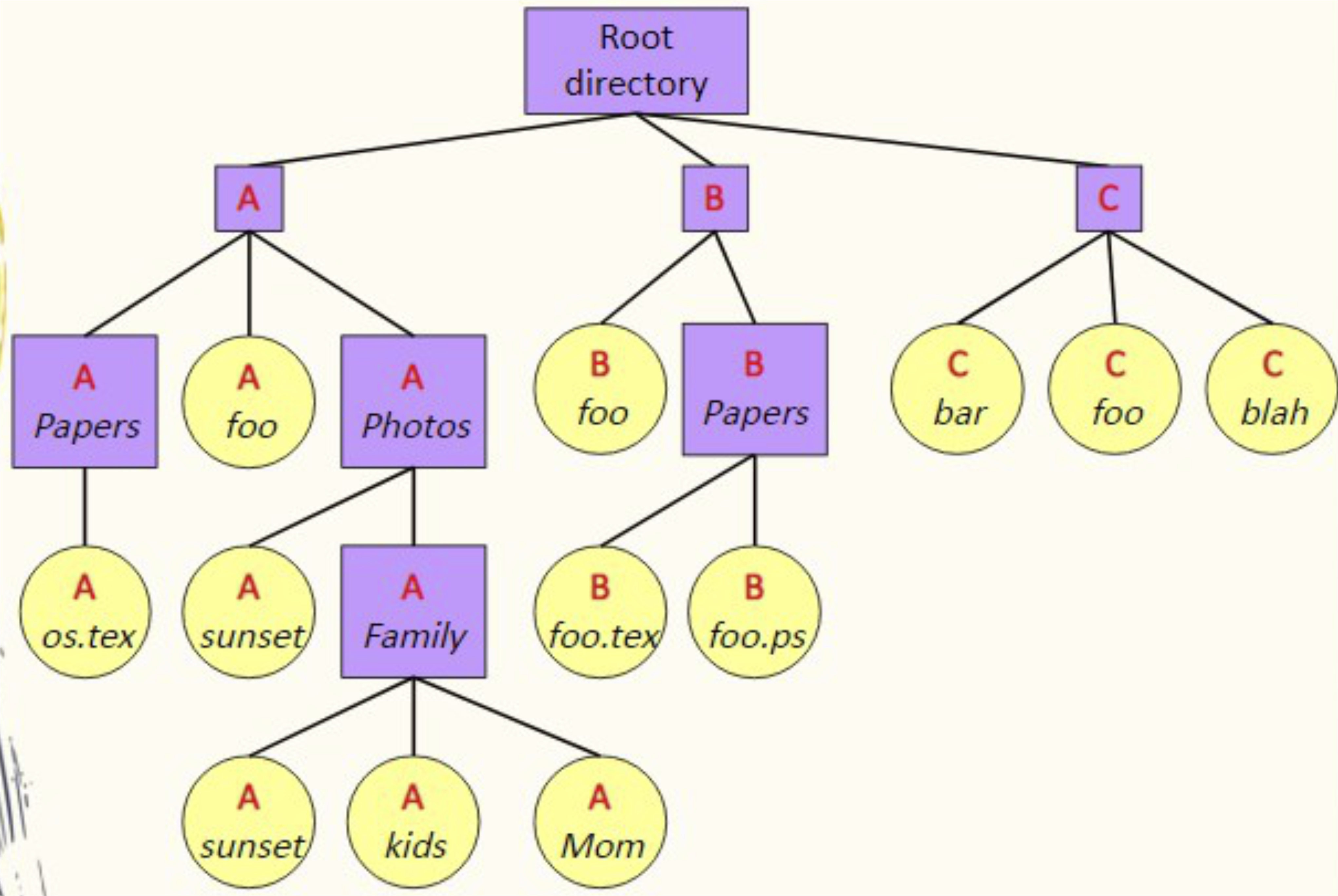
This is similar to the hierarchical file system in macOS, where you have your home folder with subdirectories for Documents, Downloads, etc.
4. Acyclic-Graph Directory
- Allows shared directories or files (similar to Google Drive)
- Key features:
- Shared items appear in multiple locations simultaneously
- Only one instance exists - changes are visible everywhere
- Not the same as copying
- Multiple path names to the same file/directory
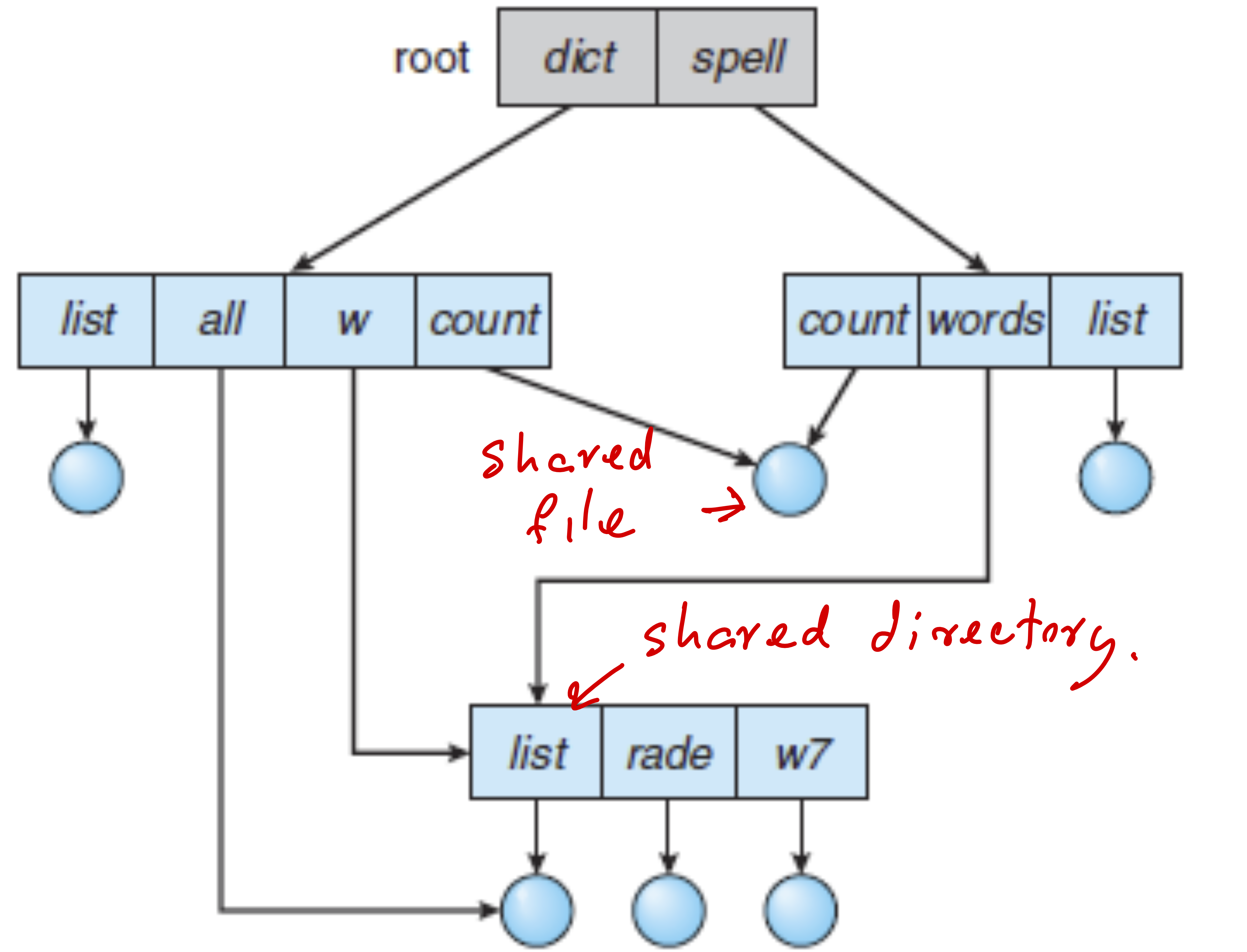
In macOS, this is like creating aliases to files or using symbolic links in Terminal
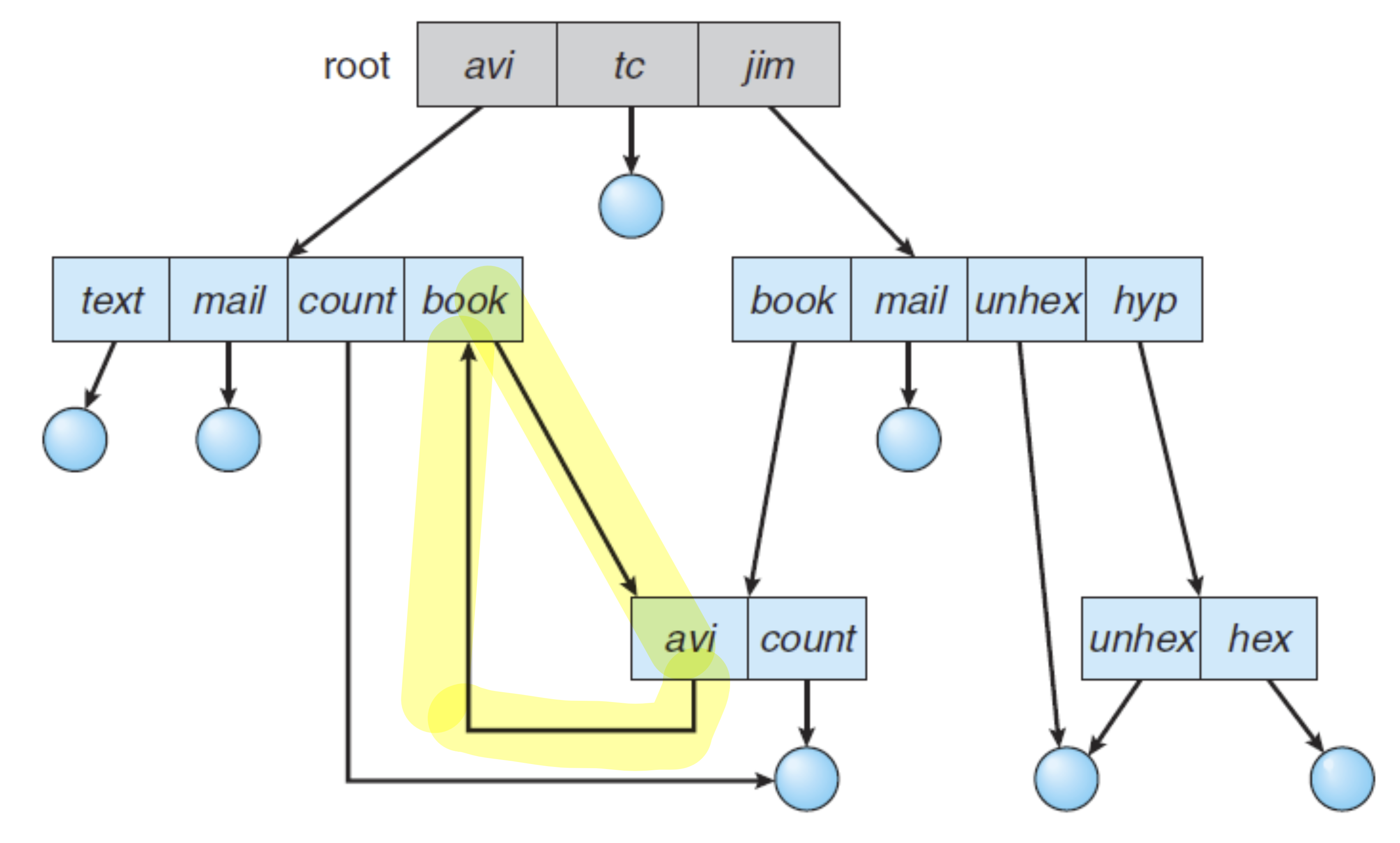
5. General-Graph Directory
- Tree structure that allows cycles in the directory structure
- Example: directory "book" contains "avi" which contains "book"
- Challenge: Can create infinite loops during searches
- Solution: Limit the number of directories accessed during searches
Path Names
A path name identifies a file's location in the file system:
Absolute Path Name
- Begins at the root and follows a complete path to the file
- Unix example:
/A/Papers/os.tex - Windows example:
C:\A\Papers\os.tex
In macOS (Unix-based), paths use forward slashes, while Windows uses backslashes
Relative Path Name
- Defines a path from the current directory to the file
- Example: If current directory is
/A, the relative path to a file would bePapers/os.tex
Protection
Protection mechanisms allow multiple users to safely share computer systems by controlling who can access files/directories and what actions they can perform.
Access Permissions
We can set permissions on:
- Who can access our files or directories
- What actions they can perform
Types of File/Directory Access
Users can be granted permission to:
- Read: View the file contents
- Write: Modify the file
- Execute: Run the file as a program
- Append: Add data to the end of the file
- Delete: Remove the file
- List: View file name and attributes
Access Control Categories
Many operating systems (like macOS and Linux) classify users into three types:
- Owner: The user who created the file/directory
- Group: Users who belong to the same group as the owner
- Universe/Others: All other users not in the owner's group
In macOS, you can view and modify these permissions by selecting a file in Finder, pressing ⌘+I (Get Info), and expanding the "Sharing & Permissions" section
Unix/Linux Permission System
In Unix-based systems (including macOS), permissions are represented by a string of characters:
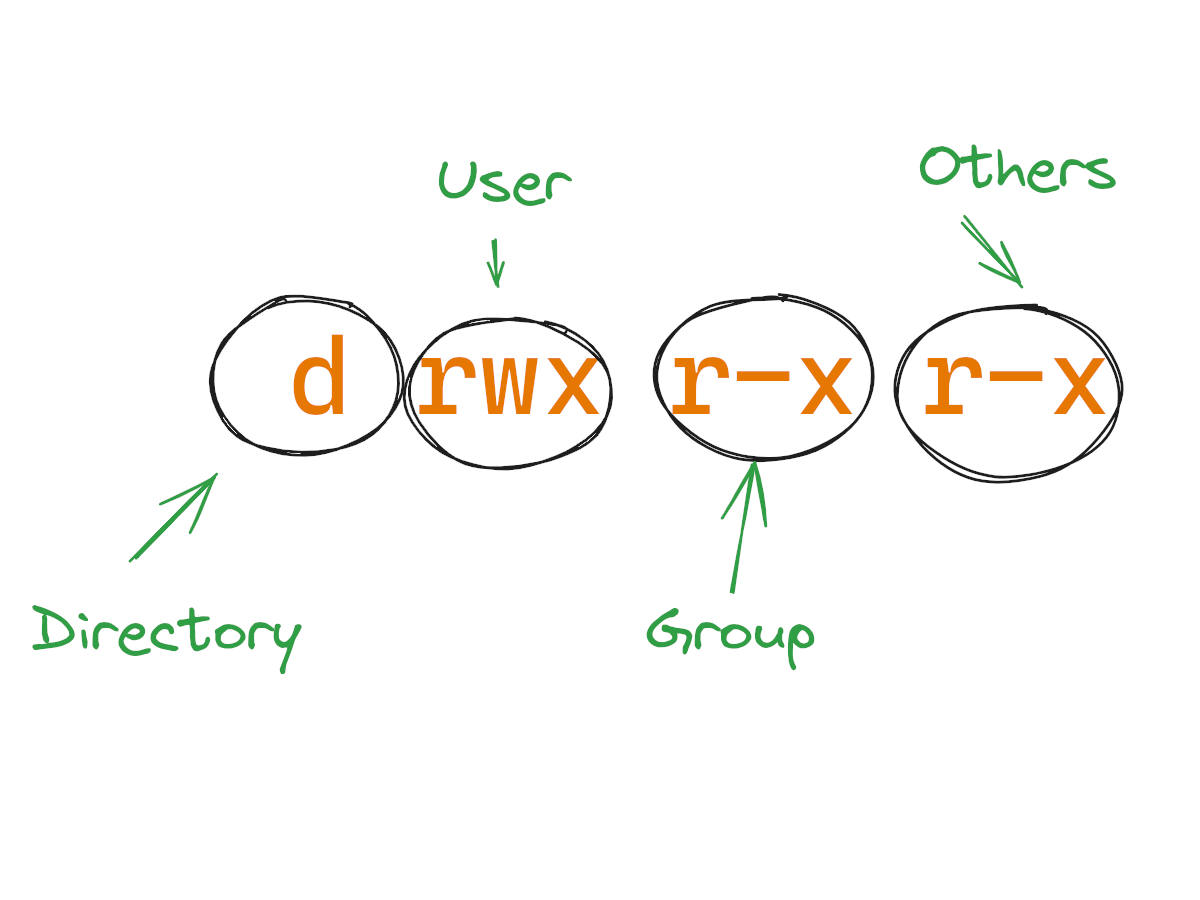
The permission string breaks down as:
- First character: File type (
dfor directory,-for regular file) - Next three characters: Owner permissions
- Middle three characters: Group permissions
- Last three characters: Universe/Others permissions
For each category, permissions are represented as:
r: Read permissionw: Write permissionx: Execute permission-: No permission
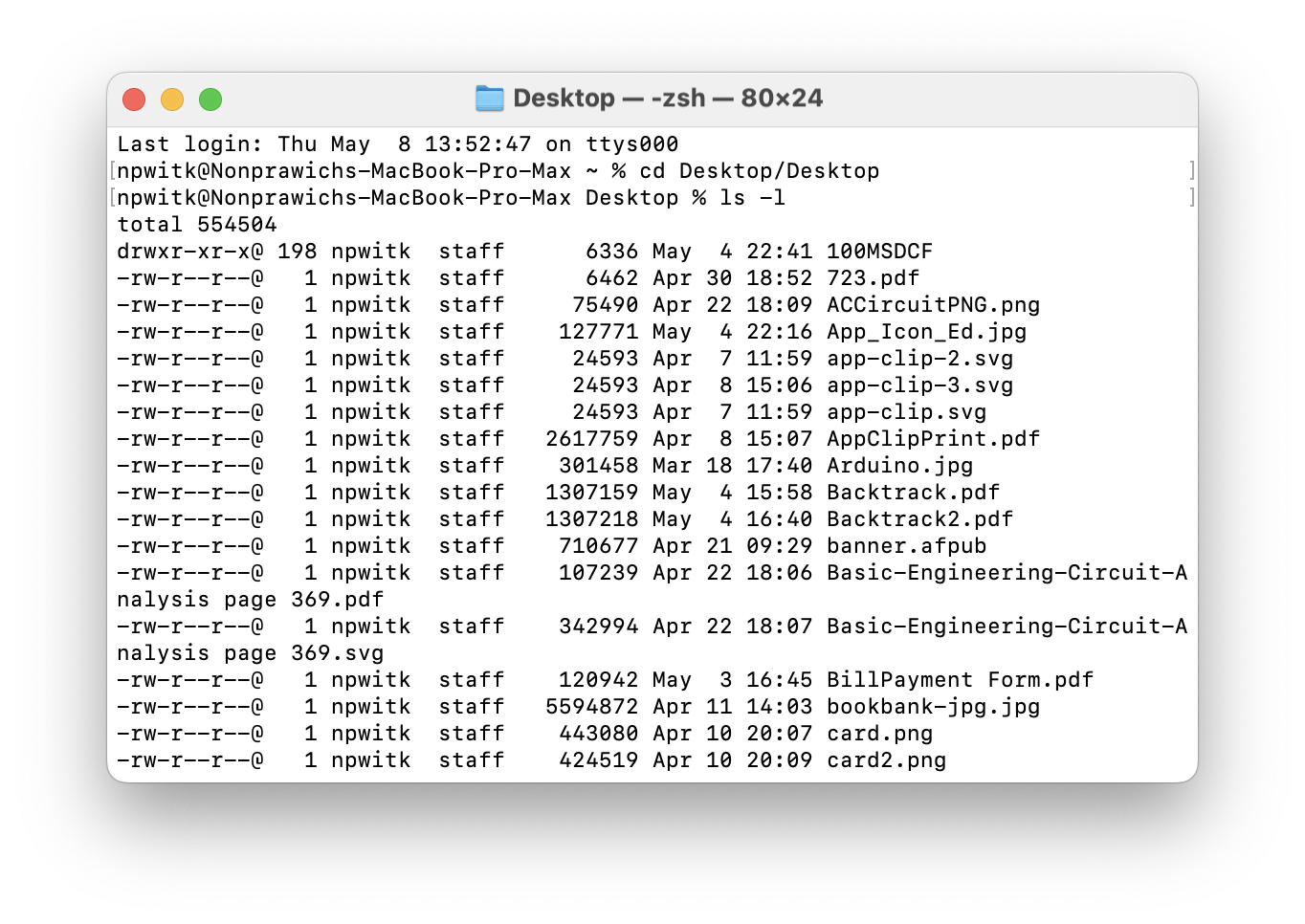
Permission Example
For the permission string: → This breaks down as:
- Owner permissions (rwx):
- Read: Yes
- Write: Yes
- Execute: Yes
- The owner has full permissions
- Group permissions (rw-):
- Read: Yes
- Write: Yes
- Execute: No
- Group members can read and write but not execute
- Universe/Others permissions (r--):
- Read: Yes
- Write: No
- Execute: No
- Other users can only read the file
File-System Implementation
#FinalExam (Very important, Homework)
Important
This section addresses two critical questions:
- How are files stored in physical devices?
- How does the system track file locations?
Hard Disk (Magnetic Disk) Structure
A hard disk consists of several platters with surfaces covered in magnetic material. Information is stored magnetically and read by detecting the magnetic patterns.
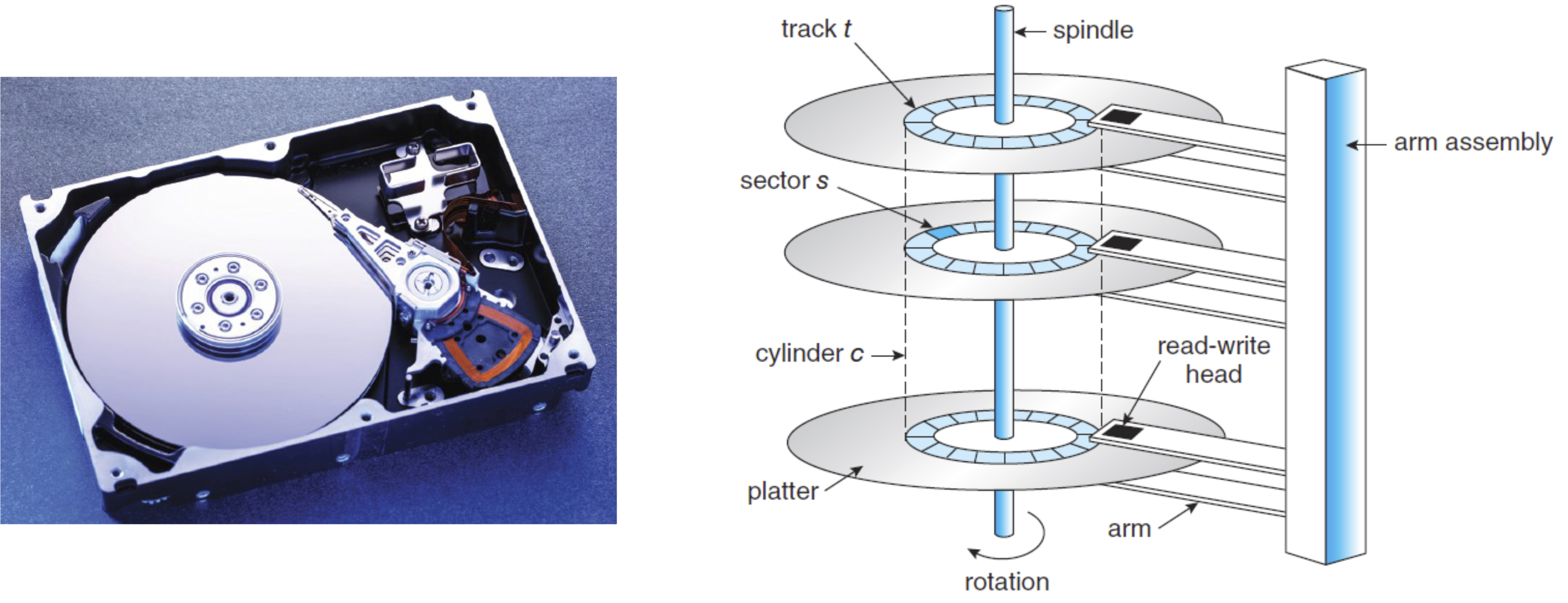
Key components:
- Read-write heads that "fly" just above each platter surface
- Disk arm that moves all heads as a unit
- Tracks: Circular divisions on platter surfaces
- Sectors: Subdivisions of tracks
- Cylinders: Set of tracks at a given arm position
The smallest unit of transfer is a sector (historically 512 bytes, now often 4KB).
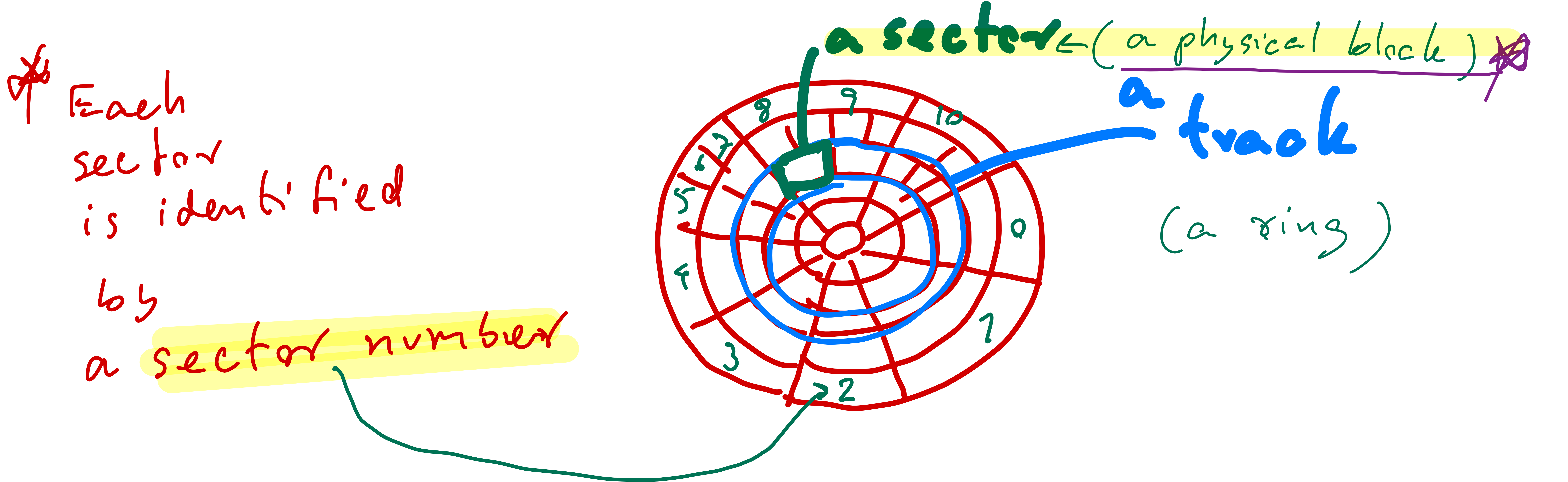
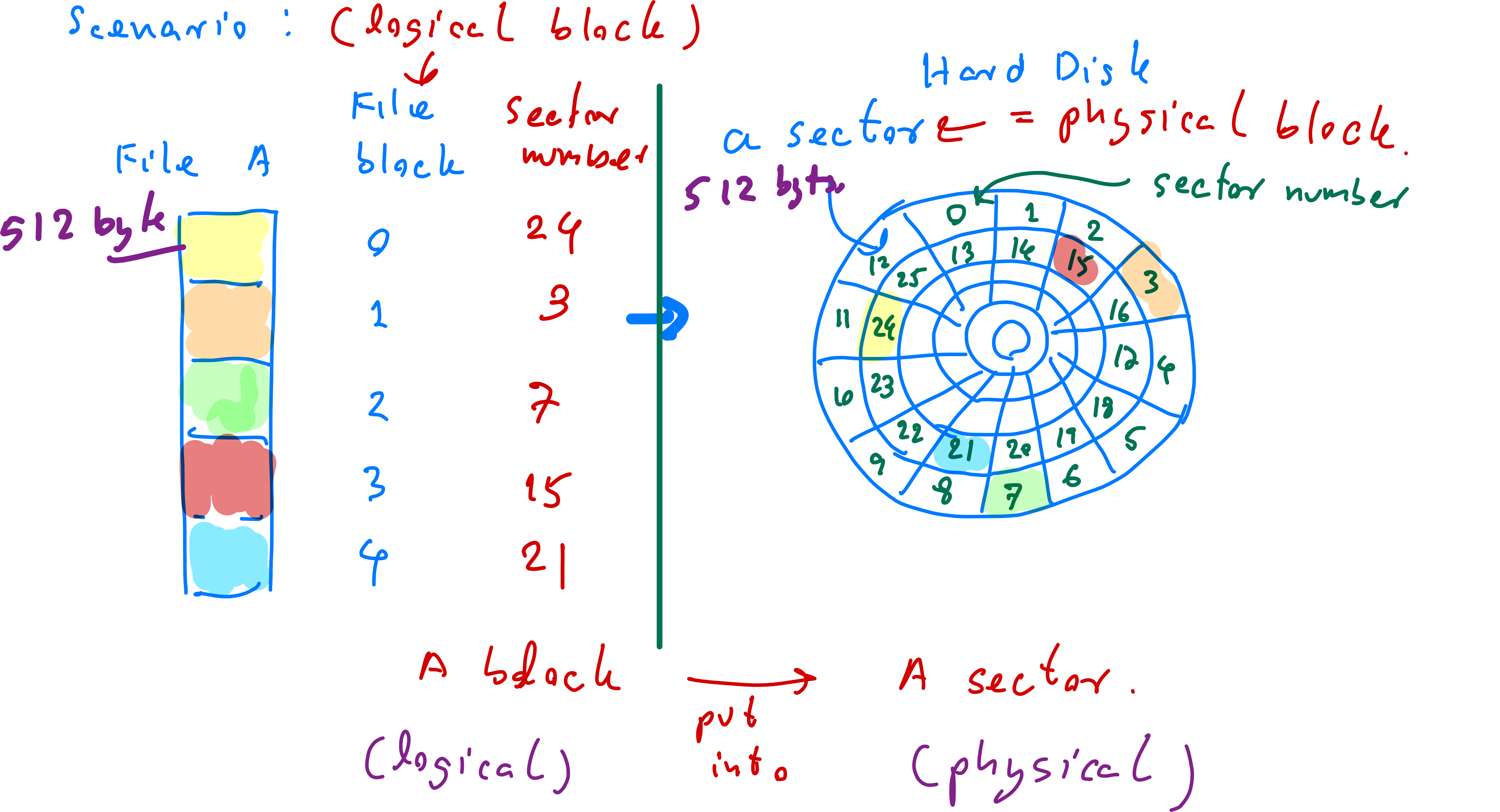
Implementing Files: Basic Concept
- Files are divided into equal-sized data blocks → อันนี้เคยบอกไปแล้วด้านบน
- Hard disks are divided into equal-sized sectors (physical blocks)
- Data block size equals sector size
- Implementation involves mapping file blocks to disk sectors and keep tracking their locations
Implementing Files: Four Approaches
- Contiguous allocation
- Linked-List Allocation
- Linked-List Allocation Using a Table in Memory
- I-nodes
2, 3 ,4 Data ไม่ต้อง store ด้วยกัน separately ได้
1. Contiguous Allocation
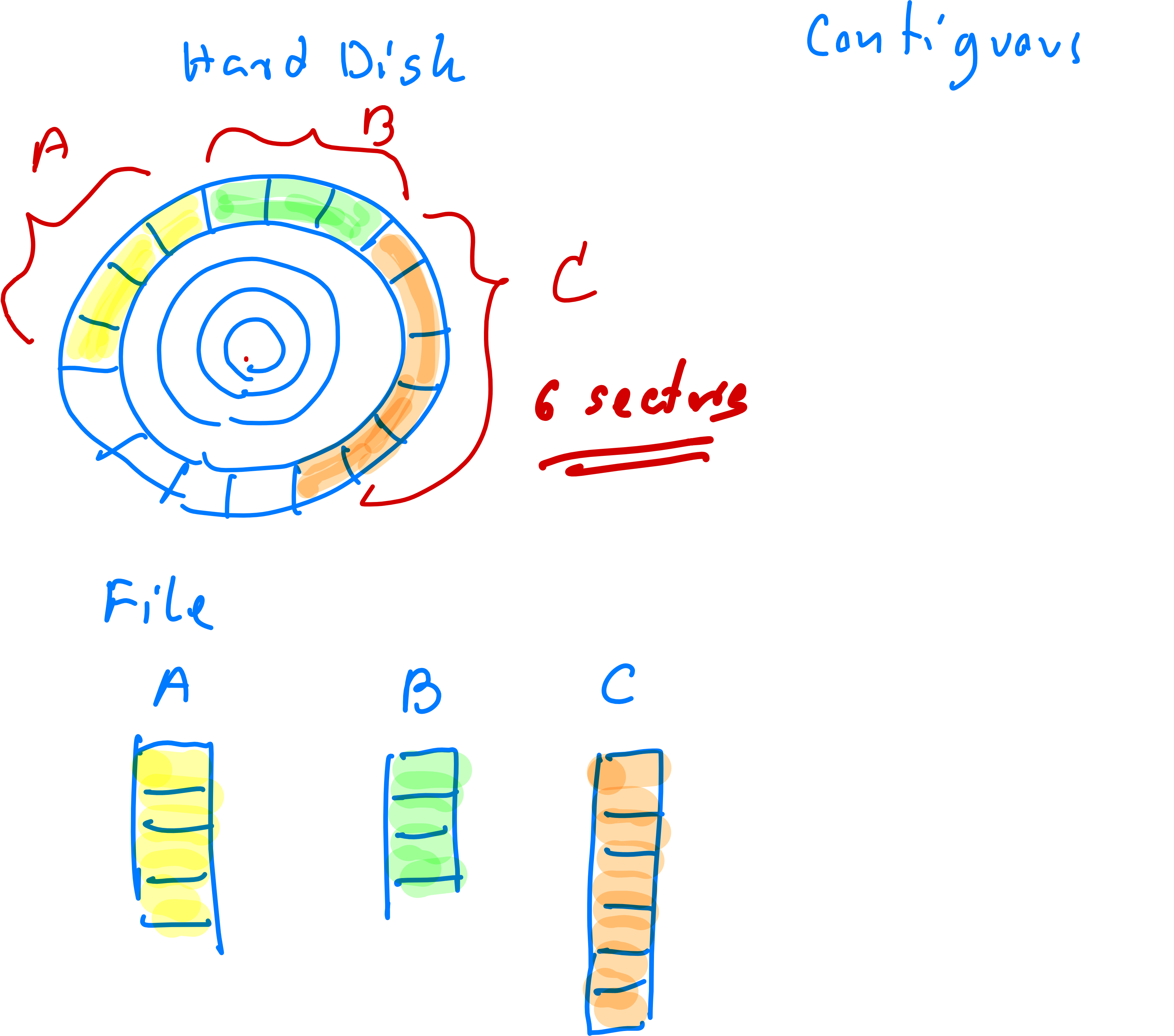
- In this approach, all data blocks of a file are stored next to each other in consecutive sectors.
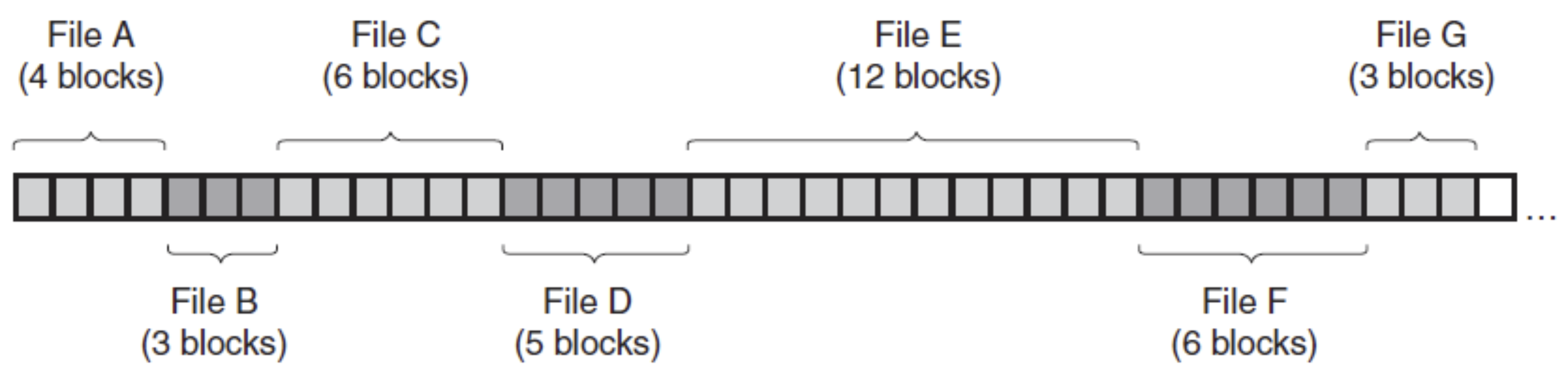
- Drawback: Disk becomes fragmented when files are deleted, creating "holes" of unused space.

2. Linked-List Allocation
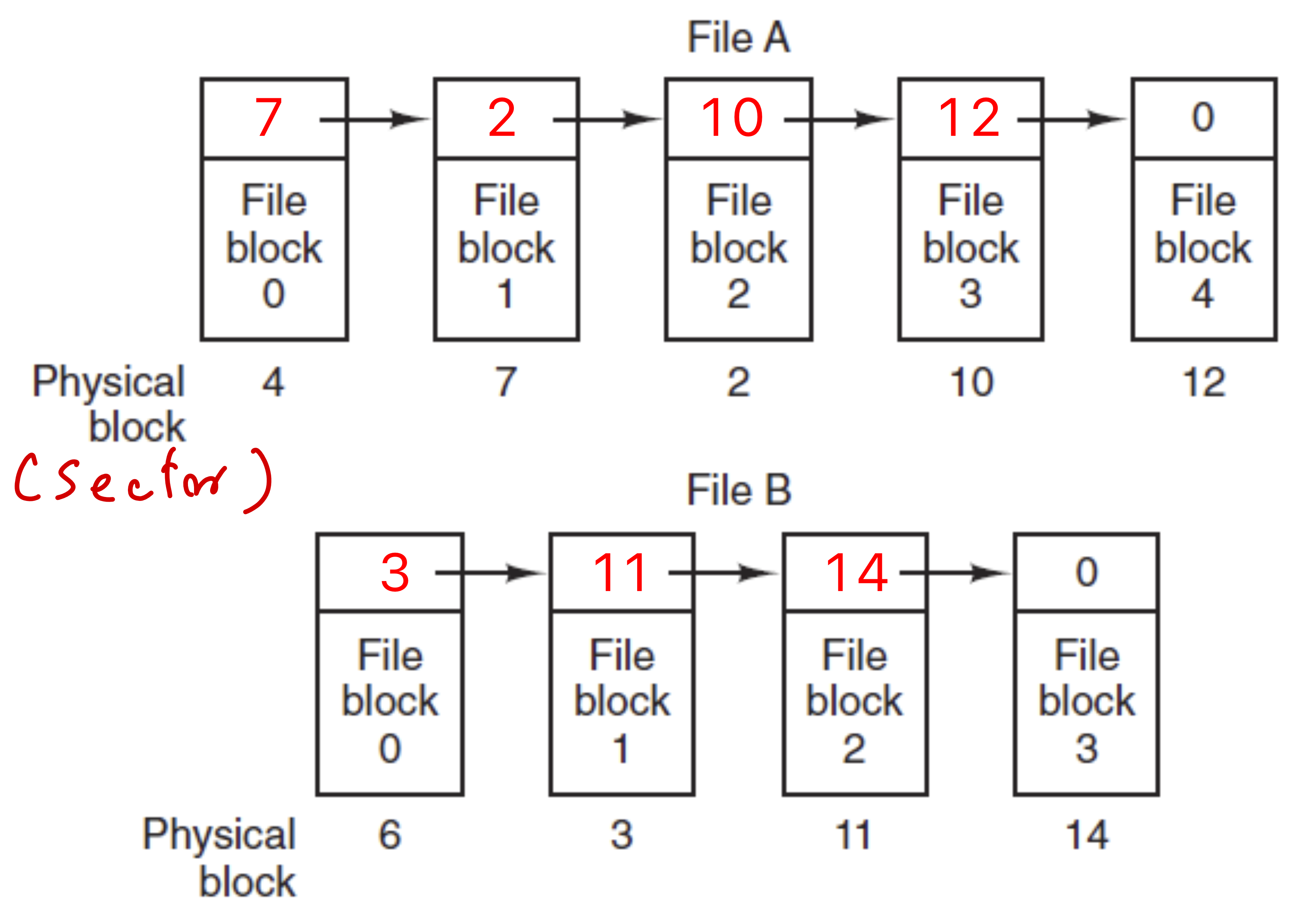
Each file is stored as a linked list of disk blocks:
- The first word of each block contains a pointer to the next block
- Remaining space holds actual data
- Data blocks can be stored in any sectors (non-contiguous)
For example:
- File A consists of 5 blocks stored in sectors 4, 7, 2, 10, 12
- File B consists of 4 blocks stored in sectors 6, 3, 11, 14
Note:
- A value of 0 marks the end of a file
- The starting sector number must be known
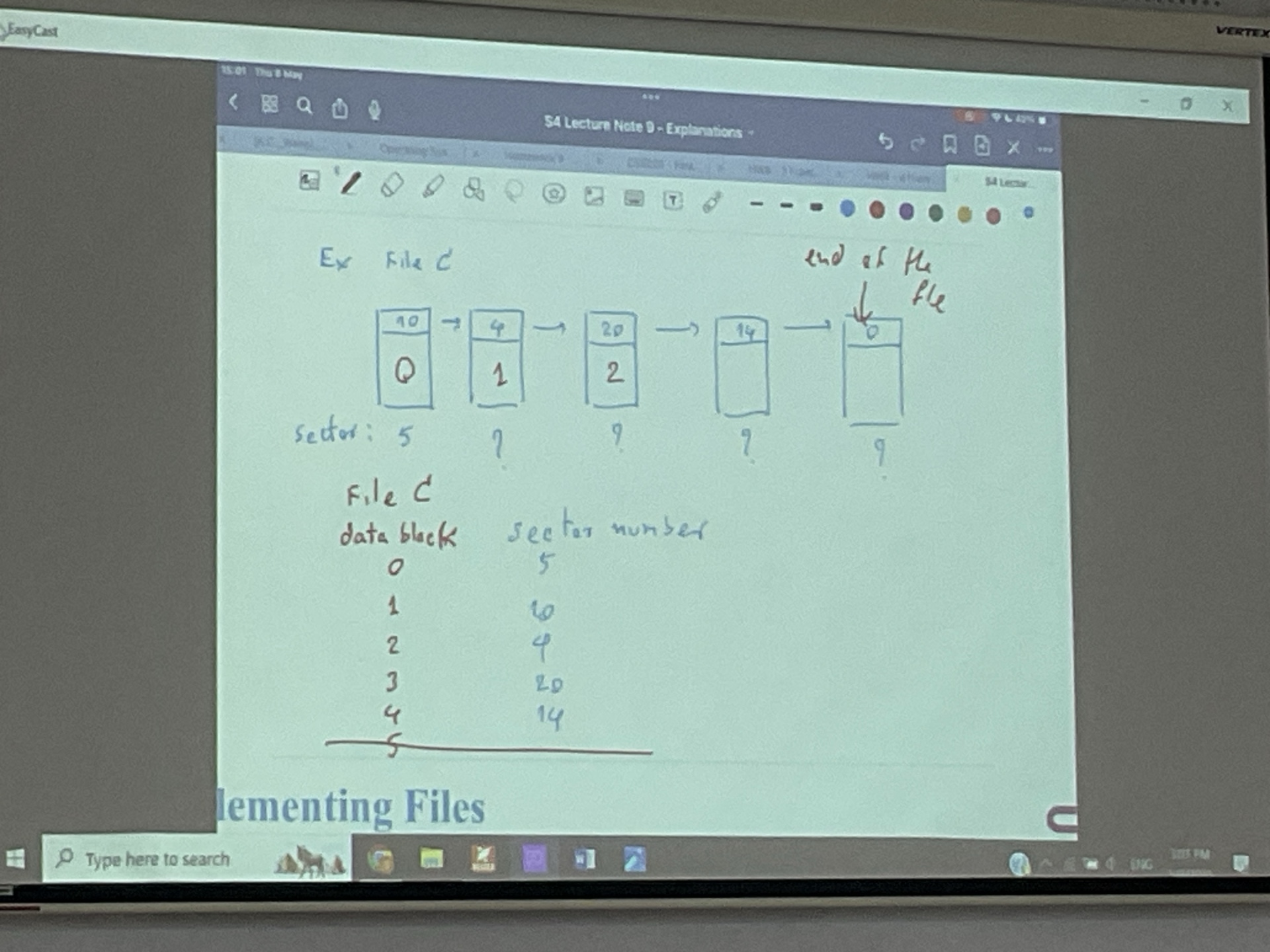
No extra table is needed since the location information is embedded within each sector
3. Linked-List Allocation Using a File Allocation Table (FAT)
ไม่ว่าจะมีกี่ File จะอยู่ใน Table เดียว (All files in the system are tracked in a single table, unlike the previous approach)
This method uses a File Allocation Table (FAT) stored in main memory:
- Table has one entry per disk block
- Each entry points to the next block in a file
- Contains the disk block numbers (sector numbers)
- A value of -1 indicates the end of a file
แล้วในตารางใส่อะไรล่ะ = A number in the second column specifies the next physical block (= sector number) number to read for a file.
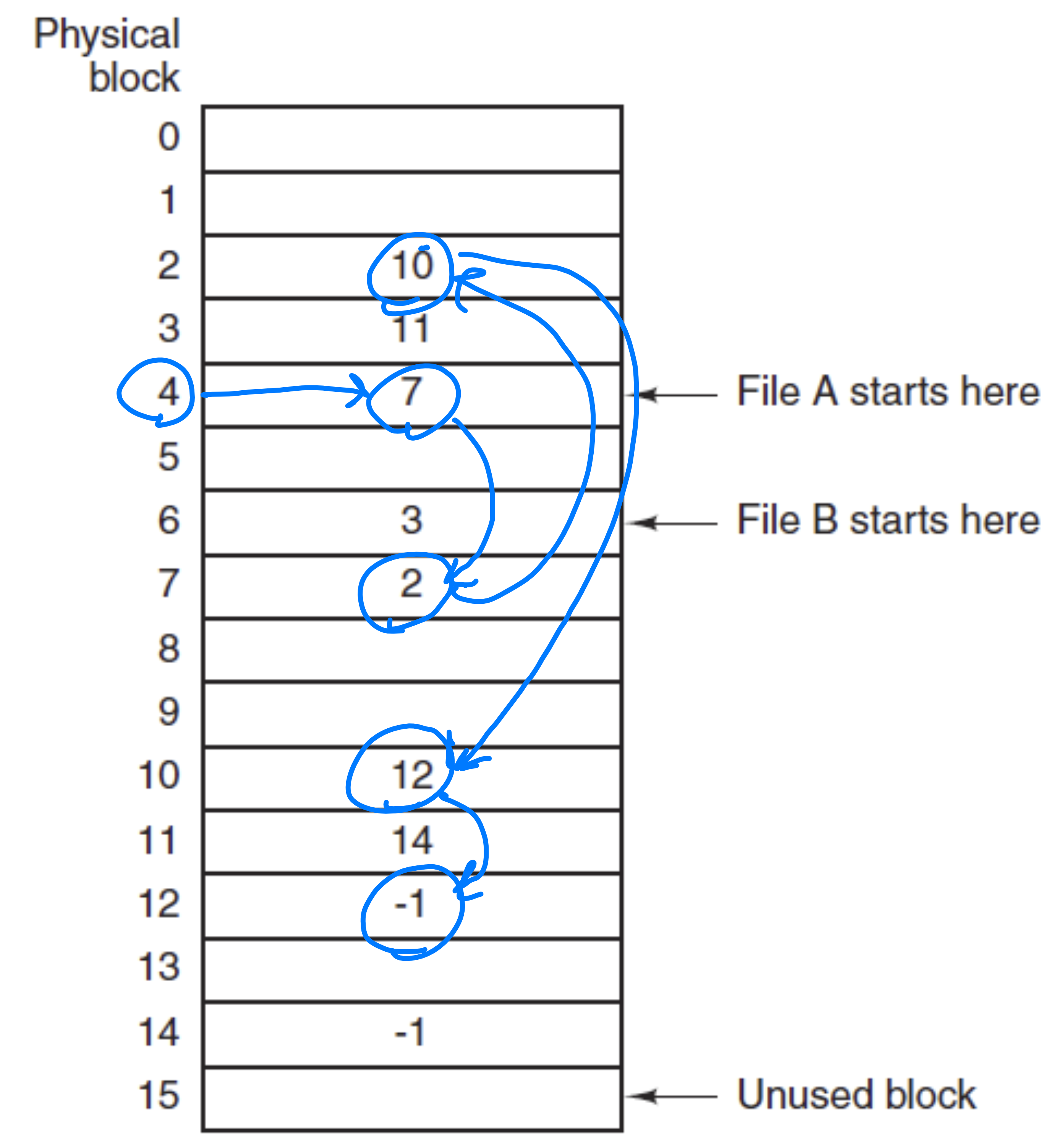
For example, File A would be traced as:
4. I-nodes (Index Nodes)
This method creates a separate table called an index-node (i-node) for each file:
- Contains file attributes and disk addresses of file blocks
- Each row after attributes points to the location of a corresponding data block
- I-nodes are stored on disk
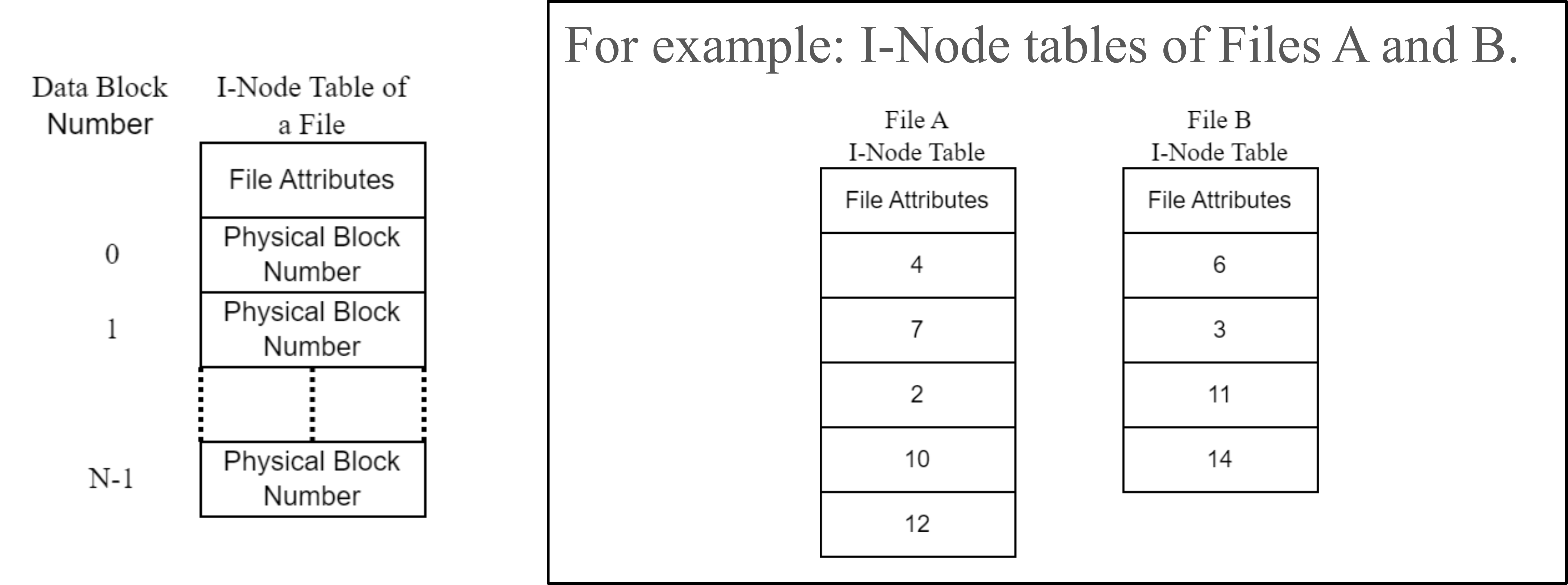
If a system has 100 files, it will have:
- 1 File Allocation Table (if using FAT method) — อันนี้จะอยู่ใน Main Memory
- 100 I-node tables (if using I-node method) — อันนี้อยู่ใน Disk อย่าลืมเชียวว
macOS (and other Unix-based systems) uses a variant of the i-node approach for its file system
Implementing Directories
A directory is a special file containing a list of all files within it. Directory content varies based on allocation method:
- Contiguous allocation: Lists file names, starting blocks, and lengths
- Linked-list allocation: Lists file names, starting blocks, and ending blocks
- I-node allocation: Lists file names and blocks storing their i-node tables
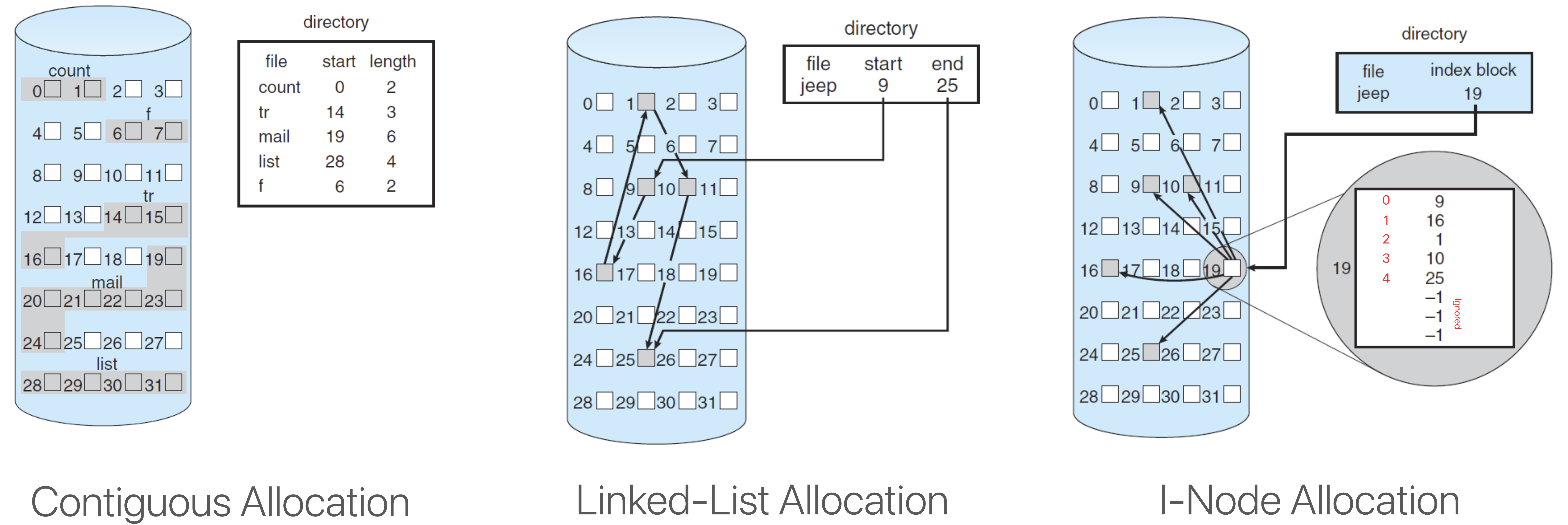
Note: A value of -1 indicates absence of a data block
Question
ถามอาจารย์ว่า Contiguous Allocation ก็ไม่ได้จำเป็นว่าแต่ละไฟล์ต้องติดกัน แต่แค่ Content ข้างในต้องติดกันใช่มั้ย
Free-Space Management
Which sector number in the disk are free, wish sector are occupied?
Since disk space is limited, systems need to reuse space from deleted files:
- A free-space list tracks all unallocated disk blocks
- When creating files, space is allocated from this list
- When deleting files, space is returned to this list
Bit Vector Implementation
Free space is commonly tracked using a bit map or bit vector:
- Each physical block is represented by 1 bit
- If block is free: bit = 1
- If block is allocated (not free): bit = 0
This approach efficiently finds the first free block or consecutive free blocks.
Example
- If blocks 2, 3, 4, 5, 8, 9, 10, 11, 12, 13, 17, 18, 25, 26, and 27 are free:
- The bit map would be:
- ตัวแรกก็ Sector 0, 1, 2 ไปเรื่อย ๆ ต้องนับเองนะ!
Input and Output (I/O) System
- เคยเป็น Lecture 10 มาก่อน!
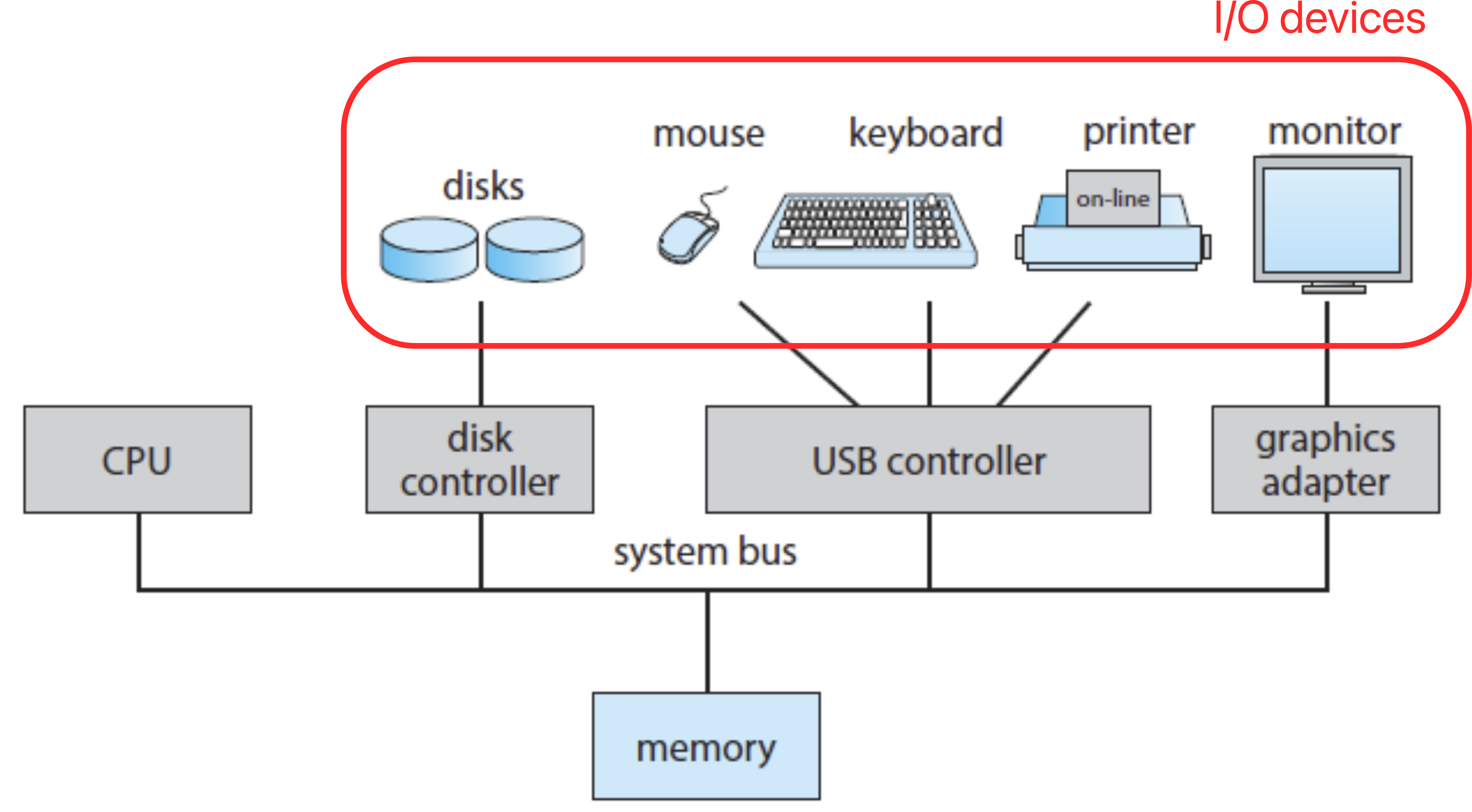
1. Computer System and I/O Hardware
A computer system consists of:
- One or more CPUs
- Device controllers
- A common bus providing access to shared memory
- Connected I/O devices
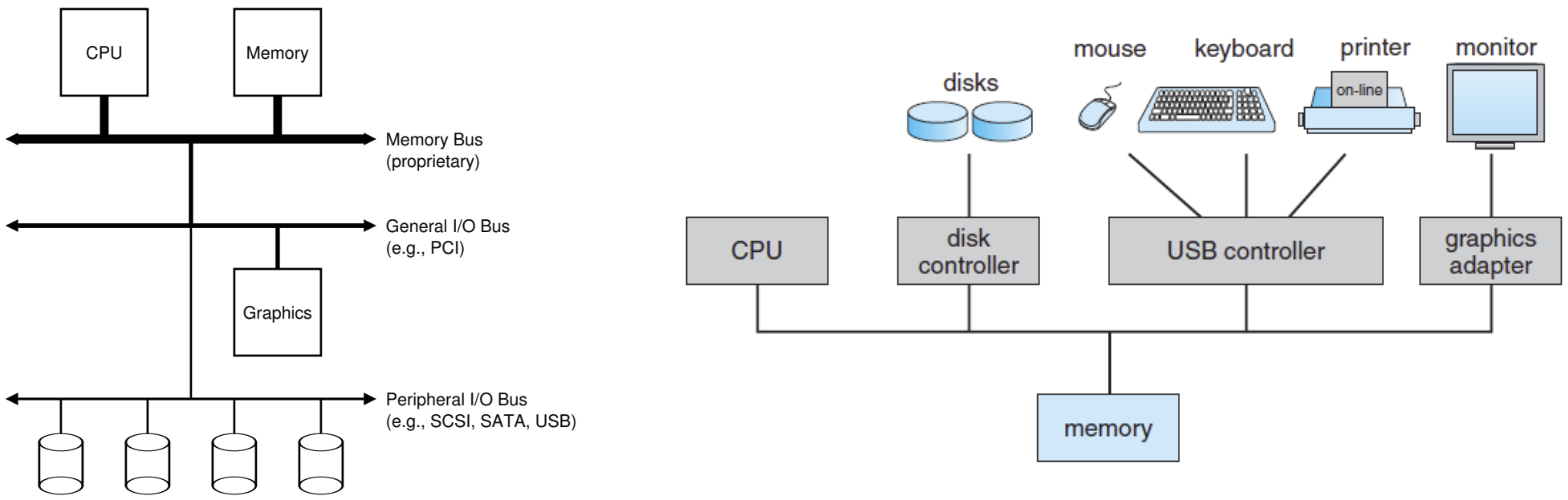
I/O Devices Classification:
- Storage devices (disks, SSDs)
- Transmission devices (network cards, wireless adapters)
- Human-interface devices (screen, keyboard, mouse)
- Others
I/O Connection Methods:
- Via ports (serial or parallel)
- Via buses
Three Main Bus Types:
- PCI (Peripheral Component Interconnect): Connects high-speed, high-bandwidth devices
- Expansion bus: Connects slower devices (keyboard, USB ports)
- SCSI (Small Computer System Interface): Connects SCSI devices to a controller
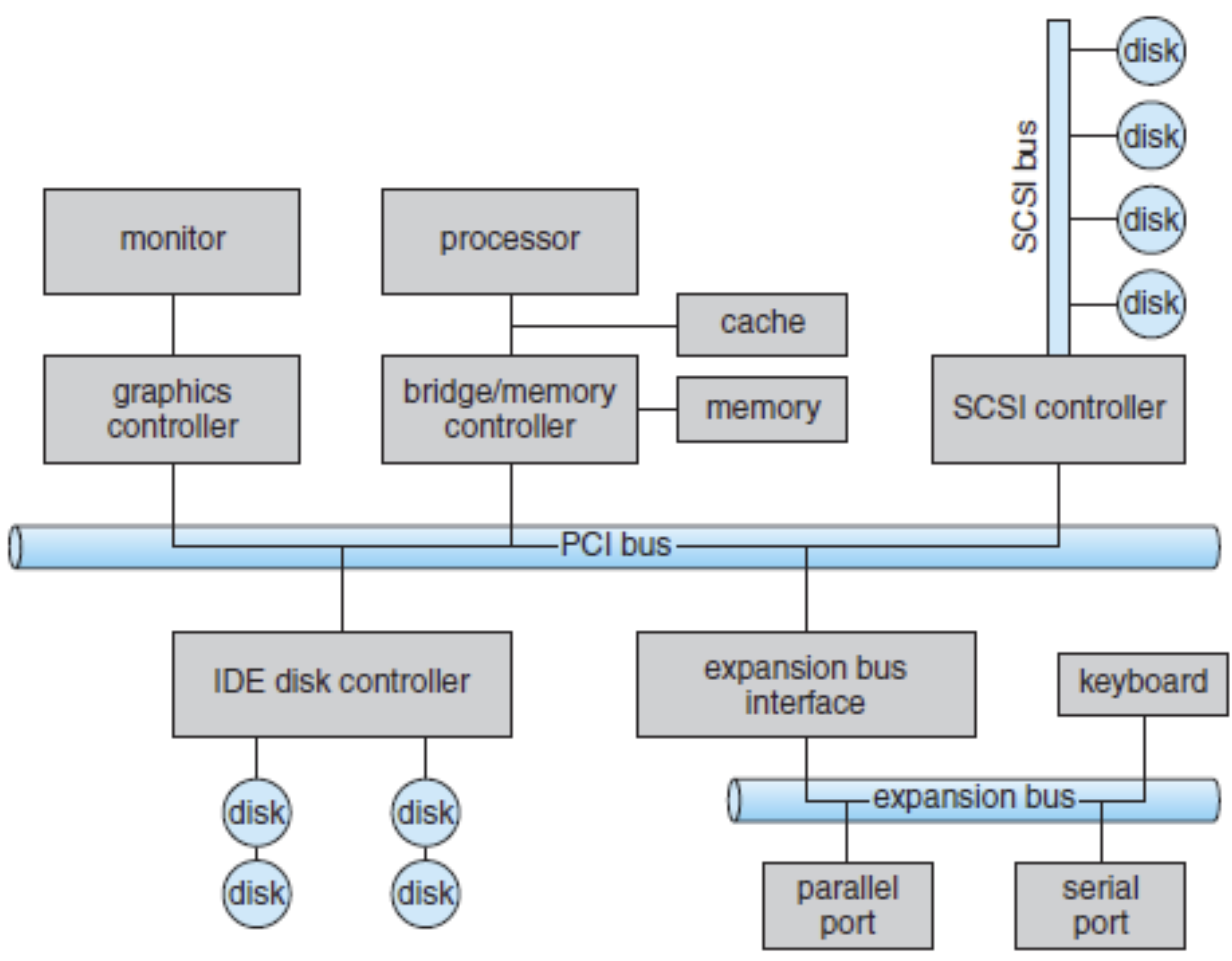
In modern Apple devices, Thunderbolt and USB-C are examples of high-speed buses that connect various devices to Macs
2. Layers of I/O System
The I/O system is organized in layers:
App Program ↔ I/O Subsystem (OS Kernel) ↔ Device Drivers ↔ Device Controller (Hardware) ↔ Bus/Port ↔ Devices
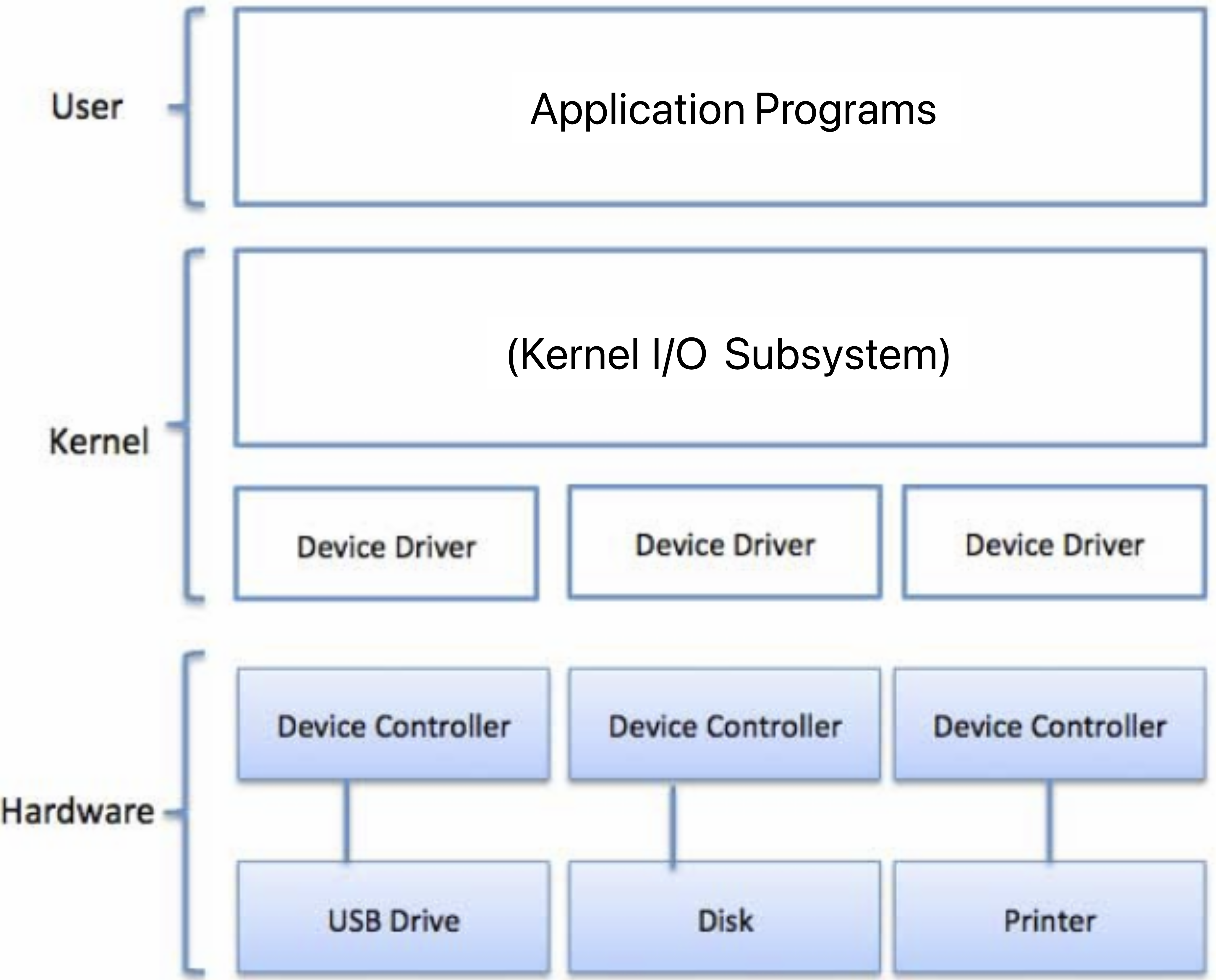
2.1 Device Driver
A device driver is software that enables a computer to communicate with new hardware devices:
- Written using I/O system calls provided by the OS (read(), write(), etc.)
- Makes I/O subsystem independent of specific devices
- Acts as an interface between application programs and devices
When you connect a new printer to your Mac, the system either uses built-in drivers or prompts you to install specific drivers for that device
2.2 Device Controller
A device controller is an electronic component operating a port, bus, or device:
- Data-in register: Read by CPU to receive input
- Data-out register: Written by CPU to send output
- Status register: Contains bits indicating states (busy, free, error)
- Control register: Written by CPU to issue commands (read, write)
3. Basic I/O Operations
The basic I/O interaction involves:
CPU ↔ Device Controller ↔ Device
Two primary methods of I/O operations:
- Polling-based I/O:
- CPU continuously checks (busy-waits) for device readiness
- Inefficient use of CPU resources
- Interrupt-driven I/O:
- Device controller signals CPU when ready
- CPU can perform other tasks while waiting
- More efficient use of CPU resources
เหมือนที่ได้เรียนใน 08 - AVR Interrupt Programming
5. Categories of I/O Devices
I/O devices can be categorized in several ways:
1. Data-Transfer Mode:
- Character-stream devices: Transfer one byte at a time (monitors)
- Block devices: Transfer blocks of bytes (disks)
2. Access Method:
- Sequential devices: Transfer data in fixed order (tape drives)
- Random-access devices: Can access any location directly (SSDs, hard drives)
3. Data Transfer Schedule:
- Synchronous devices: Predictable response times (tape drives)
- Asynchronous devices: Unpredictable response times (keyboards)
4. Sharing:
- Sharable devices: Can be used by multiple processes simultaneously (monitors)
- Dedicated devices: Used by only one process at a time (tape drives)
5. I/O Direction:
- Read-write devices: Two-way communication (disks)
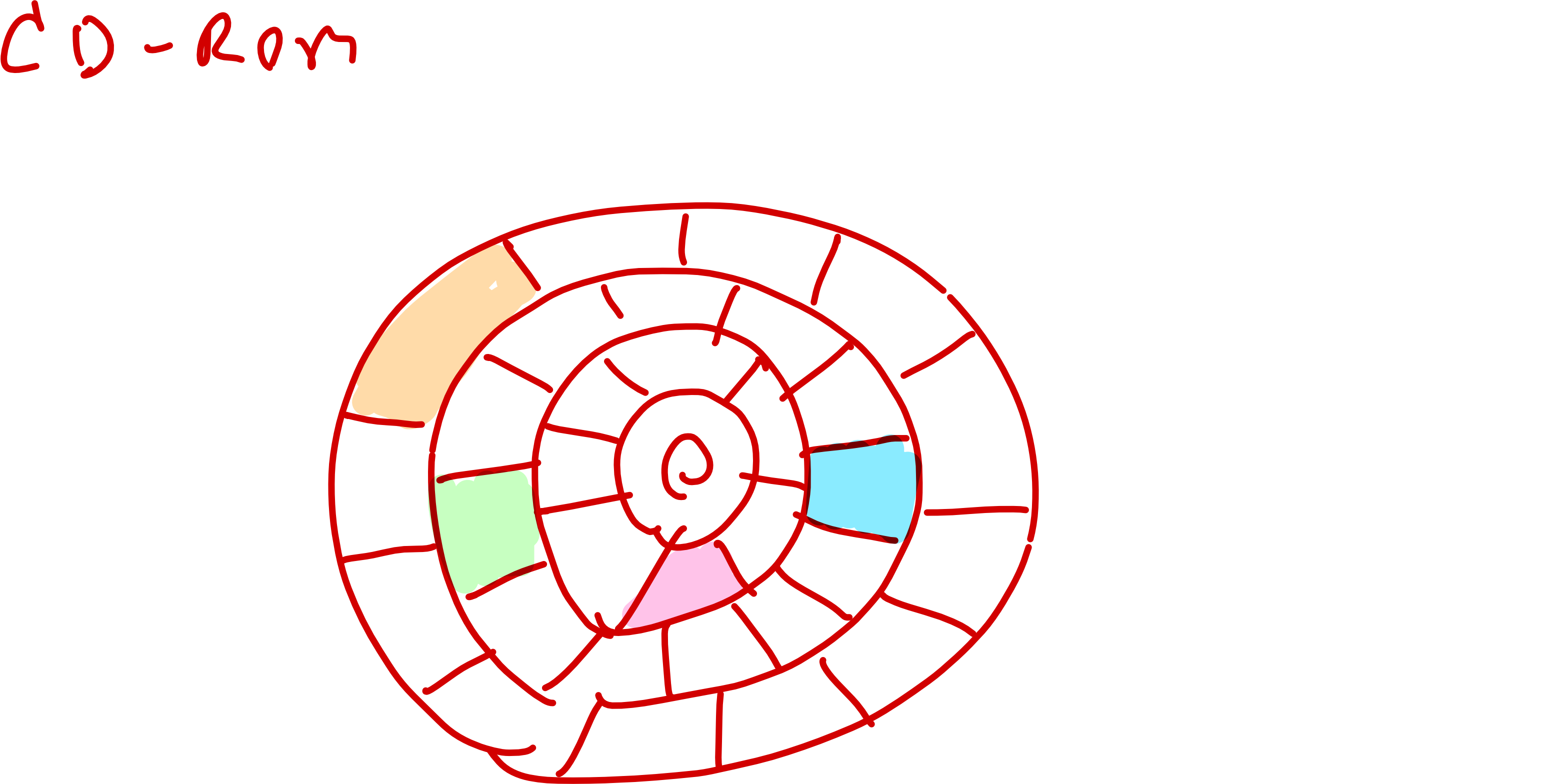
- Read-only devices: Input only (CD-ROM)
- Write-only devices: Output only (monitors)
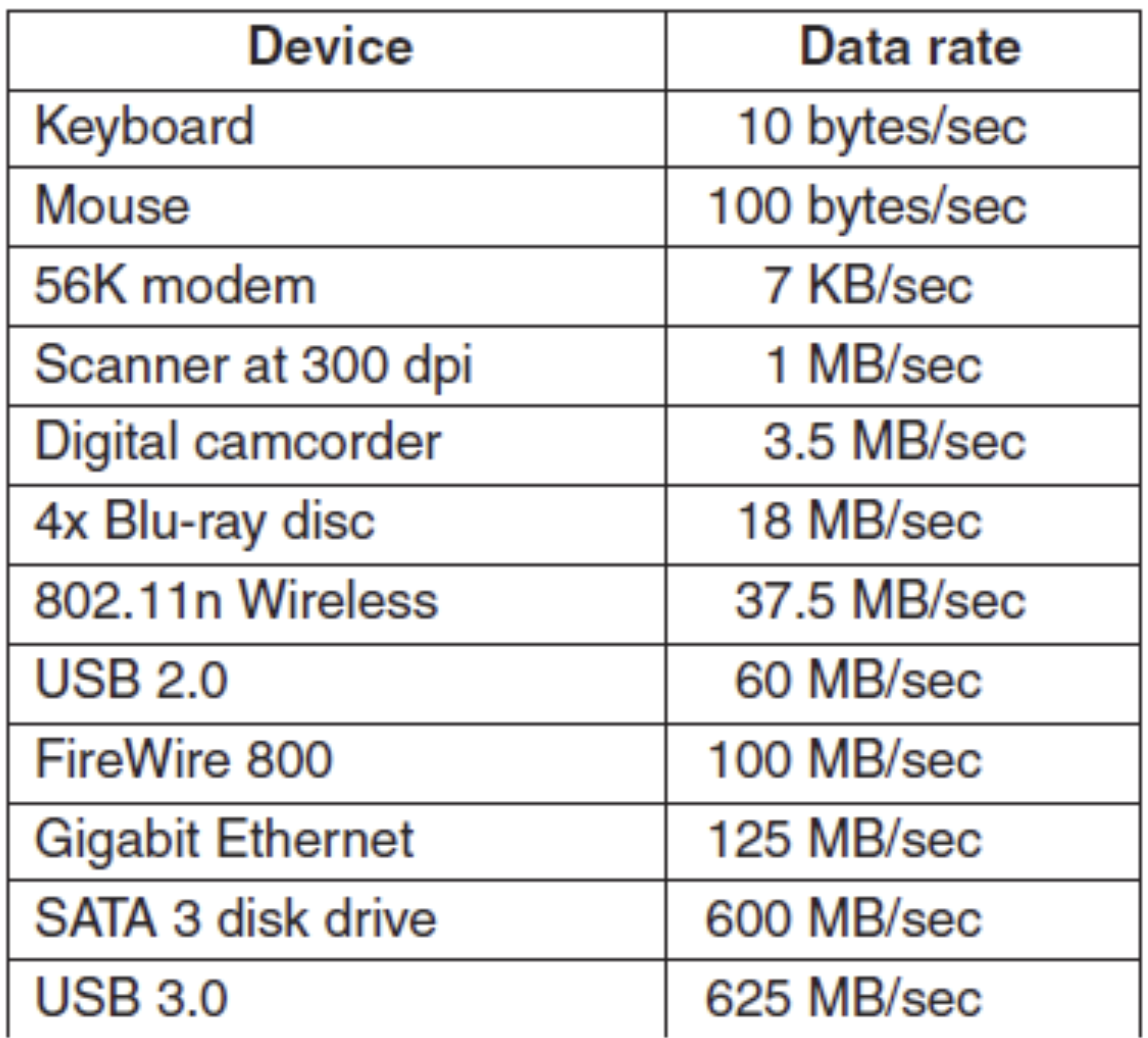
6. Device Speed:
Speeds range from a few bytes to several gigabytes per second
6. Clocks and Timers
- Computer systems use clocks and timers to:
- Provide current time
- Measure elapsed time
- Trigger operations at specific times
- A programmable interval timer:
- Measures elapsed time
- Generates interrupts to trigger operations
- Used by the CPU scheduler to manage process time slices
7. Kernel Buffering
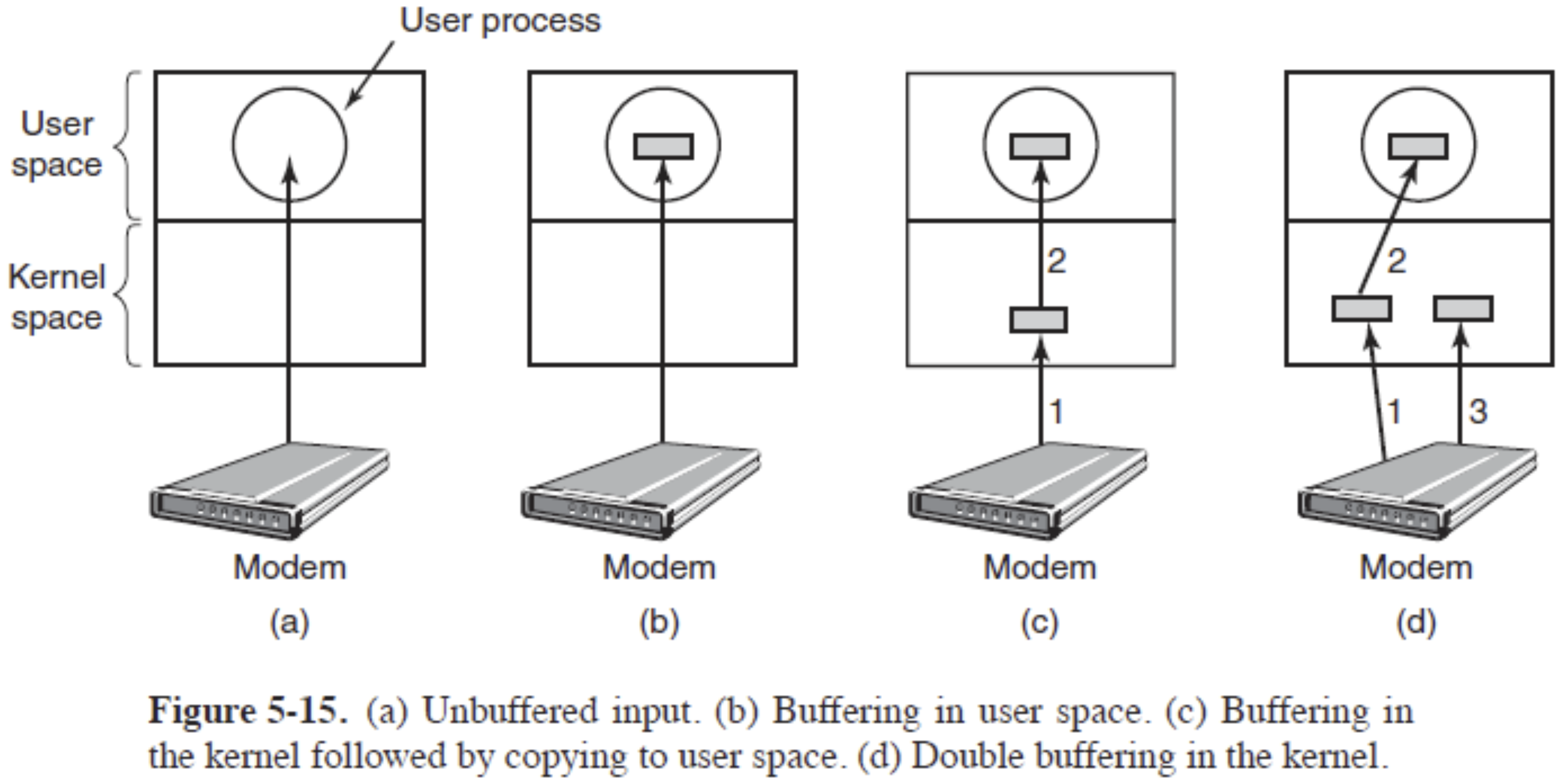
A buffer is a memory area storing data being transferred between devices or between a device and an application.
Reasons for Kernel Buffering:
- Handle speed mismatches:
- When transferring between devices with different speeds
- Example: Modem (slow) to disk (fast)
- Double buffering uses two buffers to improve efficiency

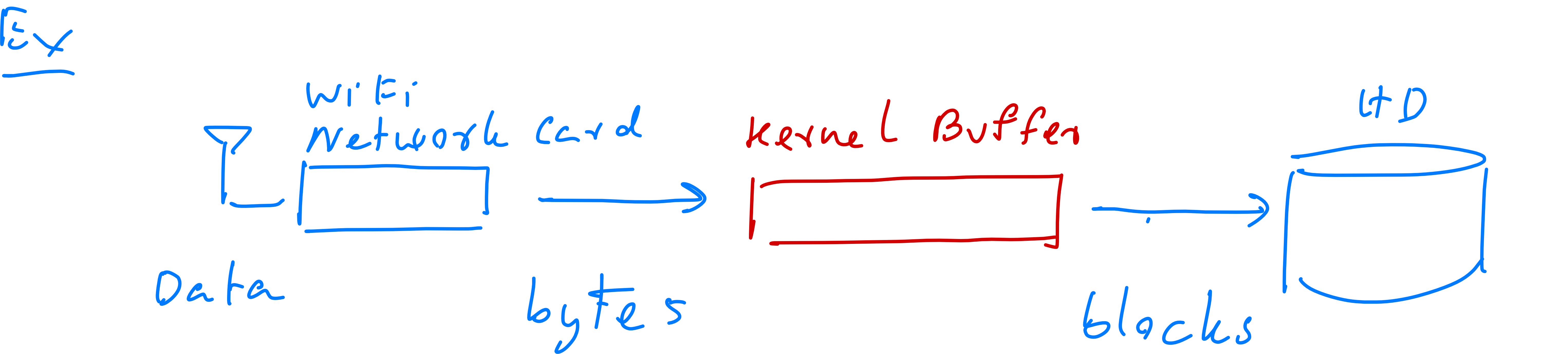
- Adapt to different data-transfer sizes:
- Example: Modem (byte-by-byte) to disk (blocks of bytes)
This is similar to how streaming works on an iPhone - video data is buffered to handle network speed variations and provide smooth playback
Kernel buffering is essential for efficient I/O operations, helping manage the diversity of devices in modern computing systems.