Operating Systems Everywhere
OSes are found in virtually every digital device:
- Dedicated devices (home thermostats, heart pacemakers)
- Automobiles (engine sensors, antilock brakes)
- Avionics and mass transit control systems
- Smartphones, tablets, web appliances
- Network appliances (firewalls)
- Controllers for banks of web servers
- Network traffic management devices
Security in Operating Systems
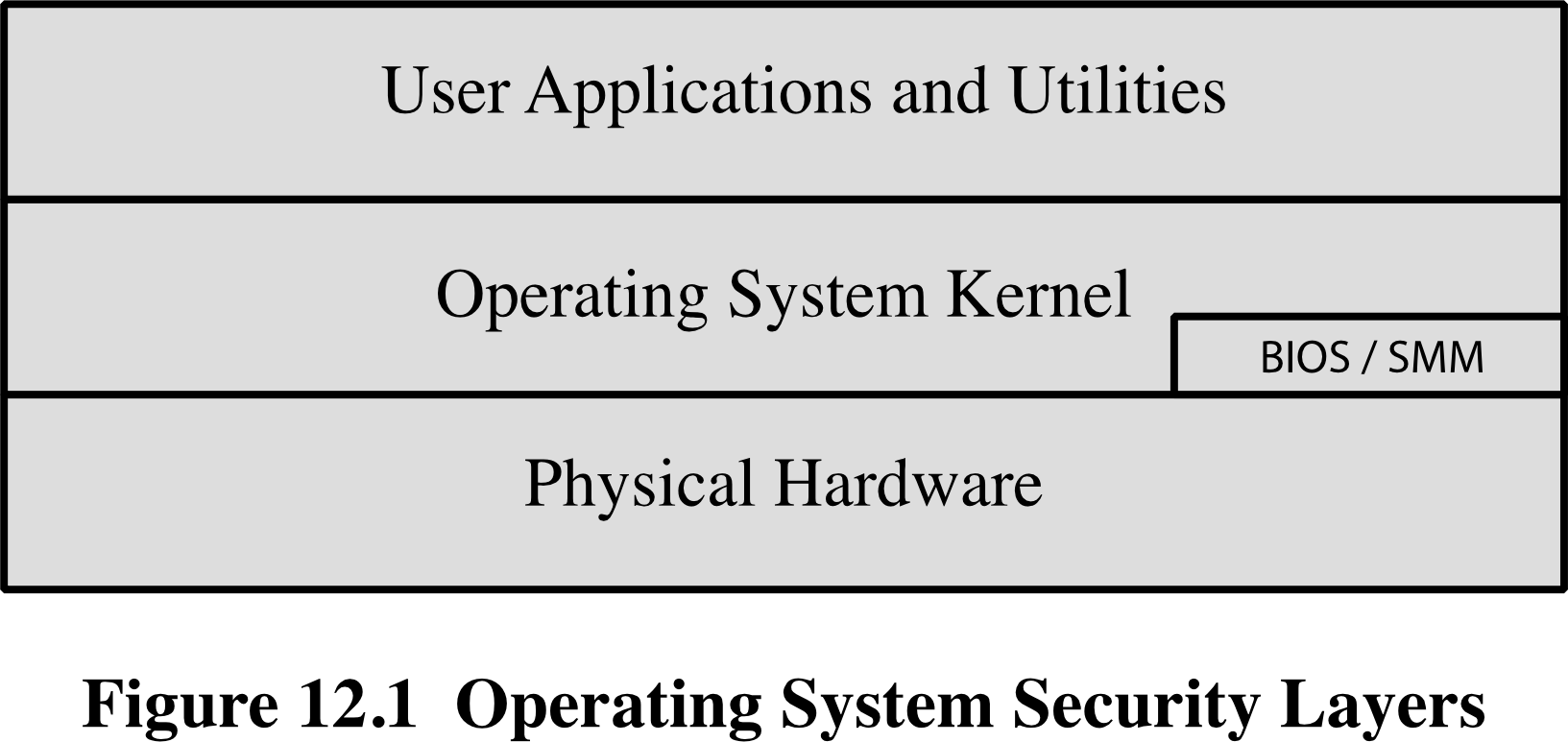
- OS is the fundamental controller of all system resources — which makes it a primary target of attack as well
- OS is the first line of defense against all sorts of unwanted behavior:
- Protects one user from another, ensures critical memory/storage areas are not overwritten by unauthorized processes
- Performs identification and authentication of people and remote operations
- Ensures fair sharing of critical hardware resources
Fair sharing ?
Analogy: Think of the OS as the security guard of a building — it controls who gets in, who can go where, and stops intruders from damaging things.
Operating System Structure
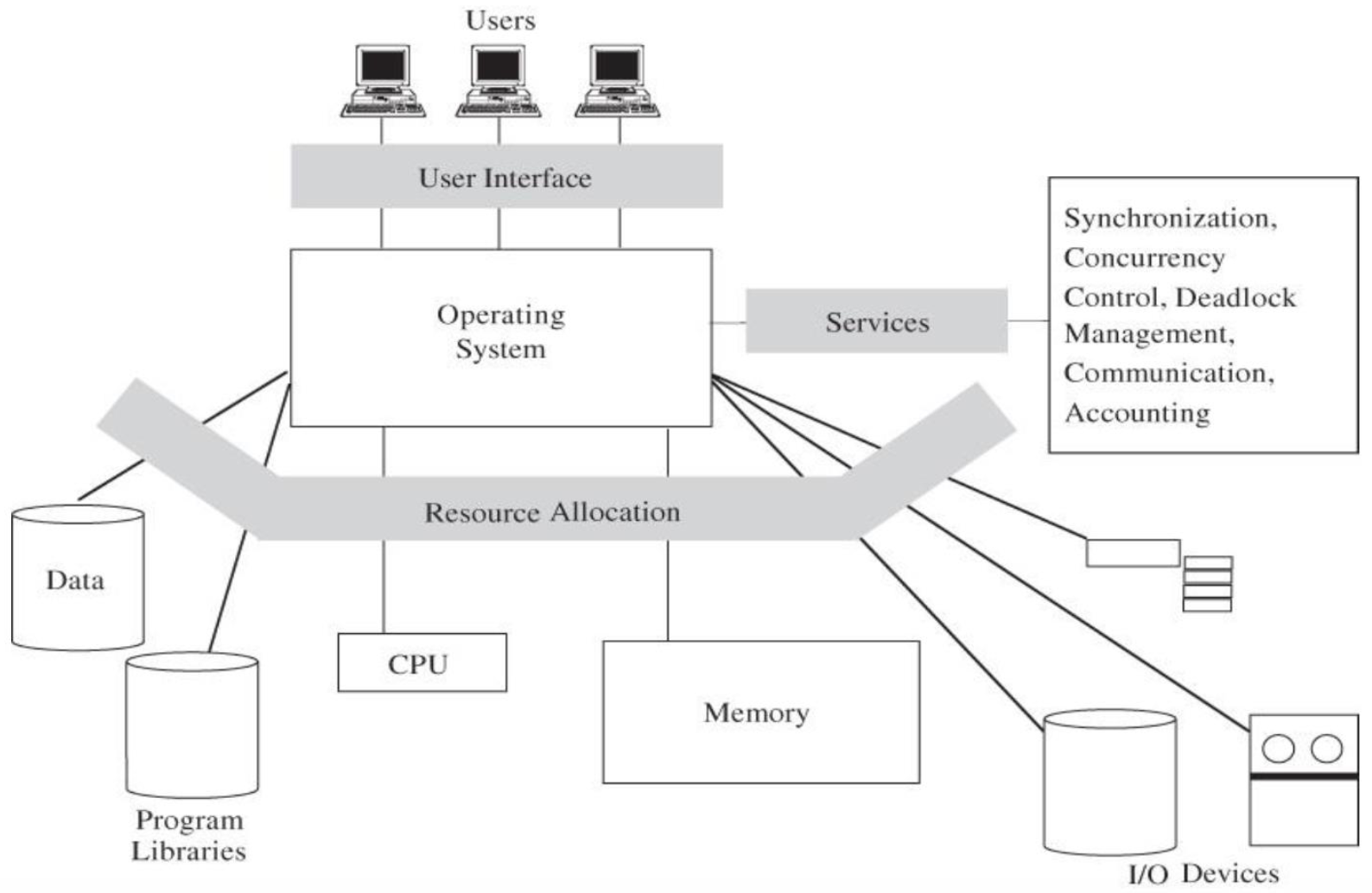
How an OS interacts with users, provides services, and allocates resources:
Users
  └── User Interface
        └── Operating System
              ├── Services (Synchronization, Concurrency, Deadlock Management, Communication, Accounting)
              └── Resource Allocation
                    ├── CPU
                    ├── Memory
                    ├── Data / Program Libraries
                    └── I/O Devices
A Bit of OS History
Single Users
- Only one user at a time → no need for protection
Multiprogramming and Shared Use
- More than one program in memory at a time
ของจริงคือ Server, Client มันไม่ได้ใช้แค่คนเดียวกันไง มันเข้าถึงพร้อมกัน ใช้ resource เดียวกัน
Multitasking
- Multiple processes
- Multiple threads
Modern OS now supports multitasking + multi-users, which means:
- Need to protect one user from another
- Sharing resources (CPU, memory, files) by multiple users
Protected Objects in OS
Objects the OS must protect:
- Memory
- Sharable I/O devices (e.g., disks)
- Serially reusable I/O devices (e.g., printers)
- Sharable programs and subprocedures
- Networks
- Shareable data
Not only protect for security but for logic as well (e.g. Buffer Overflow)
Layered Operating System
┌────────────────────────────────────┐
│   Subprocesses of User Processes   │
├────────────────────────────────────┤
│          User Processes            │
├────────────────────────────────────┤
│    Compilers, Database Managers    │
├────────────────────────────────────┤
│         Utility Functions          │
├────────────────────────────────────┤
│   File Systems, Device Allocation  │
├────────────────────────────────────┤
│  Scheduling, Sharing, Memory Mgmt  │
├────────────────────────────────────┤
│     Synchronization, Allocation    │
├────────────────────────────────────┤
│        Security Functions          │
├────────────────────────────────────┤
│            Hardware                │
└────────────────────────────────────┘
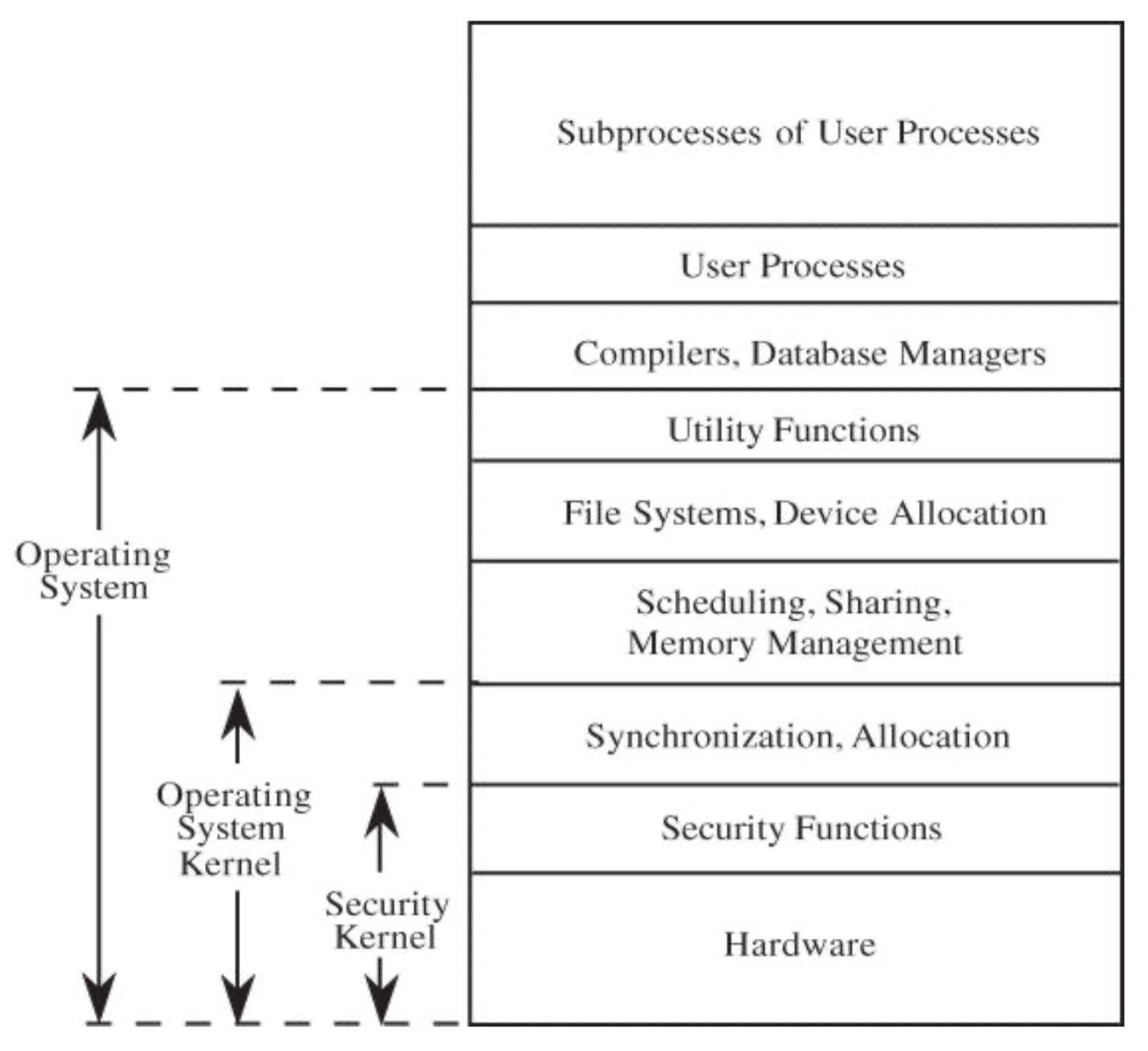
- Each layer of code needs measures in place to provide appropriate security services
- Each layer is vulnerable to attacks from below if the lower layers are not secured appropriately
ตัวอย่าง Hardware ก็เช่น rootkit, bootkit
Analogy: Like floors in a building — if the foundation (hardware) is compromised, nothing above it is safe.
OS Design to Do Self-Protection
- OS must protect itself in order to protect its users and resources
- It must protect itself not just from malicious users and programs, but also from harm modules, drivers, and add-ons
- But with limited knowledge of which ones to trust and for what capabilities — OS could no longer depend on hardware support for all its critical functionality
ถ้ามีคำถามว่า OS ต้อง protect อะไรบ้าง ก็ตอบ User และ resource!
Operating System Protection
Two Goals of OS
- Controlling share access
- → Access to resource
- User A, B should not allowed to be editing the same data
- Implementing an interface to allow that access
OS Functions are Categorized as:
- Access control
- Identity and credential management
- Information flow
- Audit (logging) and integrity protection (e.g., memory protection)
Implement OS Security Functions
Basic OS Security: Separation and Sharing
- Keeping one user's objects secure from being interfered by other users
- But OS must provide a way to do sharing as well
OS provides different levels of protection for different objects/resources
Types of Separation
| Type | Description |
|---|---|
| 1) Physical | Different processes → different physical objects |
| 2) Temporal | Processes with different security requirements execute at different times |
| 3) Logical | OS executes processes as if only for a single user (via virtualization / Cloud) |
| 4) Cryptographic | Using encryption to conceal data/processes (e.g. Full Disk Encryption, FileVault on Mac) |
Each separation has different security strength, implementation complexity, and resource utilization
Levels of Protection
- No protection — User can protect self by temporal separation
- Isolation — Concurrently running processes are hidden from each other (unaware of each other); each has its own space, files, and other objects
- Full sharing or no sharing — Object/resource owner declares it as shared or private
- Sharing via access limitation (Access Control) — Access to each object by each user is determined by access rights (policy)
- Sharing by capabilities —
- Allow creation of dynamic access rights
- degree of sharing depends on user + context of access + object (คล้าย ๆ ABAC)
- Limit use of object — For example:
- Can view a document but can't copy it
- Can view statistical summary of data but can't view individual data records (e.g., can see average salary but not John Smith's salary)
Backup and data protection focus, granularity, and coverage
Memory and Address Protection
The OS must protect each program's memory from being affected by other programs.
Protection Mechanisms
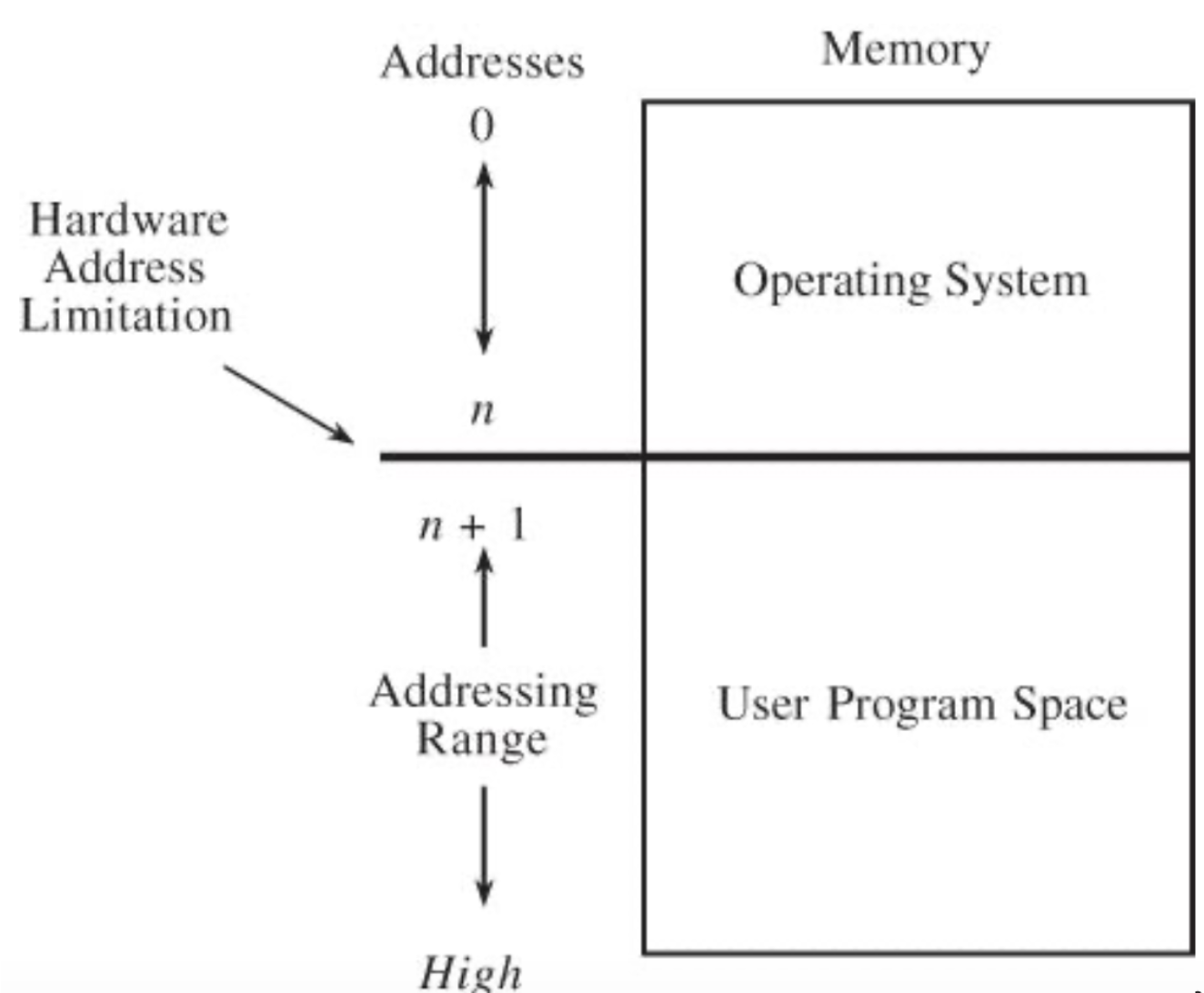
1. Fence Protection
- A hardware address limitation divides memory into:
- OS space (addresses 0 to n)
- User Program Space (addresses n+1 to High)
- The fence at address
nacts as a boundary
2. Fence Registers
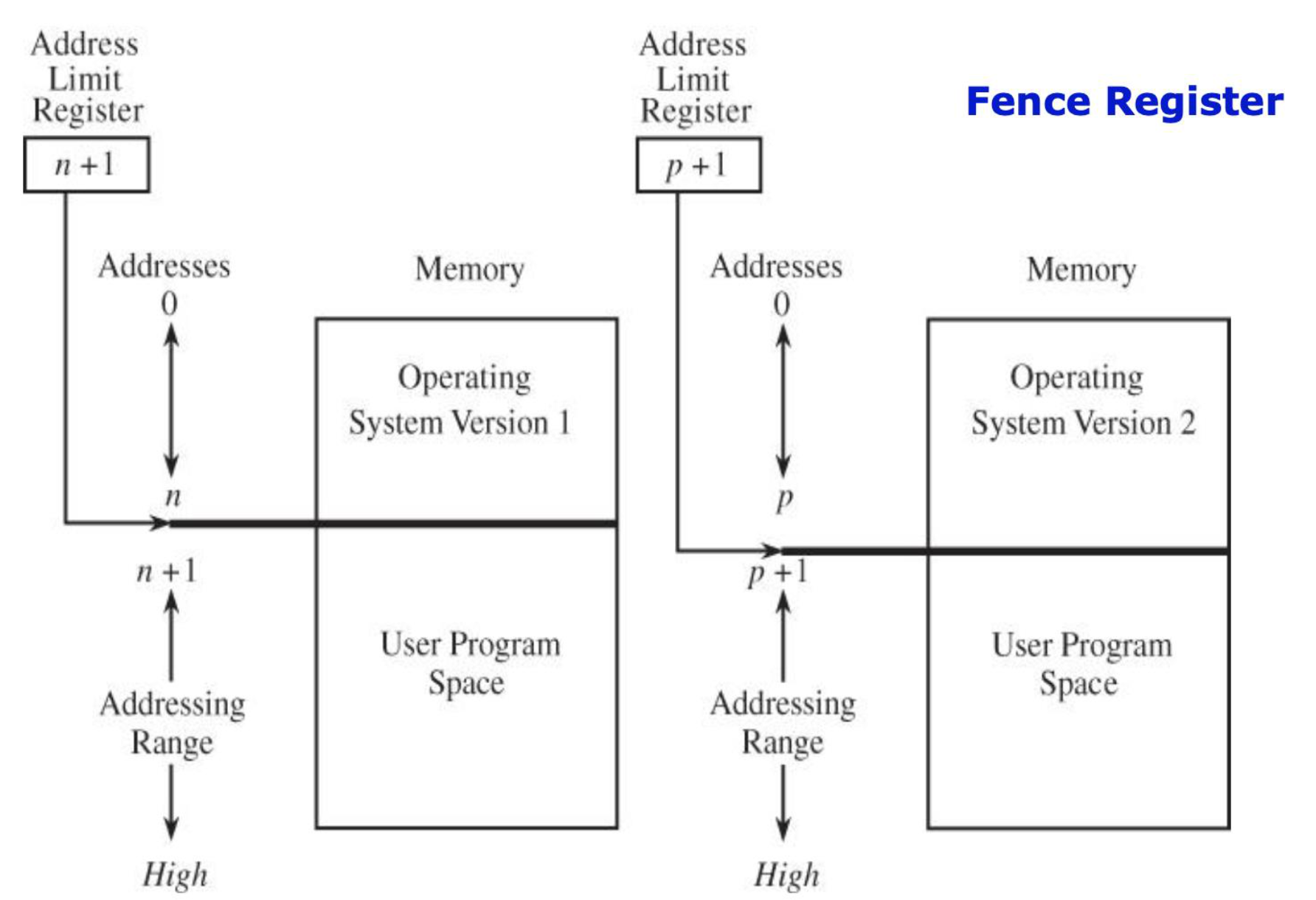
- A register holds the fence address (e.g.,
n+1orp+1) - Different OS versions can have different fence values
- Allows flexible relocation of the OS/user boundary
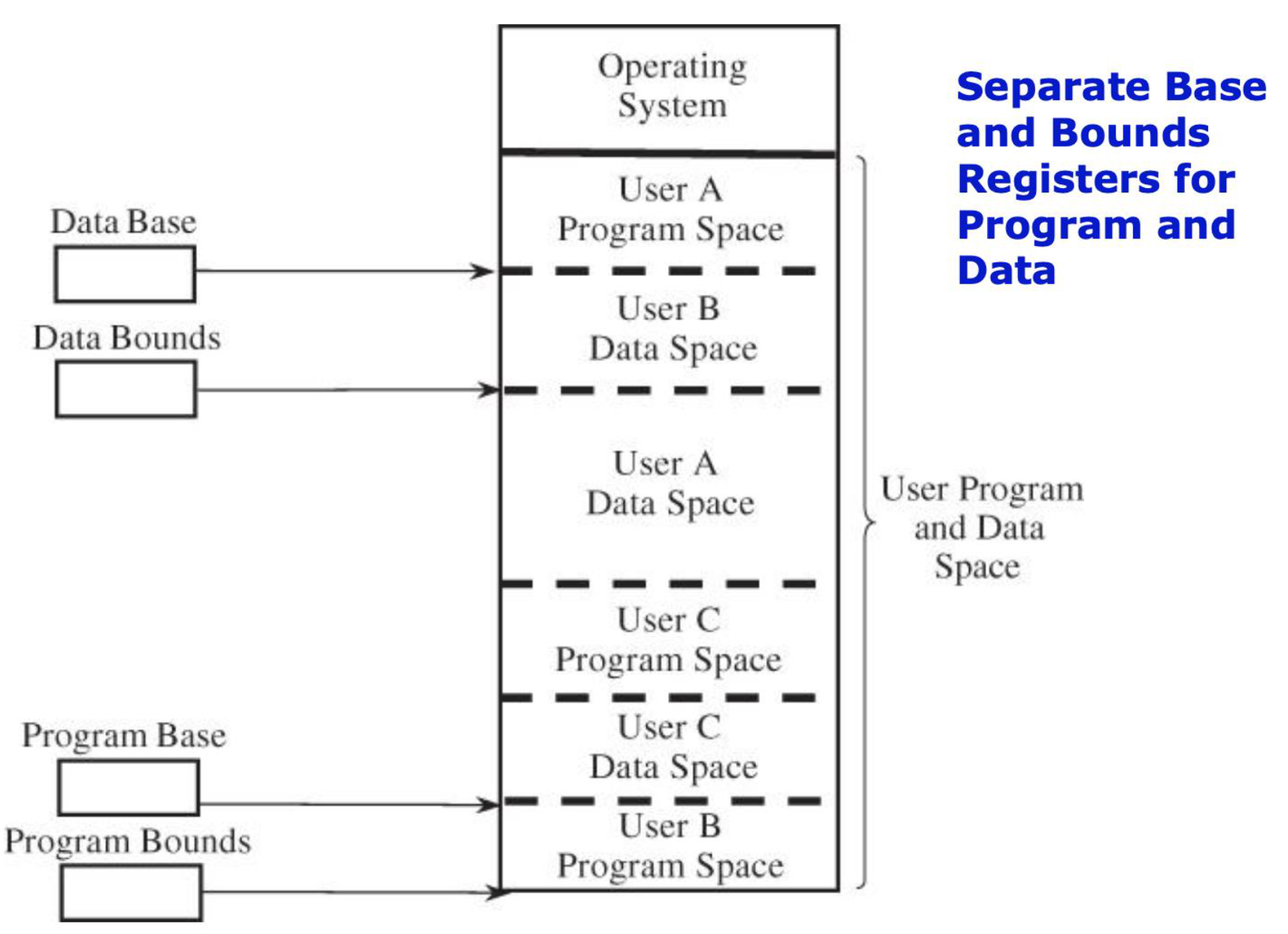
3. Base and Bounds Registers
- Base Register: Starting address of a user's program space
- Bounds Register: Ending address of a user's program space
- Surrounds a program, data area, or domain
- Multiple users (A, B, C) can each have their own base/bounds
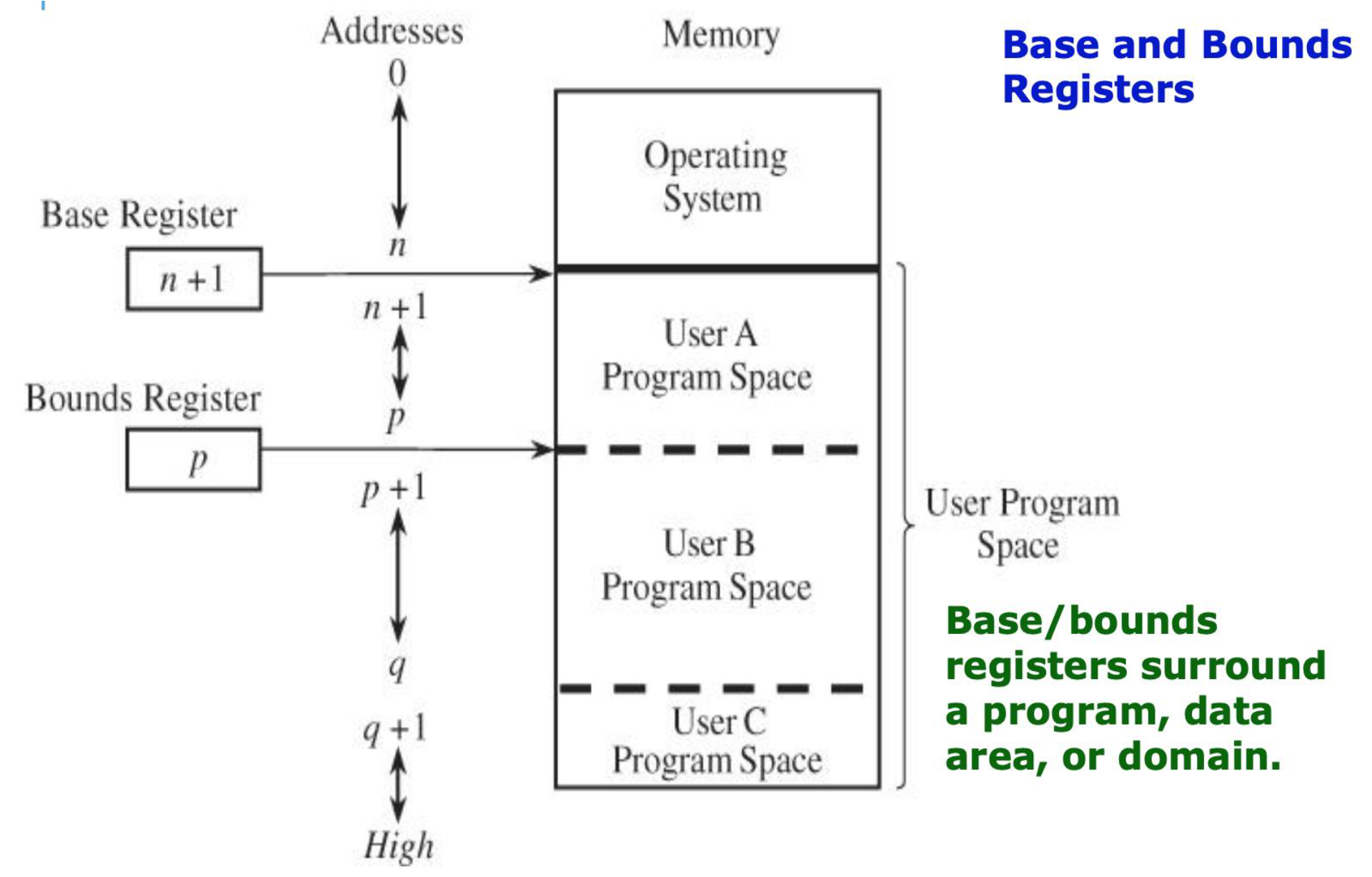
Analogy: Like fencing off plots of land — each user owns their plot (base to bounds), and nobody can step onto another's plot.
ช่วยในเรื่อง Isolation ได้มากกก!
- Can also have Separate Base and Bounds Registers for Program and Data — allowing code and data segments to be placed non-contiguously
4. Tagged Architecture
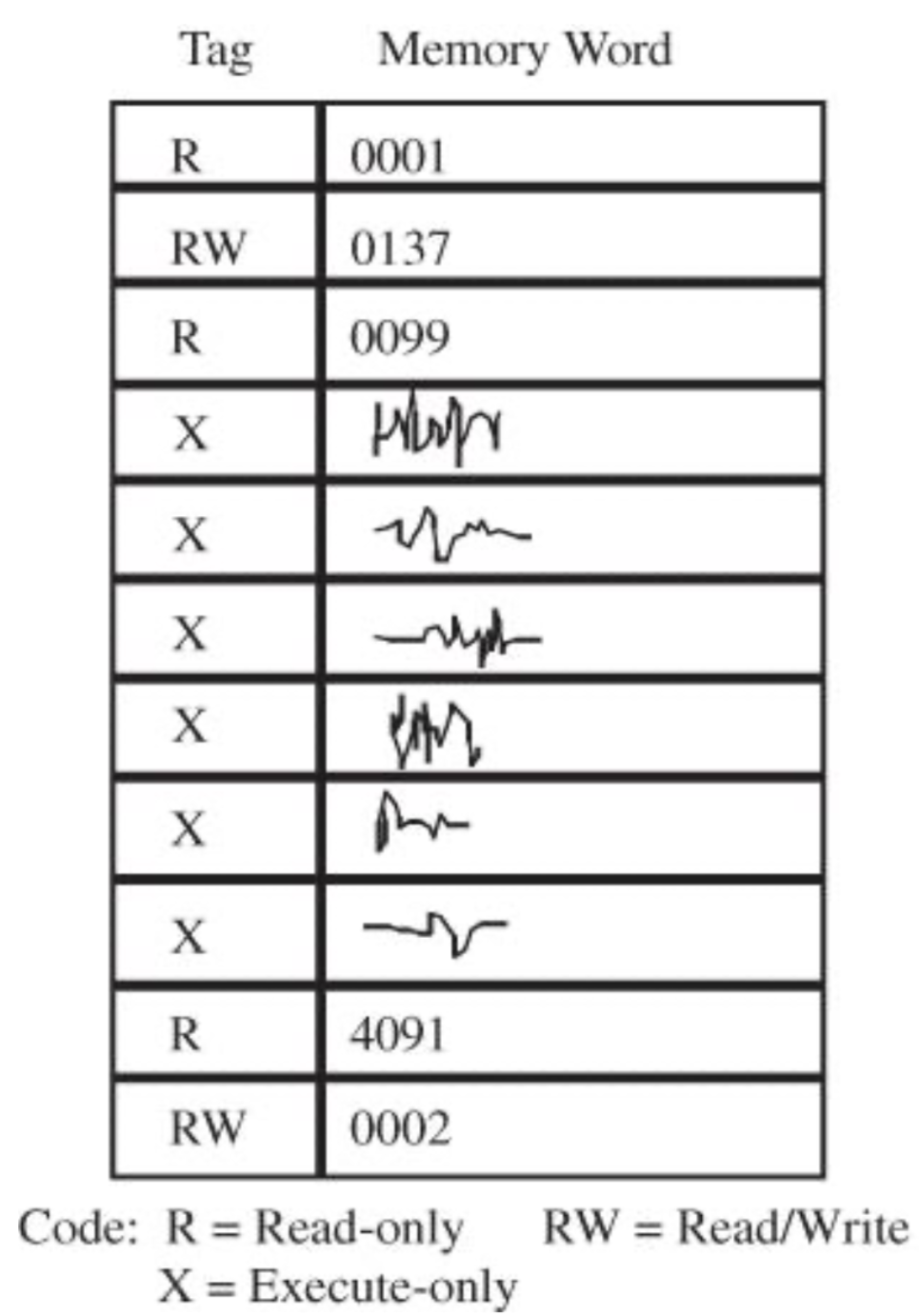
- Every word of machine memory has one or more extra bits to identify the access rights to that word
- Access bits:
R(Read-only),RW(Read/Write),X(Execute-only) - Access bits can be set only by privileged (OS) instructions
- The bits are tested every time an instruction accesses that location
5. Virtual Memory: Segmentation
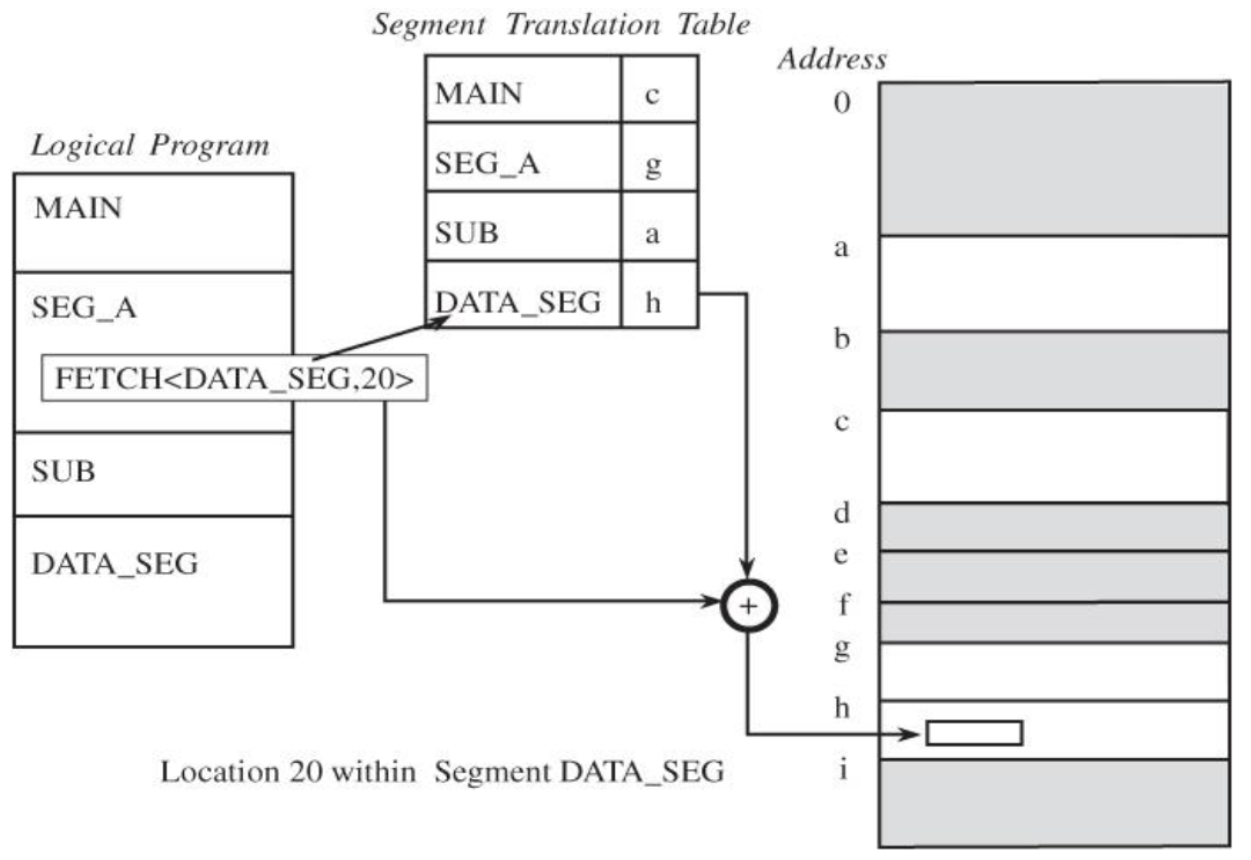
- A program is divided into logical segments (MAIN, SEG_A, SUB, DATA_SEG)
- A Segment Translation Table maps segment names to physical addresses
- Benefits:
- Each address reference is checked — neither too high nor too low
- Many different classes of data items can have different levels of protection
- Two or more users can share access to a segment, with potentially different access rights
- A user cannot generate an address or access to an unpermitted segment
6. Virtual Memory: Paging
07 Memory-Management Strategies → ถ้ากำหนดไม่ดี? อาจจะเกิด page fault
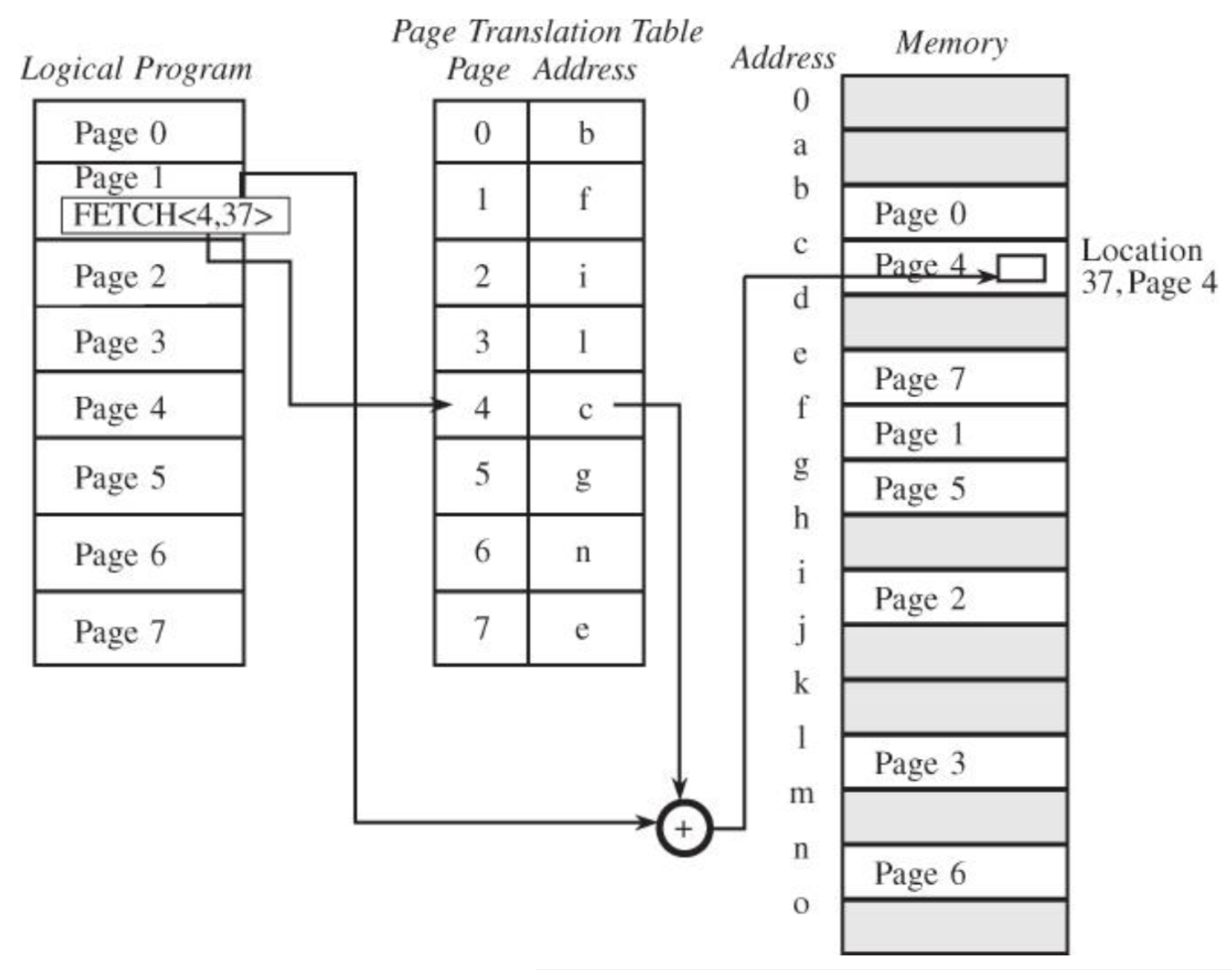
- A program is divided into fixed-size pages
- Memory is divided into equal-size page frames
- A Page Translation Table maps logical page numbers to physical frame addresses
- Page size is usually a power of 2: 2KB, 8KB, 16KB
- Paging gives efficient memory management
7. Virtual Memory: Combined Paging with Segmentation
- Each segment has its own Page Translation Table
- Address translation: Segment → Page Table → Physical Address
- Combines benefits of both segmentation (logical structure) and paging (efficient memory use)
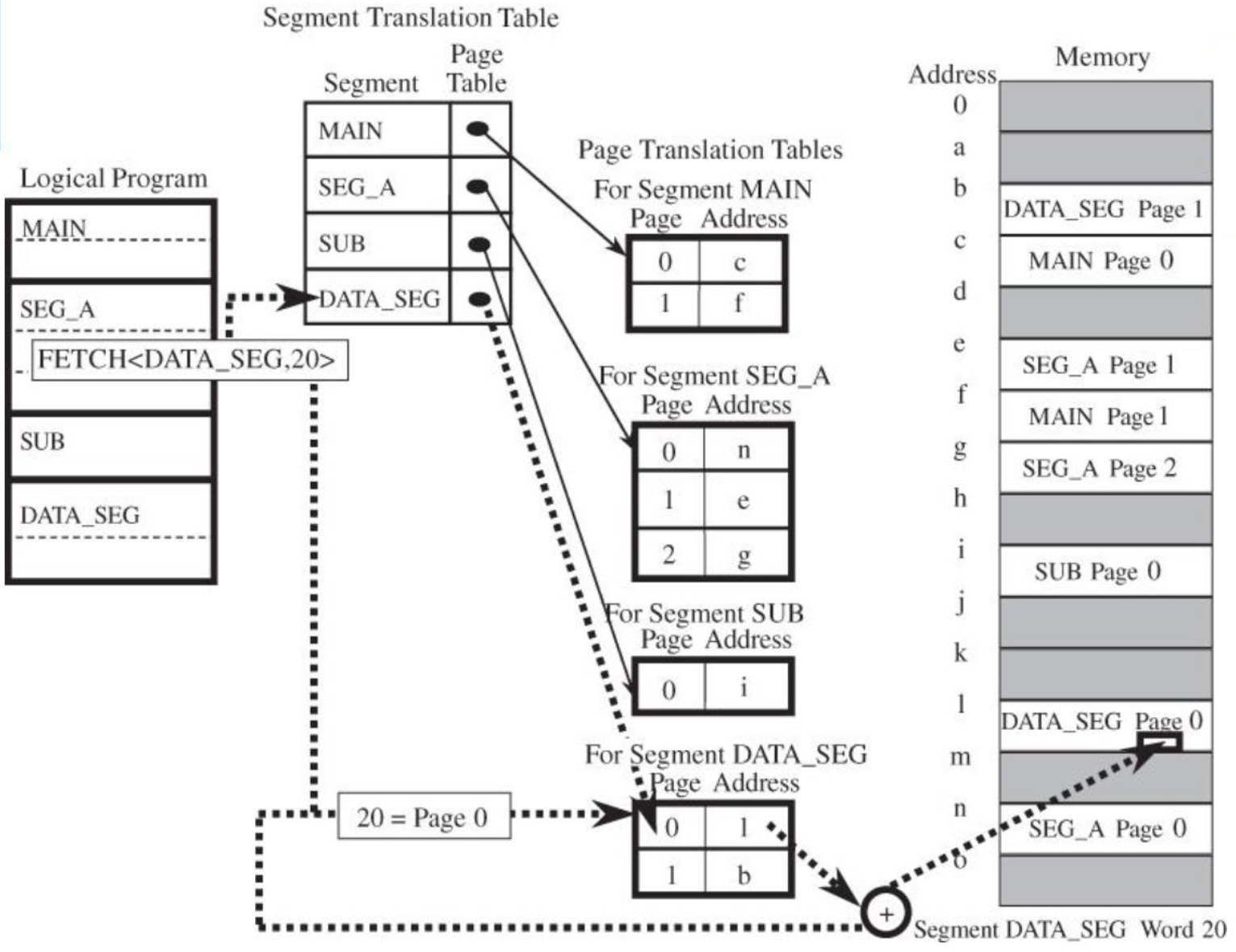
Memory protection implements both separation AND sharing
For combined one, in security it’s better; but if talking about the speed (performance, efficiency) it depends. For small program, maybe the paging is the best one!
Memory Corruption Protection
Memory Corruption = interfere/ tampered/ no longer genuine
Address Space Layout Randomization (ASLR)
- An exploit mitigation technology that ensures address ranges for important memory segments are random for every execution
- Meant to mitigate exploits leveraging hardcoded stack, heap, code, libc addresses
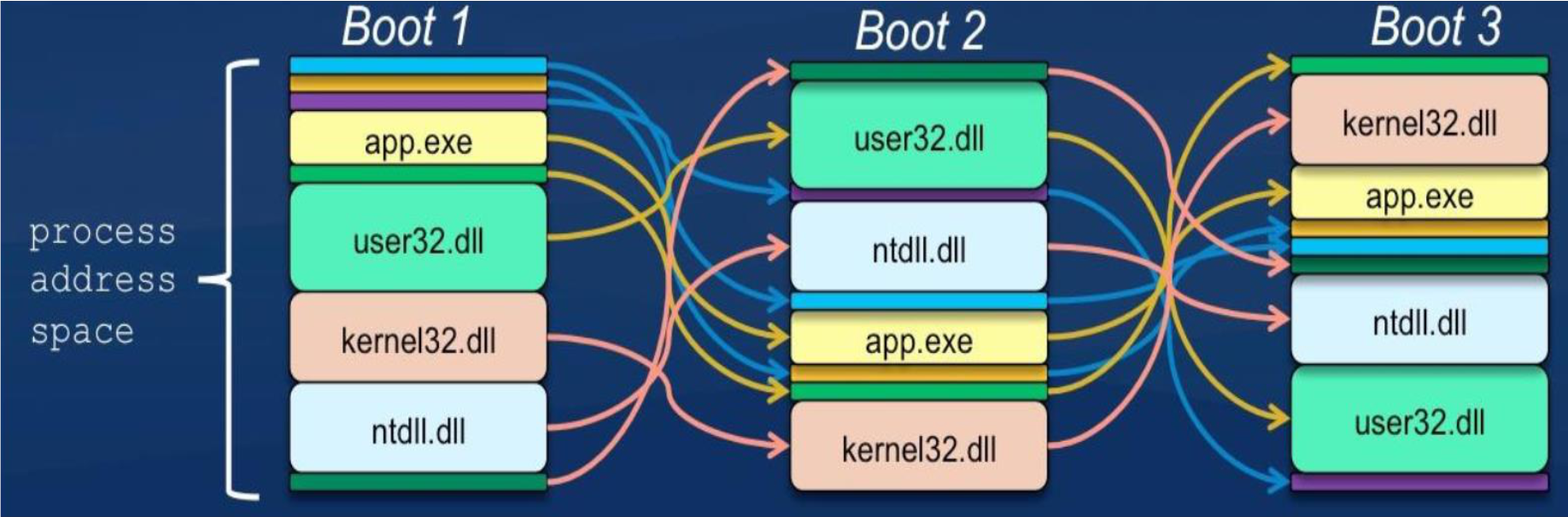
How ASLR defeats Buffer Overflow attacks:
- Traditional buffer overflow: attacker overwrites return address on the stack with a known location (e.g., shellcode in the buffer)
- Without ASLR: attacker knows exactly where to jump
- With ASLR: the stack address changes every run → attacker can't predict where shellcode is → wrong guess = program crash
How ASLR defeats Return-to-libc attacks:
- Instead of injecting code, attacker reuses existing library functions (like
system("/bin/sh")) - Overwrites return address to point to
system(), with/bin/shas argument - With ASLR: location of libc is randomized →
system()address is unpredictable → attacker needs to leak the libc base address first (much harder)
Stack and Buffer Overflow
Normal Stack Layout (Before Overflow)
|--------------------------|  <- Stack Top (high address)
| Return Address           |  <- Points to main() or next instruction
|--------------------------|
| Saved Frame Pointer      |
|--------------------------|
| Local Variables          |
| [ char buffer[16] ]      |
|--------------------------|  <- Stack Bottom (low address)
Stack After Overflow (Unsafe)
|--------------------------|  <- Stack Top
| Overwritten Address      |  <- Attacker's payload (e.g., jump to shellcode)
|--------------------------|
| Corrupted Frame Ptr      |
|--------------------------|
| buffer[16] + Exploit     |  <- Overflowed buffer writes into upper memory
|--------------------------|
Exploit = way to inject malicious code or script → Payload = consequence of exploiting!
Unsafe Buffer Overflow Code (No Protection)
#include <stdio.h>
#include <string.h>

void vulnerable() {
    char buffer[16];
    printf("Enter some text: ");
    gets(buffer);  // ⚠️ Dangerous: No bounds checking
    printf("You entered: %s\n", buffer);
}

int main() {
    vulnerable();
    return 0;
}
Safe Version (with Bounds Checking)
#include <stdio.h>

void safe() {
    char buffer[16];
    printf("Enter some text: ");
    fgets(buffer, sizeof(buffer), stdin);  // ✅ Safer: Checks bounds
    printf("You entered: %s\n", buffer);
}

int main() {
    safe();
    return 0;
}- Reads up to 15 characters (leaves space for the
\0terminator) - Prevents buffer overflows by limiting the number of characters read
- C = “You manage memory manually” 💀
- Swift = “System manages memory for you” 🍎
Stack Canary
A stack canary is a small, random value placed on the stack just before the return address of a function.
Purpose
- To detect buffer overflows before the return address can be overwritten
- Prevents attacks like:
- Stack-based buffer overflows
- Return address hijacking (like return-to-libc)
How It Works
[ Stack Layout (Before Overflow) ]

| Local Variables      |
|----------------------|
| Canary Value (random)|  <- Placed by compiler
|----------------------|
| Saved Return Address |
|----------------------|
- When a function is called, the canary is inserted
- When the function is about to return, the system checks if the canary was changed
- If the canary is altered (by a buffer overflow) → the program aborts immediately
| Return Address       |
|----------------------|
| Stack Canary (random)|  <- Checked before returning
|----------------------|
| buffer[16]           |
|----------------------|
If attacker overwrites the canary, program aborts before using corrupted return address (concept เหมือน hash เลย จริงป่าว? check!)
Strategies
- The 2010 Australian Signals Directorate (ASD) lists the "Top 35 Mitigation Strategies"
- Over 85% of targeted cyber intrusions investigated by ASD in 2009 could have been prevented
- Top 4 prevention strategies:
- White-list approved applications
- Patch third-party applications and OS vulnerabilities
- Restrict administrative privileges
- Create a defense-in-depth system
- What’s the meaning of defense-in-depth (in quiz)
- These largely align with the "20 Critical Controls" developed by DHS, NSA, DoE, SANS (USA)
Operating System Security (Deployment)
- A system can be compromised during installation before the latest patches are installed
- Building and deploying a system should be a planned process:
- Assess risks and plan the system deployment
- Secure the underlying OS and then the key applications
- Ensure any critical content is secured
- Ensure appropriate network protection mechanisms are used
- Ensure appropriate processes are used to maintain security
Operating Systems Hardening
First critical step in securing a system is to secure the base operating system.
Basic Steps
- Install and patch the operating system
- Harden and configure the OS to address the identified security needs:
- Removing unnecessary services, applications, and protocols
- Configuring users, groups, and permissions
- Configuring resource controls
- Install and configure additional security controls: anti-virus, host-based firewalls, IDS
- Test the security of the basic OS
Step 1: Remove Unnecessary Services, Applications, Protocols
- Fewer software packages → reduced attack surface
- System planning process should identify what is actually required
- When performing initial installation, do NOT use supplied defaults
- Default configuration maximizes ease-of-use and functionality, not security
- Install additional packages later when required
FEWER IS BETTER!
Step 2: Configure Users, Groups, and Authentication
- Not all users will have the same access to all data and resources
- Elevated privileges should be restricted to only those who need them, and only when needed
- System planning should consider:
- Categories of users on the system
- Privileges they have
- Types of information they can access
- How and where they are defined and authenticated
- Default accounts should be secured:
- Those not required → removed or disabled
- Policies for authentication credentials should be configured
Step 3: Configure Resource Controls
- Once users and groups are defined, appropriate permissions can be set on data and resources
- Security hardening guides provide lists of recommended changes to the default access configuration
Step 4: Install Additional Security Controls
- Anti-virus software
- Host-based firewalls
- IDS or IPS software
- Application white-listing
Step 5: Test the System Security
- Final step in the initial securing process
- Goals:
- Ensure previous security configuration steps are correctly implemented
- Identify any possible vulnerabilities
- Use checklists from security hardening guides
- Use programs specifically designed to:
- Review a system to ensure it meets basic security requirements
- Scan for known vulnerabilities and poor configuration practices
- Should be done after initial hardening and repeated periodically
OS Hardening (Summary Mind Map)
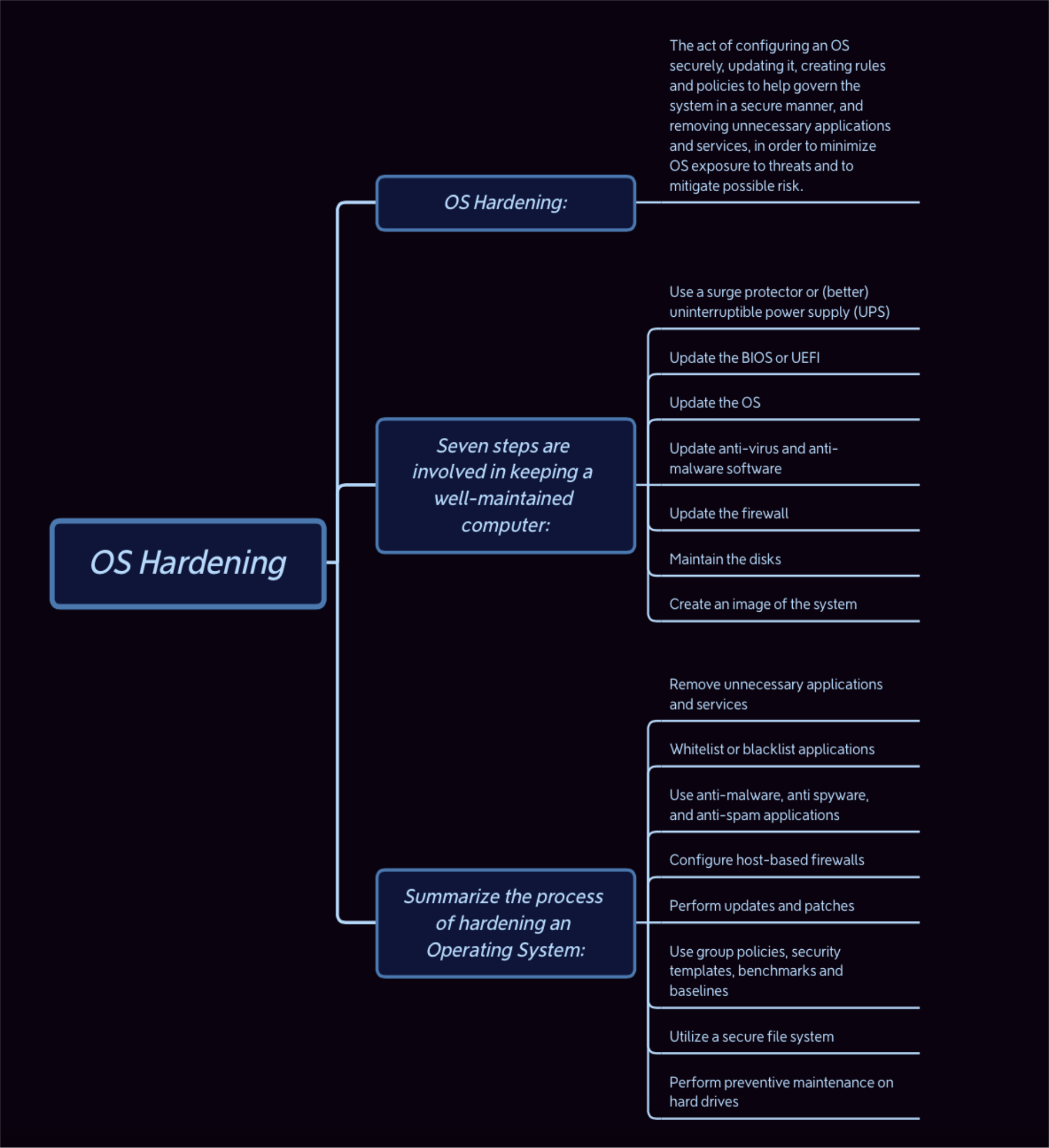
OS Hardening = Configuring an OS securely, updating it, creating rules and policies, and removing unnecessary applications/services — to minimize OS exposure to threats and to mitigate possible risk.
Seven Steps for a Well-Maintained Computer
- Use a surge protector or UPS
- Update the BIOS or UEFI
- Update the OS
- Update anti-virus and anti-malware software
- Update the firewall
- Maintain the disks
- Create an image of the system
Summarize the Process of Hardening an OS
- Remove unnecessary applications and services
- Whitelist or blacklist applications
- Use anti-malware, anti-spyware, and anti-spam applications
- Configure host-based firewalls
- Perform updates and patches
- Use group policies, security templates, benchmarks and baselines
- Utilize file system controls
Linux/Unix Security
Patch Management
- Keeping security patches up to date is a widely recognized and critical control for maintaining security
Application and Service Configuration
- Most commonly implemented using separate text files for each application and service
- Generally located either in the
/etcdirectory or in the installation tree for a specific application - Individual user configurations that can override system defaults are located in hidden "dot" files in each user's home directory
- Dot files are hidden configuration files in Linux (start with
.) - Examples:
.bashrc– customizes terminal shell behavior.vimrc– sets personal preferences for Vim editor.profile,.gitconfig,.config/– used by various programs
- Dot files are hidden configuration files in Linux (start with
Users, Groups, and Permissions
- Access is specified as granting read, write, and execute permissions to each of owner, group, and others for each resource
- Guides recommend changing the access permissions for critical directories and files
Local Exploit
- Software vulnerability that can be exploited by an attacker to gain elevated privileges (local access required)
Remote Exploit
- Software vulnerability in a network server that could be triggered by a remote attacker
Remote Access Controls
- Several host firewall programs may be used
- Most systems provide an administrative utility to select which services will be permitted to access the system
Logging and Log Rotation
- Should not assume that the default setting is necessarily appropriate
Best Practices: Defense in Depth
Defense in Depth uses multiple layers of defense to address technical, personnel and operational issues.
Attack
  ↓
┌────────────────────────────────────┐
│  Hardware Broadband Router/Firewall│
├────────────────────────────────────┤
│       OS / Software Firewall       │
├────────────────────────────────────┤
│       Antivirus / Antimalware      │
├────────────────────────────────────┤
│          Security Patches          │
├────────────────────────────────────┤
│        User Account Controls       │
└────────────────────────────────────┘
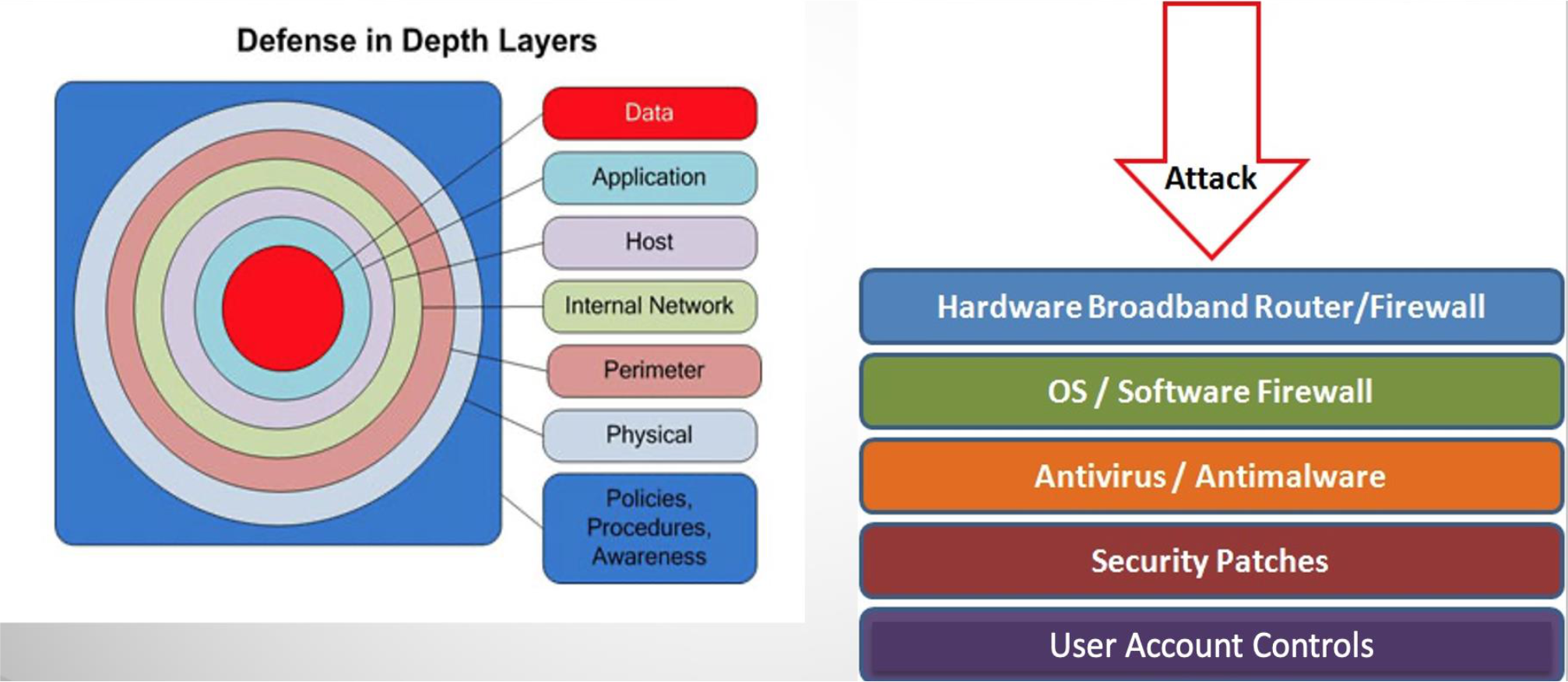
Layers (from outer to inner): Policies/Procedures/Awareness → Physical → Perimeter → Internal Network → Host → Application → Data
Analogy: Like the layers of an onion — an attacker must break through each layer to reach the core data.
Windows Security
Patch Management
- "Windows Update" and "Windows Server Update Service (WSUS)" assist with regular maintenance and should be used
- Third-party applications also provide automatic update support
Users Administration and Access Controls
- Systems implement Discretionary Access Controls (DAC) on resources
- Vista and later systems include Mandatory Integrity Controls:
- Objects are labeled as: Low, Medium, High, or System integrity level
- System ensures the subject's integrity is equal or higher than the object's level
- Implements a form of the Biba Integrity Model
Biba Integrity Model (briefly)
Windows Privileges
- System-wide privileges granted to user accounts
- Combination of share and NTFS permissions may provide additional security and granularity when accessing files on shared resources
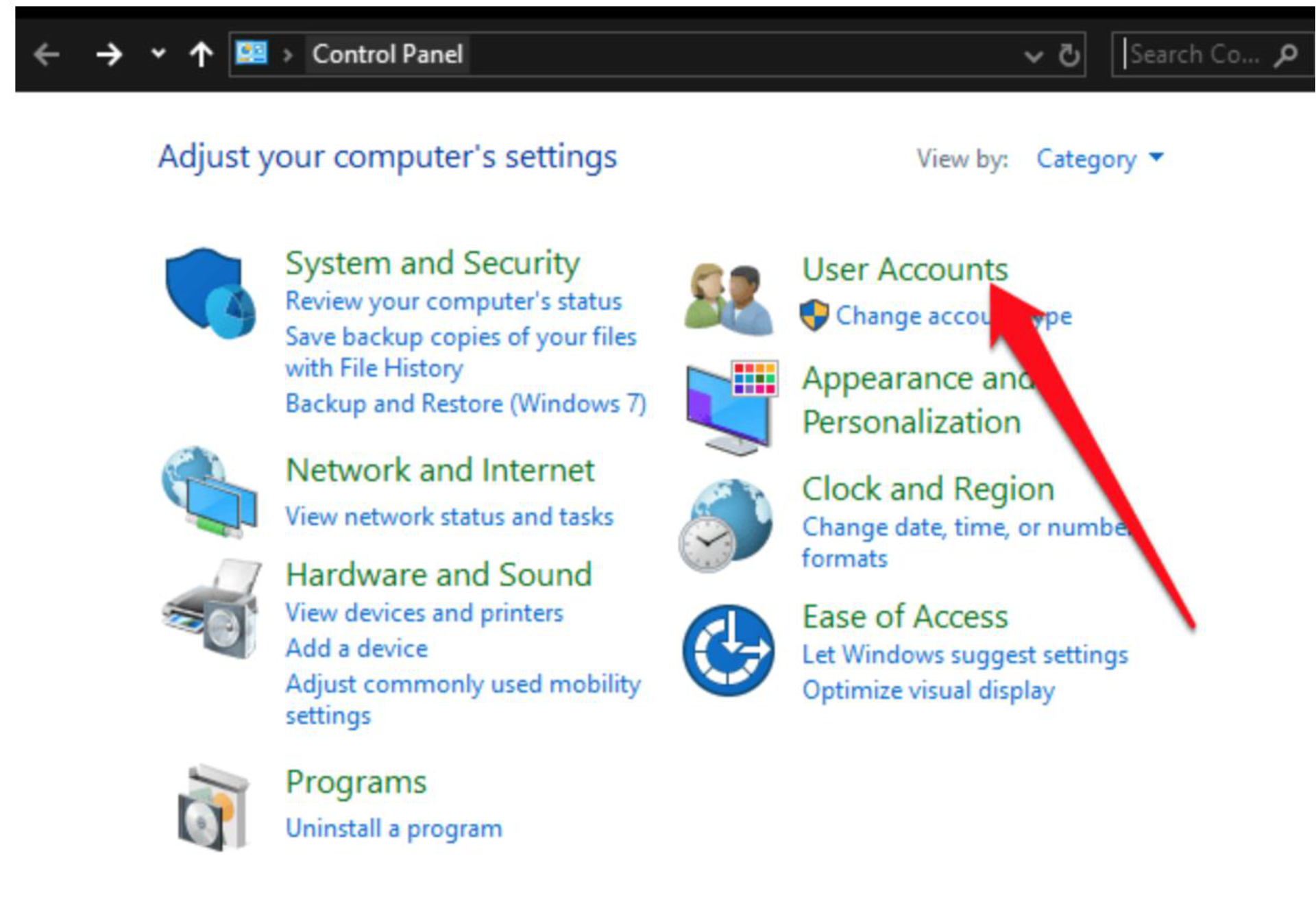
User Account Control (UAC)
- Provided in Windows 10, 11
- Ensures users with admin rights only use them when required, otherwise access the system as a normal user
Low Privilege Service Accounts
- Used for long-lived service processes (file, print, DNS services)
Application and Service Configuration
- Much of the configuration information is centralized in the Registry
- Forms a database of keys and values that may be queried and interpreted by applications
- Registry keys can be directly modified using the "Registry Editor" (
regedit)- More useful for making bulk changes
Other Security Controls
- Essential to install: anti-virus, anti-spyware, personal firewall, and other malware/attack detection
- Current generation Windows includes basic firewall and malware countermeasures
- Important to ensure all products in use are compatible
Cryptographic Functions in Windows
- Encrypting File System (EFS): encrypts files and directories
- ==BitLocker: Full-disk encryption with AES==
Microsoft Baseline Security Analyzer
- Free, easy-to-use tool that checks for compliance with Microsoft's security recommendations
Logon Process: Admin vs Standard User
- Admin in Admin Approval Mode: Gets both a Full Administrator Access Token AND a Standard User Access Token;
Explorer.exeruns with the standard token - Standard User: Gets only Standard User Access Token →
Explorer.exeruns with limited privileges
Protect Your Operating System
- Microsoft regularly issues patches/updates to solve security problems; unpatched systems are vulnerable to hackers
- The Windows Update feature can be set to automatically download and install updates
- Avoid logging in as administrator
- Apple provides regular updates via the App Store application

OWASP Top 10
OWASP Top 10 = 10 common vulnerabilities found in Web applications
- A01:2025 - Broken Access Control
- A02:2025 - Security Misconfiguration
- A03:2025 - Software Supply Chain Failures
- A04:2025 - Cryptographic Failures
- A05:2025 - Injection
- A06:2025 - Insecure Design
- A07:2025 - Authentication Failures
- A08:2025 - Software or Data Integrity Failures
- A09:2025 - Security Logging and Alerting Failures
- A10:2025 - Mishandling of Exceptional Conditions
Virtualization
A technology that provides an abstraction of the resources used by some software, which runs in a simulated environment called a virtual machine (VM)
- Benefits: better efficiency in the use of physical system resources
- Provides support for multiple distinct operating systems and associated applications on one physical system
- Raises additional security concerns
Virtualization Alternatives
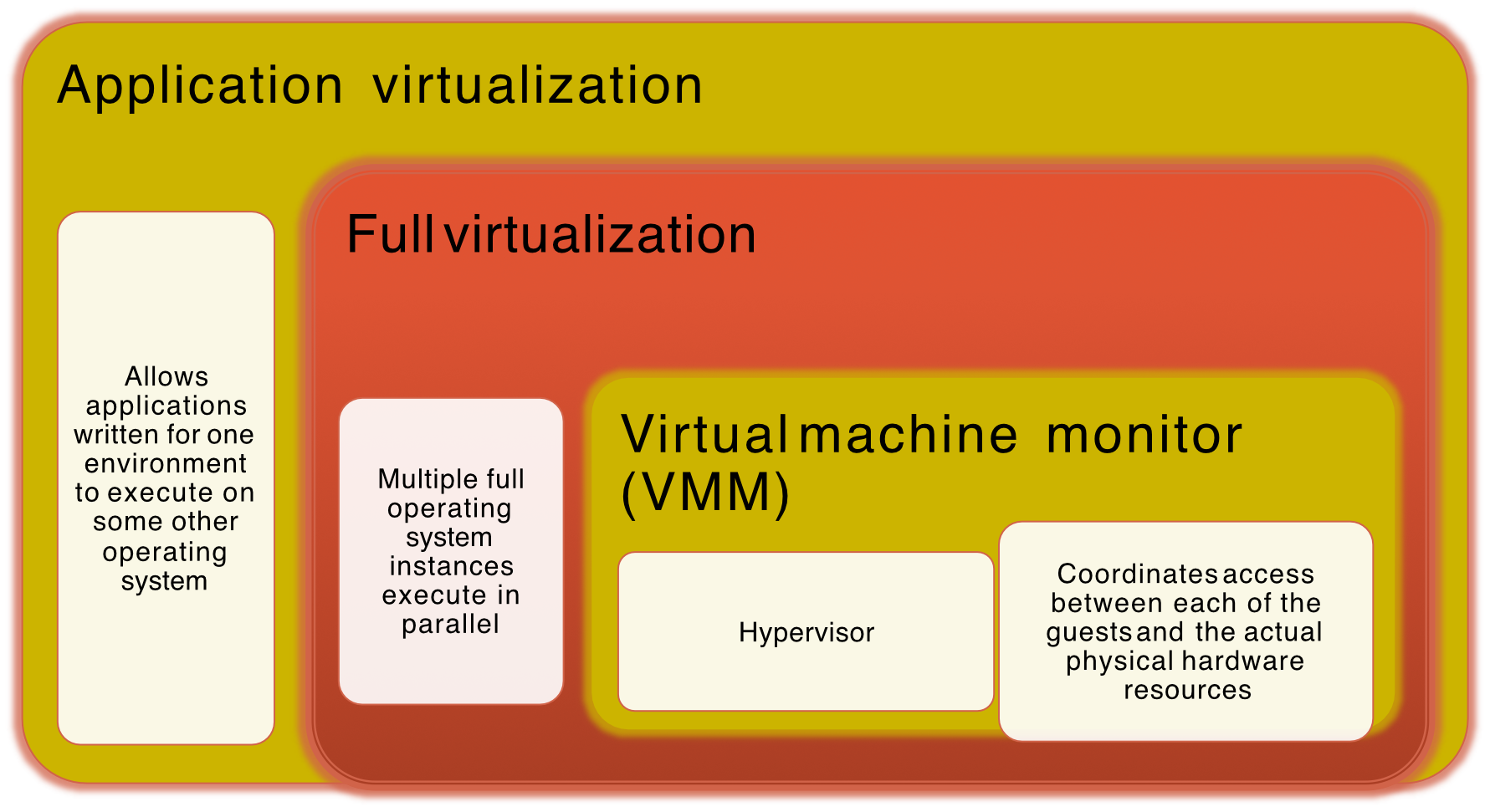
Application Virtualization
- Allows applications written for one environment to execute on some other operating system
Full Virtualization
- Multiple full OS instances execute in parallel
- Virtual Machine Monitor (VMM) / Hypervisor: Coordinates access between each of the guests and the actual physical hardware resources
Native (Bare-Metal) Virtualization Security Layers
┌──────────────────┬──────────────────┬─────────────────┐
│  User Apps       │  User Apps   ... │  User Apps      │
├──────────────────┼──────────────────┼─────────────────┤
│  Guest O/S 1     │  Guest O/S 2     │  Guest O/S n    │
│  Kernel          │  Kernel          │  Kernel         │
├──────────────────┴──────────────────┴─────────────────┤
│              Hypervisor / VMM         │  BIOS / SMM    │
├────────────────────────────────────────────────────────┤
│                  Physical Hardware                     │
└────────────────────────────────────────────────────────┘
Hosted Virtualization Security Layers
┌────────────────┐  ┌──────────────┐      ┌──────────────┐
│  Other         │  │  User Apps   │  ... │  User Apps   │
│  User Apps     │  ├──────────────┤      ├──────────────┤
│                │  │  Guest O/S 1 │      │  Guest O/S n │
│                │  │  Kernel      │      │  Kernel      │
│                ├──┴──────────────┴──────┴──────────────┤
│                │          Hypervisor / VMM              │
├────────────────┴────────────────────────────────────────┤
│           Host Operating System Kernel  │  BIOS / SMM   │
├─────────────────────────────────────────────────────────┤
│                    Physical Hardware                    │
└─────────────────────────────────────────────────────────┘
Virtualization Security Issues
- Guest OS isolation: Ensuring programs executing within a guest OS may only access and use the resources allocated to it
- Guest OS monitoring by the hypervisor: The hypervisor has privileged access to the programs and data in each guest OS
- Virtualized environment security: Particularly image and snapshot management which attackers may attempt to view or modify
Securing Virtualization Systems
1. Hypervisor Security
- Use Type 1 Hypervisors (bare-metal): VMware ESXi, Microsoft Hyper-V, Xen — more secure than Type 2 (hosted)
- Minimize Attack Surface: Disable unused services, interfaces, and device drivers
- Patch Management: Regularly apply updates and patches to hypervisors
- Trusted Boot & TPM Integration: Use hardware root-of-trust features like TPM and Secure Boot
2. Virtual Machine (VM) Hardening
- Use Hardened VM Images: Start with secure, minimal OS templates
- Isolate VMs: Use logical and network isolation to prevent lateral movement
- Install Security Software: Anti-malware, firewalls, and HIDS within each VM
3. Network Security in Virtualization
- Virtual Firewalls: Deploy virtual firewalls between VMs or at vSwitch level
- Microsegmentation: Use SDN or tools like VMware NSX for fine-grained, per-VM security policies
- Secure Virtual Switches (vSwitches): Prevent promiscuous mode, MAC address spoofing, and forged transmissions
4. Security Tools and Technologies
- Virtualization-aware Antivirus: Trend Micro Deep Security, Symantec Endpoint Protection for VEs
- VM Introspection (VMI): Use APIs to inspect the VM from the hypervisor level without an agent (e.g., KVM + LibVMI, Bitdefender Hypervisor Introspection)
- Security Information and Event Management (SIEM): Integrate virtualization logs for correlation and alerting
What is TPM?
ถ้าเป็นฝั่ง Apple น่าจะเป็น Chip T2
A TPM (Trusted Platform Module) is a hardware security chip embedded in the motherboard (or virtualized in cloud environments).
TPM Functions
- Securely store cryptographic keys
- Provide random number generation (
PRNG) - Perform secure hashing and signature operations
- Maintain integrity measurements during boot
- Enable device identity attestation
Computer System
  ├── CPU
  │     ├── Operating System
  │     └── Applications
  │
  └── (communicates securely via bus)
        │
        ▼
  ┌─────────────────────┐
  │      TPM Chip       │
  ├─────────────────────┤
  │  Secure Key Storage │
  │  PCR Registers      │
  │  Cryptographic Unit │
  │  Random Generator   │
  │  Trusted Boot       │
  └─────────────────────┘
Virtual TPM (vTPM)
- For VMs, cloud providers offer virtual TPMs (e.g., Azure, AWS NitroTPM)
- vTPMs enable the same boot integrity and encryption features inside a virtual machine
What is Trusted Boot?
Trusted Boot (aka Measured Boot) is a boot process integrity checking mechanism. It ensures each component loaded during startup is verified and measured against a known-good value.
How It Works
- UEFI BIOS/firmware starts and verifies the next component (e.g., bootloader)
- Each component is measured (a hash of its code/configuration is taken)
- These hashes are stored in TPM's Platform Configuration Registers (PCRs)
- If a component was tampered with (malware, rootkit, etc.), the hash will differ
- The system can refuse to boot, alert security tools, or trigger remediation
Analogy: Like a tamper-evident seal — if anything was opened along the boot chain, you'll know.
Trusted Execution Environment (TEE)
A TEE is a secure area inside a processor that ensures sensitive code and data are executed and stored in an isolated environment, protected from the rest of the system.
- Even if the OS, hypervisor, or applications are compromised, the TEE keeps protected code and data secure
CPU
├── Normal World (Operating System, Apps)
└── Secure World (TEE)
      └── TEE memory and execution are isolated from OS, hypervisor, and other apps
Protected Operations in TEE
- Cryptographic key operations
- Authentication
- Payment processing
- Biometric verification
- Secure AI inference
- Confidential computing
With TEE
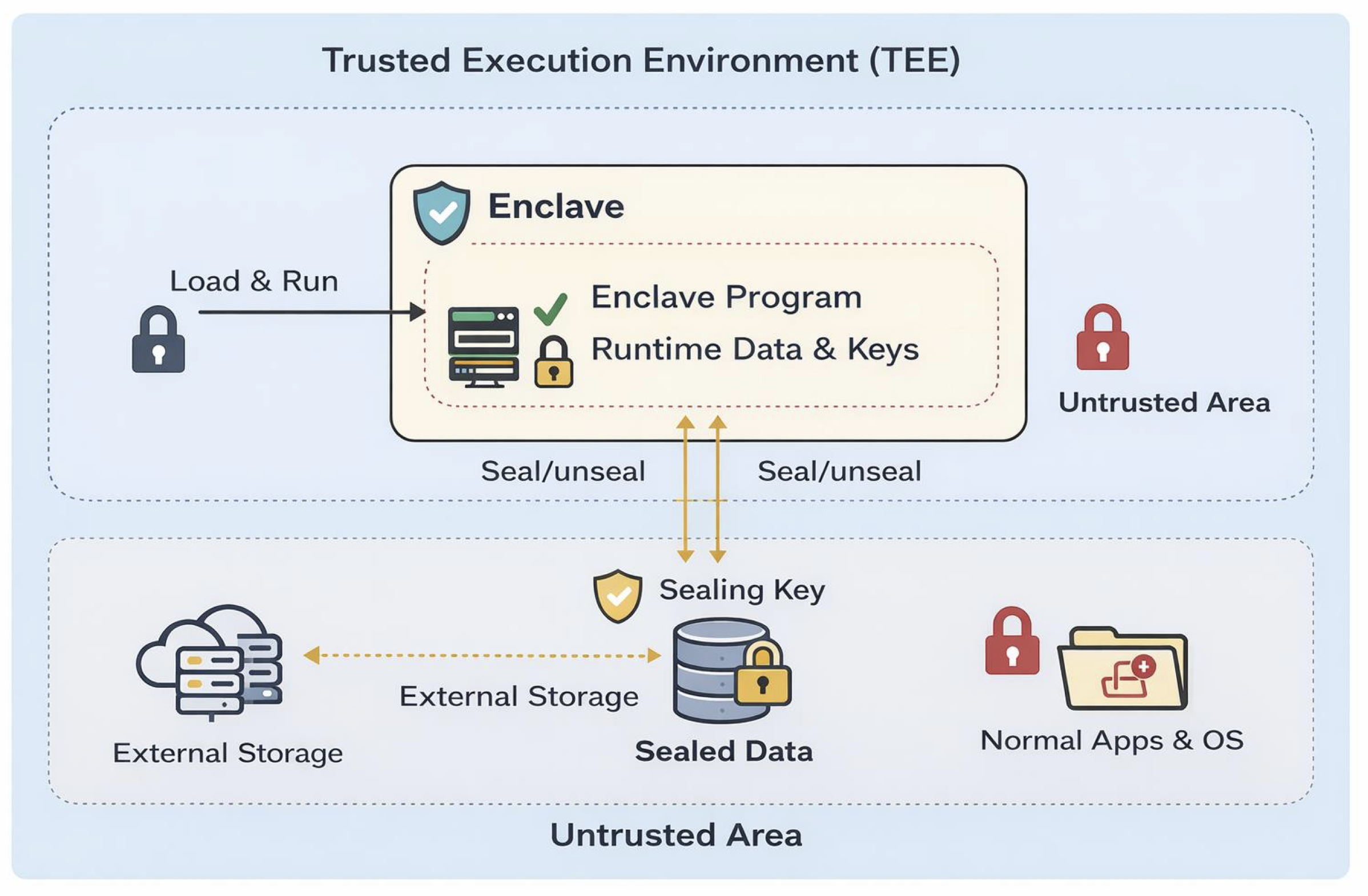
App → TEE → Crypto Key
(The key never leaves the secure enclave)
Data Encryption in TEE
Think of TEE like a locked glass room — you can see it running, but no one can touch or tamper with what's inside.
Step 1: Enclave Deployment
- The server starts a TEE enclave using:
eid= Enclave ID;pEnc= the program/code to load into the enclave
Step 2: Remote Attestation
- The enclave proves its identity to the client by generating a quote (cryptographic proof):
- = hash of the enclave program (proves exact code is loaded)
nonce= random value to prevent replay attacks
- The client verifies the quote:
- Returns
1if valid → the enclave is genuine and untampered
- Returns
Like a restaurant showing you their health inspection certificate before you eat there — the client checks proof before sending any sensitive data.
Step 3: Secure Channel Establishment (DH Key Exchange)
- After attestation, both sides establish a shared session key using key exchange (e.g., Diffie–Hellman):
- Used to send: plaintext, encryption key, or both — securely over the channel
DH Key Exchange — Detailed Steps
-
Enclave generates ephemeral key pair (inside enclave):
-
Enclave sends (public key) to client
-
Client generates its own ephemeral key pair:
- Client sends to enclave
-
Both compute the shared session key:
- Inside enclave:
- At client:
Like two people choosing a shared paint color by mixing their own secret colors together — each contributes privately, but the result is the same on both ends. (Classic DH analogy!)
Step 4: Key Provisioning
Two cases for how the encryption key enters the enclave:
Case 1: Send encryption key into enclave
- Client or key server sends the key encrypted under the session key:
- The enclave decrypts and stores in enclave memory temporarily
Case 2: Generate key inside enclave (Stronger)
- The enclave generates the symmetric key internally:
- Stronger because the key never exists outside the enclave in plaintext
Case 2 is like generating your ATM PIN inside the machine itself — even the bank doesn't know it in plaintext.
Step 5: Client Sends Data to Enclave
- Client sends plaintext or encrypted data:
- The enclave receives and decrypts it internally
Step 6: Encrypt Inside Enclave
- The enclave encrypts the plaintext message using key :
TEE Algorithms (Formal Definitions)
| Algorithm | Signature | Description |
|---|---|---|
| TEE.Init | Generates TEE signing key pair | |
| TEE.Install | Loads program into enclave; returns eid | |
| TEE.Resume | Runs function with input ; returns output + attestation | |
| TEE.VrfyQuote | Returns 1 iff attestation is valid and is loaded | |
| TEE.Seal | Encrypts data with hardware-derived key; can only be unsealed by same enclave |
- TEE.Seal ensures confidentiality and integrity across enclave sessions — data can be stored outside the enclave safely, and only the same enclave instance can unseal it
- เวลาจะเอา key ออกมาจาก Encalve ต้อง Seal มันก่อน
- พอจะเอากลัยเอาเข้าไปใช้ก็ unseal ซะ
Intel SGX
Enclave Memory = EPC (Enclave Page Cache)
- Each enclave has its own isolated memory space
- But all enclaves share a limited secure memory pool (EPC)
- Memory management is critical for performance
Typical EPC Sizes
| Type | Size |
|---|---|
| Physical EPC (older) | ~128 MB |
| Usable EPC | ~90–100 MB |
| Newer SGX | up to ~256 MB+ |
Like all apartments in a building share the same parking lot (EPC) — each tenant has their own locked unit, but parking is shared and limited.
Examples of TEE Technologies
| Technology | Used In |
|---|---|
| Intel SGX | Secure enclaves in Intel CPUs |
| ARM TrustZone | Smartphones, IoT devices |
| AMD SEV | Cloud VMs — encrypts VM memory |
| Apple Secure Enclave | Face ID, Touch ID, secure key storage |
- Structure of a TEE-enabled CPU:
- Normal World → OS, Applications
- Trusted Execution Environment → Secure memory, trusted applications, Cryptographic keys
- If CPU does NOT support TEE features → No TEE available
Advantages and Limitations of TEE
Advantages
- Strong Confidentiality and Integrity
- Data is encrypted in memory
- Isolated from OS, hypervisor, and other applications
- Secure Key Storage and Crypto Operations
- Keys live only inside the protected enclave
- Remote Attestation
- TEE can generate a cryptographic proof that:
- The code running is genuine (correct program)
- The environment is untampered
- TEE can generate a cryptographic proof that:
Limitations
- Side-Channel Attacks — Vulnerable to:
- Cache timing attacks
- Speculative execution attacks (e.g., Spectre, Meltdown)
- Page-fault side channels
- Limited Enclave Memory (SGX EPC)
- Typical secure memory is small (~128–512 MB)
- Not suitable for:
- Large-scale data processing
- Heavy ML models
- Large batch PRE (Proxy Re-Encryption) without optimization
TEE is like a heavily guarded safe room — very secure inside, but the room is small and someone clever outside can sometimes infer what you're doing by watching how often you open the door (side channels).
TPM and TEE — Comparison
| Feature | TPM | TEE |
|---|---|---|
| Type | Hardware security chip | Secure CPU environment |
| Purpose | Secure key storage and boot trust | Secure execution of sensitive code |
| Location | Separate hardware module | Inside CPU |
| Typical Use | Secure boot, disk encryption | Secure apps and confidential computing |
How TPM + TEE Work Together
- TPM verifies system integrity during boot
- Secure Boot loads trusted OS
- TEE runs sensitive operations securely
TPM is like the security guard at the building entrance (checks who enters at boot), while TEE is the locked executive office inside (where sensitive work actually happens).
When to Use TEE vs TPM for Key Storage?
Use TEE when:
- Keys must be used frequently during secure application execution
- Typical use cases:
- Mobile payment keys
- Biometric authentication
- DRM (Digital Rights Management) keys
- Confidential computing
- Secure IoT data processing
Use TPM when:
- Keys are tied to platform integrity or system identity
- Typical use cases:
- Secure boot verification
- Disk encryption keys (e.g., BitLocker)
- Device identity keys
- Attestation keys
- Protection against firmware attacks, bootkits, OS tampering
| Component | Best Role for Key Storage |
|---|---|
| TPM | Root keys, device identity keys, boot integrity keys |
| TEE | Application/session keys, runtime cryptographic operations |
Securing Virtualization Systems
Network Security in Virtualization
- Virtual Firewalls — Deploy virtual firewalls between VMs or at vSwitch level
- Microsegmentation — Use SDN (Software-Defined Networking) or tools like VMware NSX to create fine-grained, per-VM security policies
- Secure Virtual Switches (vSwitches) — Prevent:
- Promiscuous mode
- MAC address spoofing
- Forged transmissions
Security Tools and Technologies
- Virtualization-aware Antivirus — e.g., Trend Micro Deep Security, Symantec Endpoint Protection for Virtual Environments
- VM Introspection (VMI) — Use APIs to inspect VMs from the hypervisor level without an agent (e.g., KVM + LibVMI, Bitdefender Hypervisor Introspection)
- SIEM (Security Information and Event Management) — Integrate virtualization logs for correlation and alerting
Virtualization Infrastructure Security
Three core principles:
- Systems manage access to hardware resources
- Access must be limited to just the appropriate guest
- Access to VM images and snapshots must be carefully controlled
Like a hotel system: the hardware is the hotel building, each VM is a guest room — guests can only access their own room, not others', and the master key (snapshots/images) must be tightly controlled.
Summary — Chapter 10 Topics
- Introduction to operating system security
- System security planning
- Operating Systems Hardening
- OS installation: initial setup and patching
- Remove unnecessary services, applications, and protocols
- Configure users, groups, and authentications
- Configure resource controls
- Install additional security controls
- Test system security
- Application Security
- Application configuration
- Encryption technology
- Security Maintenance
- Logging
- Data backup and archive
- Linux/Unix Security
- Patch management
- Application and service configuration
- Users, groups, and permissions
- Remote access controls
- Logging and log rotation
- Application security using a chroot jail
- Security testing
- Windows Security
- Patch management
- Users administration and access controls
- Application and service configuration
- Other security controls
- Security testing
- Virtualization Security
- Virtualization security concepts