Email ไปรษณีย์ อาจจะมีส่งง่าย ๆ ในตึกเดียวกัน หรือซับซ้อน ข้ามประเทศเลย
Email Architecture Overview
Four Scenarios of Email Architecture
- Email architecture can be explained through four scenarios
- Each scenario increases in complexity
- The fourth scenario is the most common in modern email exchanges
Analogy: Think of these scenarios like different ways to send a physical letter - from handing it directly to someone in the same building (simplest) to using multiple postal services for international delivery (most complex)
Key Components of Email Systems
ส่วนประกอบหลัก ๆ ของ Email
1. Mail User Agent (MUA)
ก็แอปที่เราใช้เปิดอ่าน ส่งอีเมลทั่วไปเนี่ยแหละ
- Definition: Client software of the mail system
- Functions:
- Provides user interface for reading email
- Sends email
- Receives email
- Examples: Outlook, Gmail app, Apple Mail, Thunderbird
Your usage: Gmail and iCloud Mail are web-based MUAs that you access through browsers or apps
2. Mail Transfer Agent (MTA)
เปรียบเหมือนบุรุษไปรษณีย์ เป็น Software ที่คอยรับ Mail จากเรา แล้วก็ส่งต่อกันไปตาม Server จนกว่าจะถึงปลายทาง
- Definition: Software responsible for message storage and forwarding
- Functions:
- Monitors user agent requests
- Finds corresponding email addresses of targets
- Transmits messages between servers
- Manages message buffers
- Client-Server Model: Works in pairs (MTA Client and MTA Server)
- Protocol: Uses SMTP (Simple Mail Transfer Protocol)
3. Mail Access Agent (MAA)
เป็นตัวกลางที่จะไปดึง Email ที่คนอื่นส่งมาให้เรามาอ่าน
- Definition: Connects users to the mail system for retrieving messages
- Protocols Used:
- POP (Post Office Protocol)
- IMAP (Internet Message Access Protocol)
- Purpose: Allows users to pull messages from the server to their device
4. Mail Spool
พื้นที่พักข้อมูลชั่วคราวบน Server: ใช้เก็บ Email ที่รอกดส่ง หรือ Email ที่ตีกลับมา
- Definition: Storage area for emails
- Contents:
- Emails waiting to be delivered
- Emails that have returned with errors
Four Email Delivery Scenarios
Scenario 1: Same Mail Server
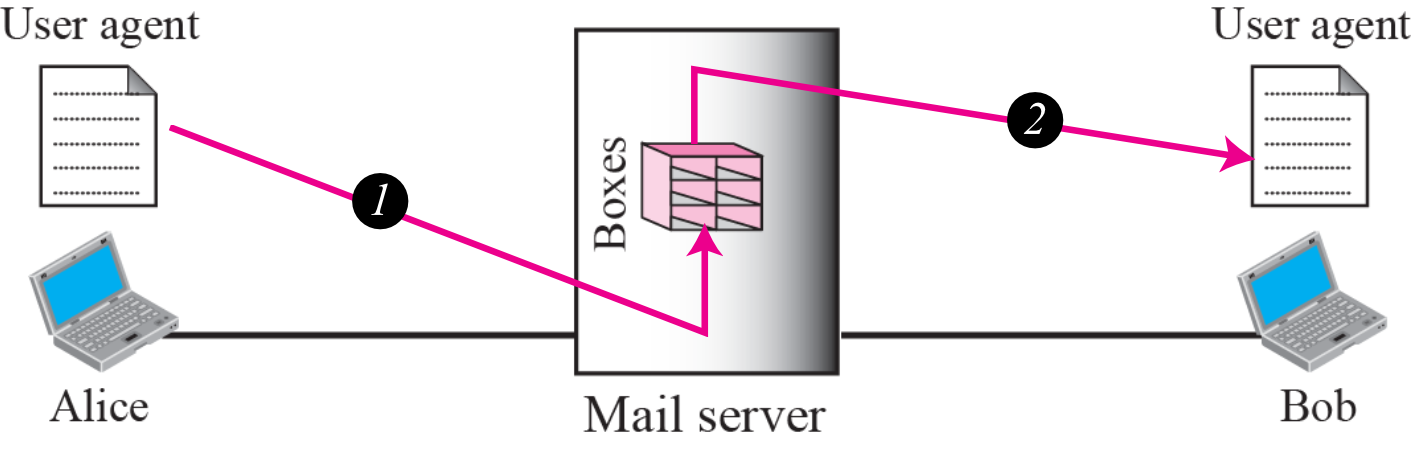
Components needed: 2 User Agents only (MUA สองฝั่ง)
Flow:
- Alice's UA sends message to mail server boxes
- Server stores message in Bob's mailbox
- Bob's UA retrieves message from mail server
When used: Both sender and receiver have accounts on the same mail server
Analogy: Like leaving a note in your roommate's mailbox in your shared apartment building
Scenario 2: Different Mail Servers
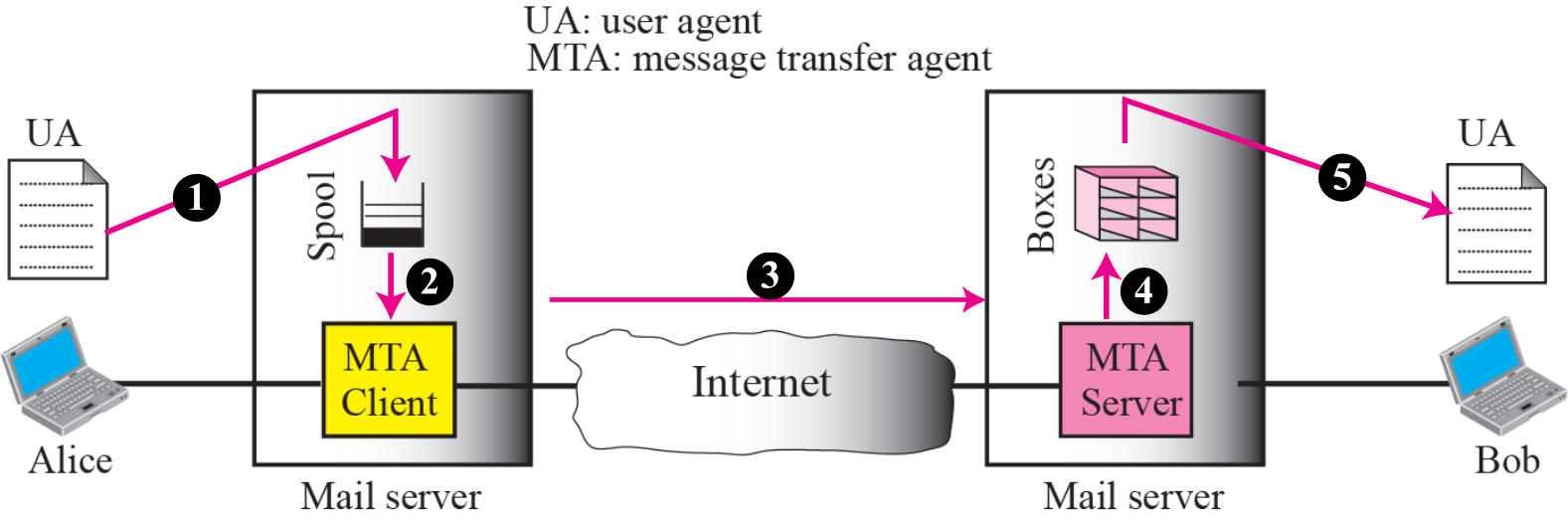
Components needed:
- 2 User Agents
- 1 pair of MTAs (Client and Server)
Flow:
- Alice's UA sends to her mail server's MTA Client
- MTA Client connects to spool
- MTA Client sends across Internet using SMTP
- Recipient's MTA Server receives message
- Stored in Bob's mailbox (Boxes)
- Bob's UA retrieves the message
When used: Sender and receiver are on different mail servers
Analogy: Like mailing a letter from one city's post office to another city's post office
Scenario 3: Sender via LAN/WAN
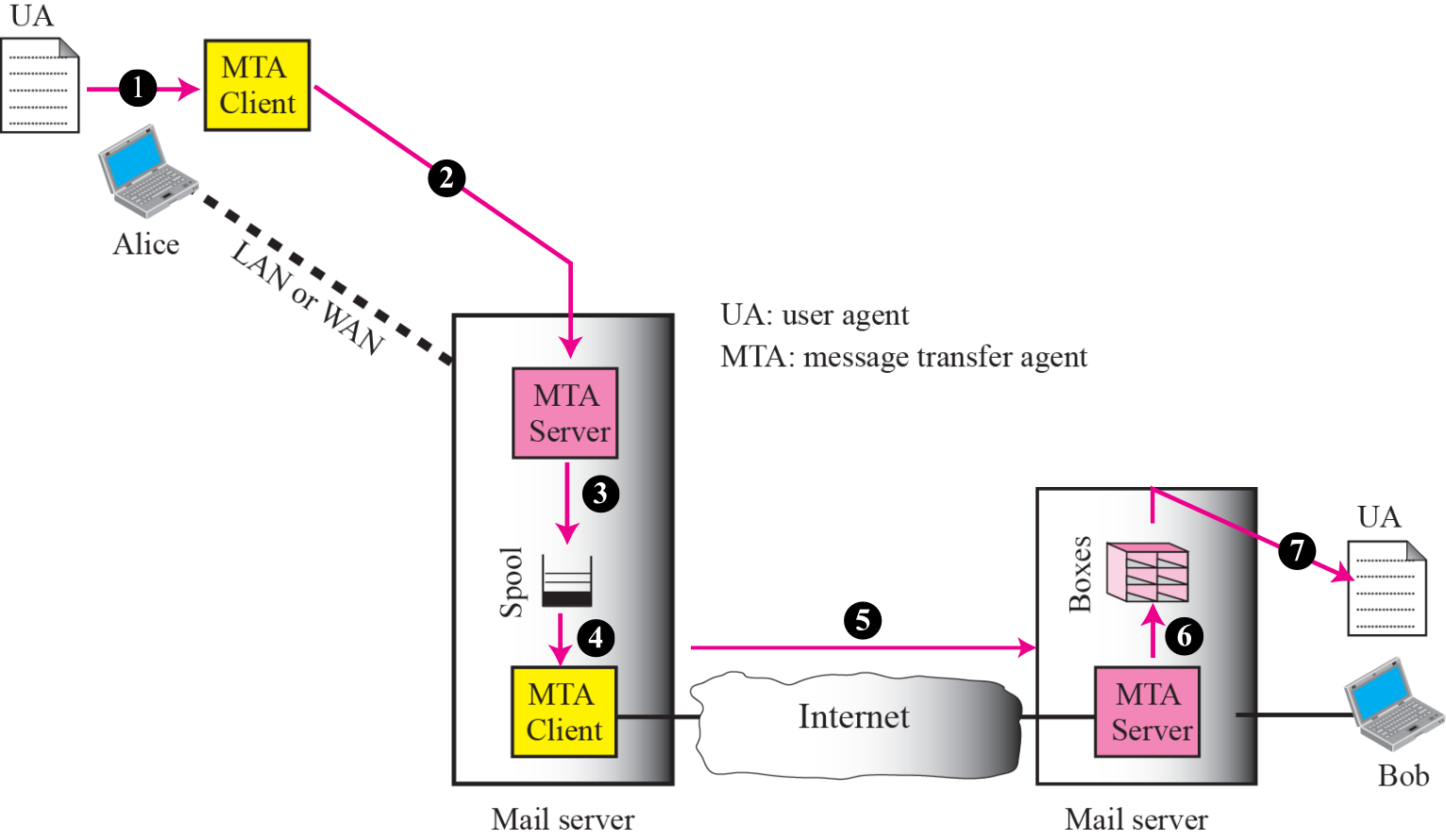
Components needed:
- 2 User Agents
- 2 pairs of MTAs (Client and Server for each side)
Flow:
- Alice's UA sends to MTA Client over LAN/WAN
- First MTA Client sends to first MTA Server
- Message stored in spool
- Second MTA Client picks up from spool
- Sends across Internet
- Recipient's MTA Server receives
- Stored in Bob's mailbox
- Bob's UA retrieves message
When used: Sender is connected to mail server via LAN or WAN
Analogy: Like sending a letter from your office's internal mail room, which then forwards it to the city post office
Scenario 4: Both via LAN/WAN (Most Common Today)
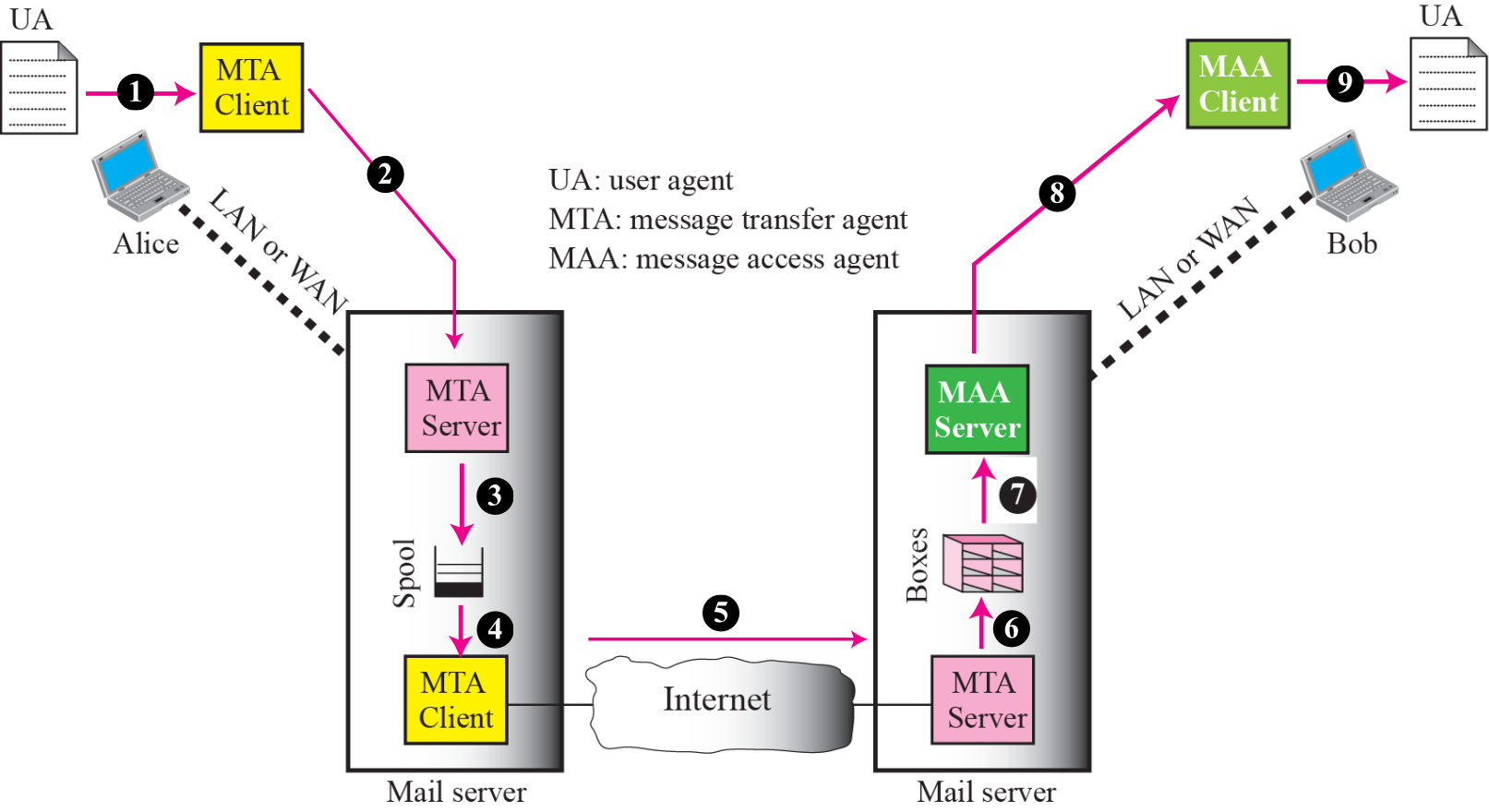
Components needed:
- 2 User Agents
- 2 pairs of MTAs (Client and Server)
- 1 pair of MAAs (Client and Server)
Flow:
- Alice's UA sends to MTA Client over LAN/WAN
- MTA Client sends to MTA Server
- Message stored in spool
- Another MTA Client picks from spool
- Sends across Internet using SMTP
- Recipient MTA Server receives
- Stored in mailbox (Boxes)
- MAA Server holds the message
- Bob's MAA Client requests message
- Bob's UA displays message
When used: Both sender and receiver connect via LAN/WAN (modern email scenario)
This is how Gmail and iCloud Mail work for you! Your browser/app acts as both the UA and MAA Client, connecting to Google's or Apple's servers over the internet.
Push vs Pull Protocols
มาดูภาษาที่มันใช้คุยกันบ้าง (Protocol)
Push Protocol (SMTP)
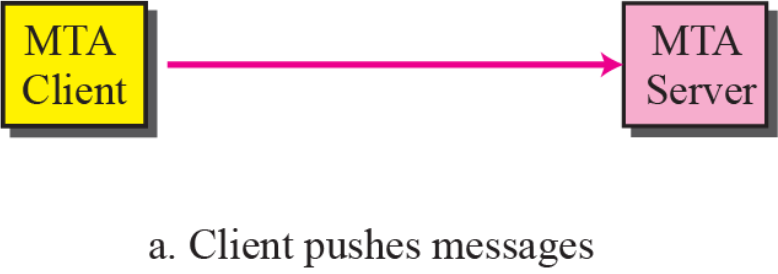
- Direction: Client → Server
- Usage: Used by MTA Client to push messages to MTA Server
- Stages: Used in first and second stages of mail delivery
Analogy: Like actively delivering a package to someone's doorstep
Pull Protocol (POP3/IMAP)
ดึง Email จาก Server มา MUA เรา
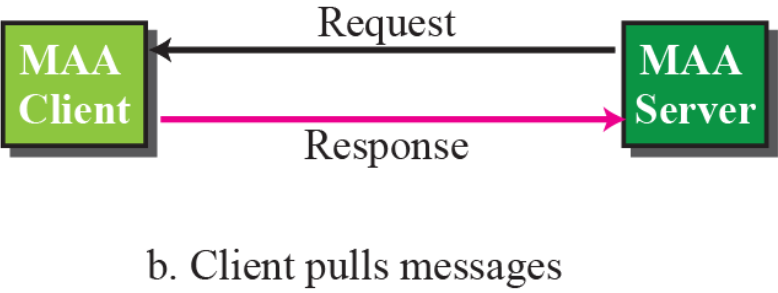
- Direction: Server → Client (upon request)
- Usage: Used by MAA Client to pull messages from MAA Server
- Process:
- Client sends request
- Server sends response with email data
- Stages: Used in third stage (message retrieval)
Analogy: Like going to the post office to pick up a package that's waiting for you
- POP3 ดึงเอาลงมาเก็บ (Defualt: ลบสำเนาบน Server ทิ้งไปด้วย)
- อันนี้เหมาะกับคนที่ดูบนเครื่องเดียวเท่านั้นอะ
- IMAP คือจะจัดการบน Server, Email ทุกอย่างจะถูกเก็บไว้บน Server เป็นหลัก
- ทำให้เข้าดูจากหลายเครื่องได้ เห็นข้อมูลชุดเดียวกัน
- ส่วนใหญ่ใช้อันนี้นะ
Email Address Format
Structure
[Local part] @ [Domain name]
Components:
- Local part: Mailbox address of the recipient (username)
- @: Separator symbol
- Domain name: The domain name of the mail server
Example:
forouzan@deanza.edu
- Local part:
forouzan - Domain:
deanza.edu
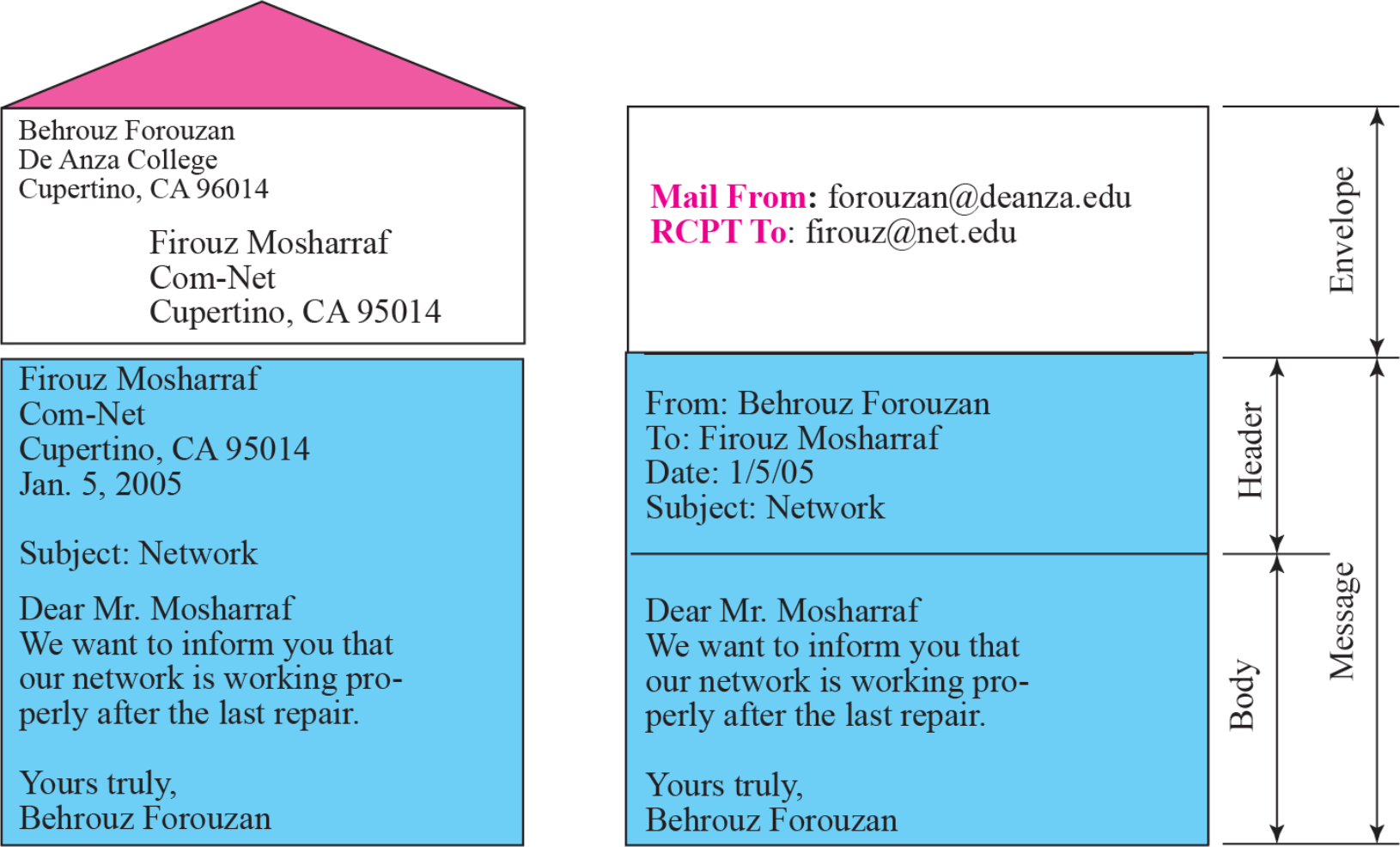
Email Message Structure
Standard Email Format
1. Envelope
Contents:
Mail From:sender's email addressRCPT To:recipient's email address
2. Header
Common fields:
From:Sender's name and addressTo:Recipient's name and addressDate:Date and time sentSubject:Subject line
3. Body
Contents:
- Blank line separator (separates header from body)
- Message content
- Signature
Note: The envelope is like the outside of a physical letter (for routing), while the header is like the letterhead (for display to recipient)
Simple Mail Transfer Protocol (SMTP)
Overview
- Purpose: Defines MTA client and server communication in the Internet
- Type: Push protocol
- Usage: Two pairs of MTA client-server programs in most common scenario
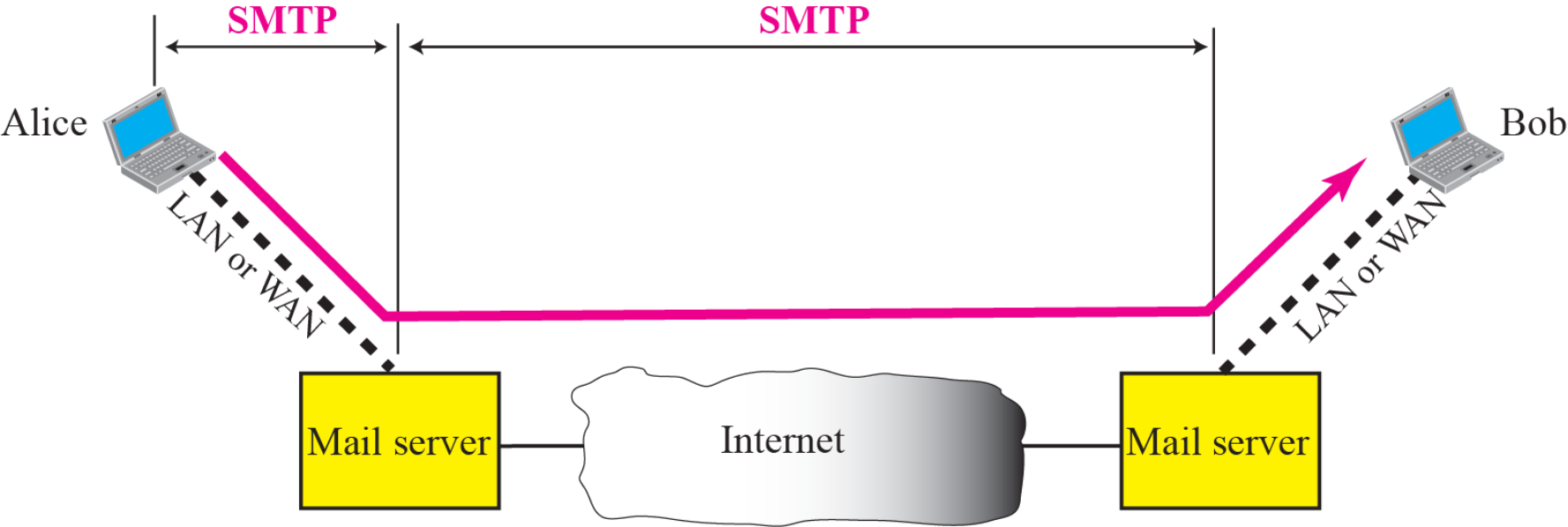
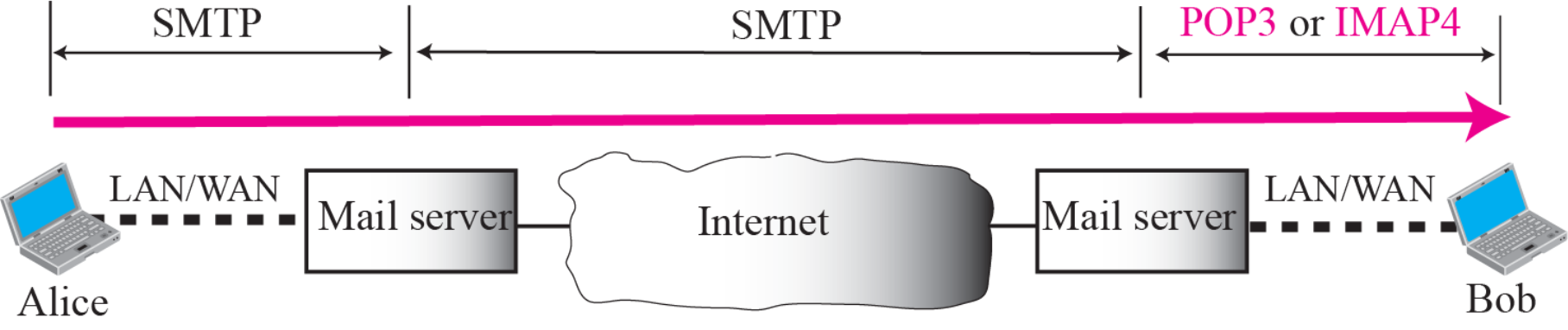
SMTP Communication Range
Protocol Coverage:
[Alice's Computer] --SMTP--> [Mail Server] --SMTP--> [Mail Server] --POP3/IMAP--> [Bob's Computer]
                    via LAN/WAN           via Internet            via LAN/WAN
SMTP Commands and Responses
SMTP Commands (Client → Server)

| Keyword | Argument(s) | Description |
|---|---|---|
HELO | Sender's host name | Identifies the client to server |
MAIL FROM | Sender of the message | Specifies the sender's email |
RCPT TO | Intended recipient | Specifies the recipient's email |
DATA | Body of the mail | Begins message body transmission |
QUIT | - | Terminates the session |
RSET | - | Resets the session |
VRFY | Name of recipient | Verifies recipient exists |
NOOP | - | No operation (keep-alive) |
TURN | - | Reverses roles |
EXPN | Mailing list | Expands mailing list |
HELP | Command name | Requests help |
SEND FROM | Intended recipient | Alternative send command |
SMOL FROM | Intended recipient | Send to terminal or mailbox |
SMAL FROM | Intended recipient | Send to terminal and mailbox |
SMTP Response Codes (Server → Client)
Positive Completion Reply (2xx)
| Code | Description |
|---|---|
| 211 | System status or help reply |
| 214 | Help message |
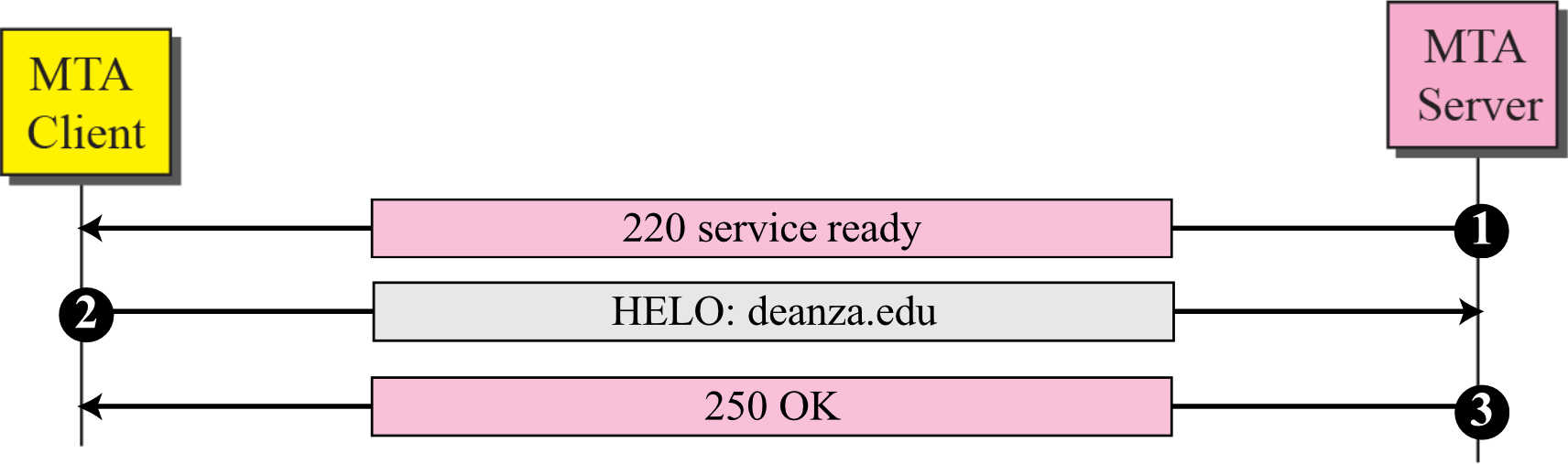
| 220 | Service ready |
| 221 | Service closing transmission channel |
| 250 | Request command completed |
| 251 | User not local; the message will be forwarded |
Positive Intermediate Reply (3xx)
| Code | Description |
|---|---|
| 354 | Start mail input |
Transient Negative Completion Reply (4xx)
| Code | Description |
|---|---|
| 421 | Service not available |
| 450 | Mailbox not available |
| 451 | Command aborted: local error |
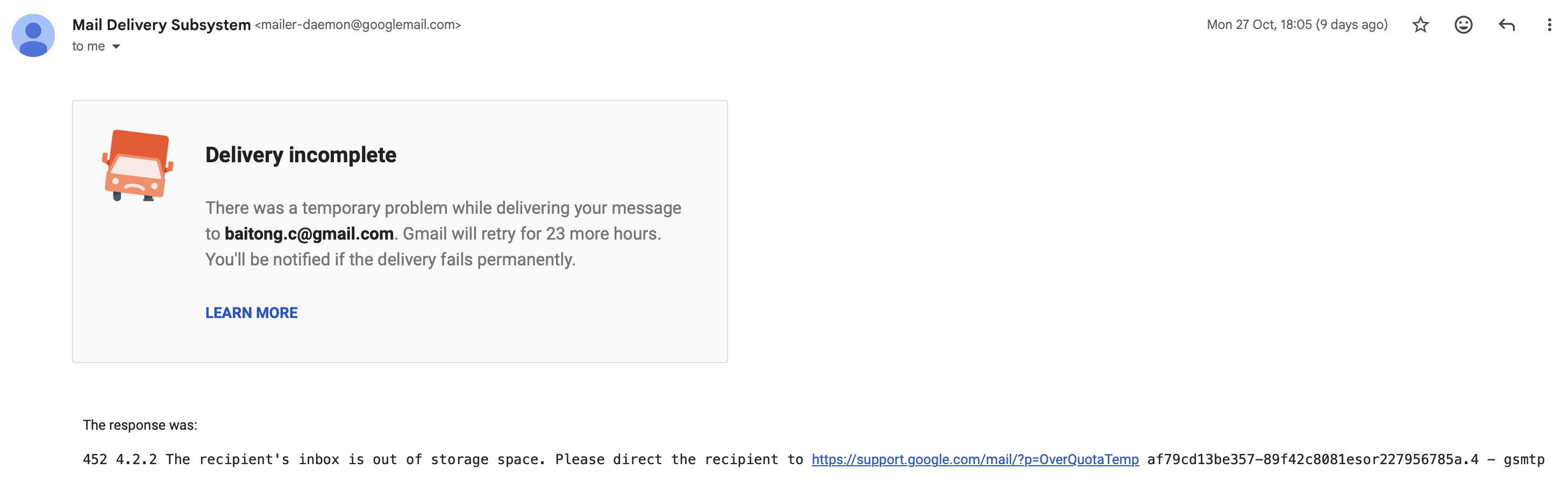
| 452 | Command aborted; insufficient storage |
 |
Permanent Negative Completion Reply (5xx)
| Code | Description |
|---|---|
| 500 | Syntax error; unrecognized command |
| 501 | Syntax error in parameters or arguments |
| 502 | Command not implemented |
| 503 | Bad sequence of commands |
| 504 | Command temporarily not implemented |
| 550 | Command is not executed; mailbox unavailable |
| 551 | User not local |
| 552 | Requested action aborted; exceeded storage location |
| 553 | Requested action not taken; mailbox name not allowed |
| 554 | Transaction failed |
Pattern Recognition:
- 2xx = Success
- 3xx = Need more info
- 4xx = Temporary failure (try again)
- 5xx = Permanent failure (won't work)
SMTP Transaction Examples
Connection Establishment
Flow:
Message Transfer
Flow:
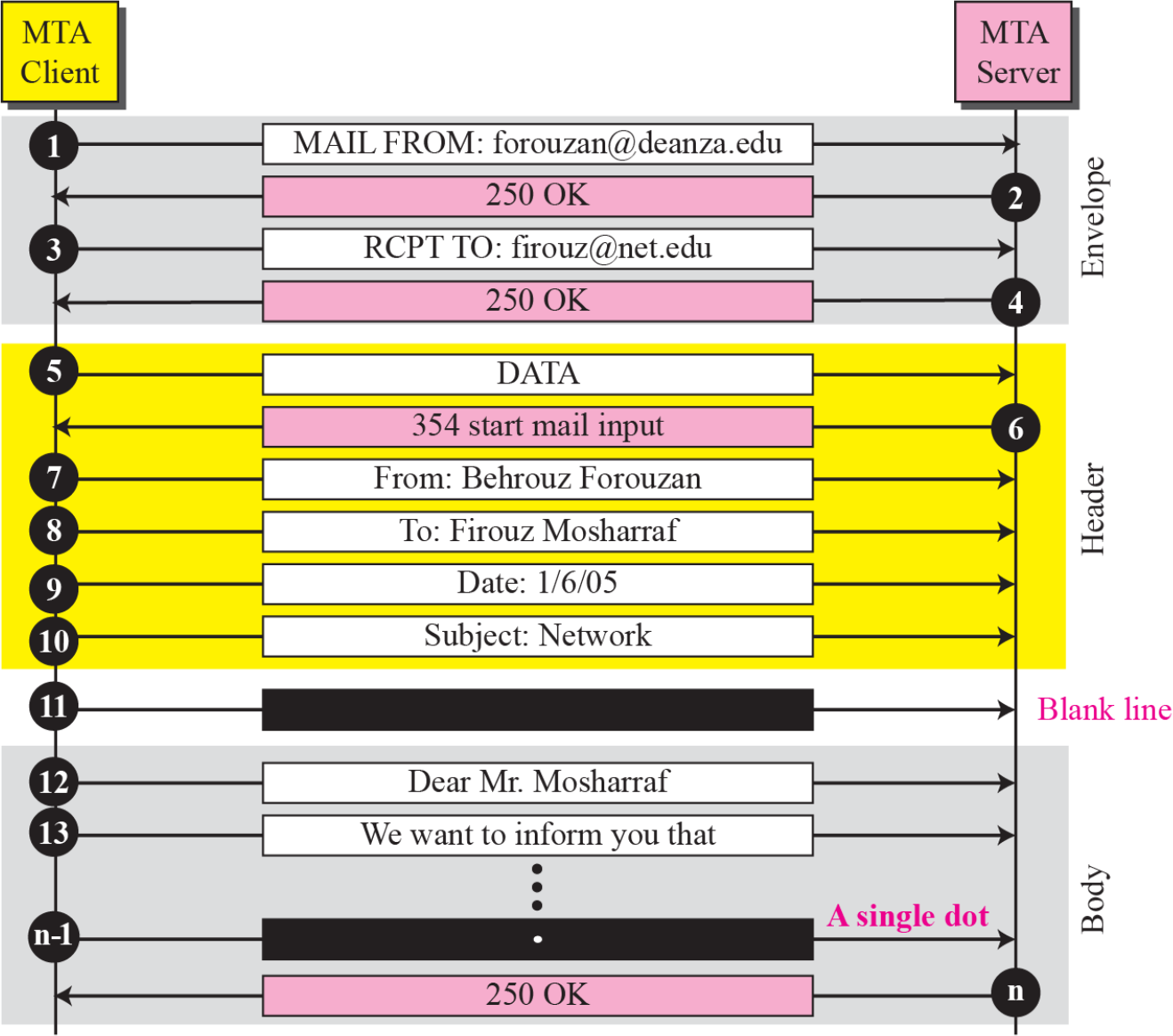
Client → Server: MAIL FROM: forouzan@deanza.edu
Server → Client: 250 OK
Client → Server: RCPT TO: firouz@net.edu
Server → Client: 250 OK
Client → Server: DATA
Server → Client: 354 start mail input
Client → Server: From: Behrouz Forouzan
Client → Server: To: Firouz Mosharraf
Client → Server: Date: 1/6/05
Client → Server: Subject: Network
Client → Server: [blank line]
Client → Server: Dear Mr. Mosharraf
Client → Server: We want to inform you that...
Client → Server: [message content continues]
Client → Server: . (single dot - end of message)
Server → Client: 250 OK
Key Points:
- Envelope section:
MAIL FROMandRCPT TO - Header section:
From:,To:,Date:,Subject: - Blank line separates header from body
- Single dot (
.) on a line by itself marks end of message body
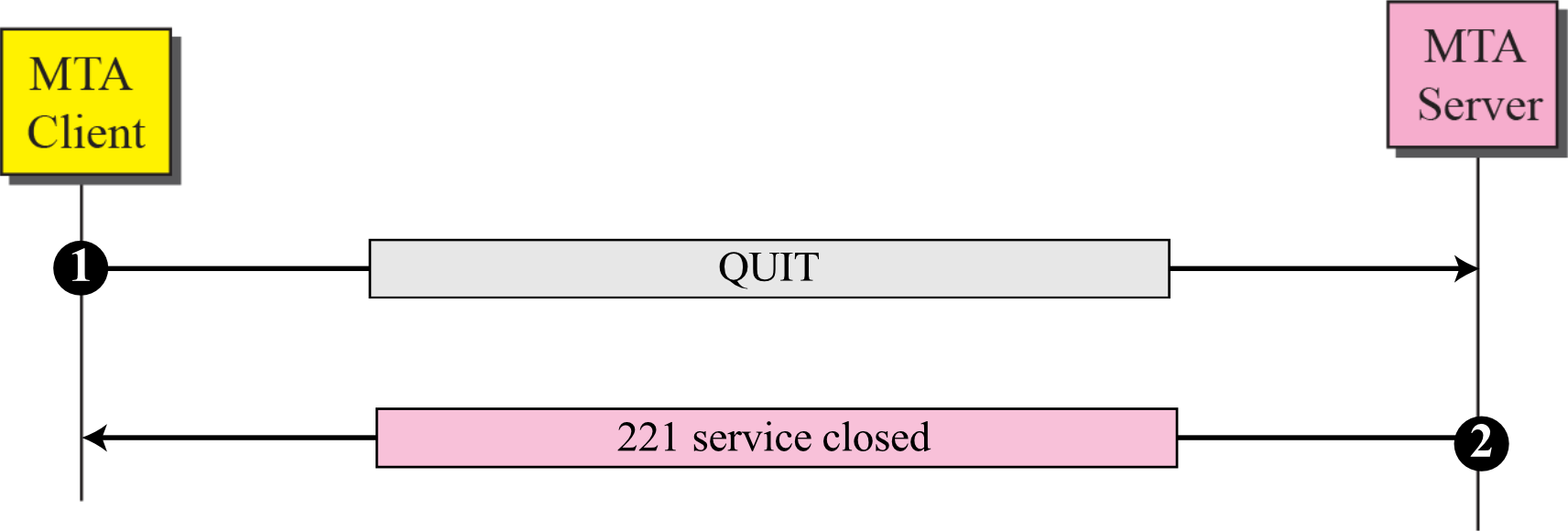
Connection Termination
Flow:
Client → Server: QUIT
Server → Client: 221 service closed
Message Access Agents (MAA)
Why MAA is Needed
Problem with SMTP for retrieval:
- SMTP is a push protocol (client pushes to server)
- Third stage needs a pull protocol (client pulls from server)
- Direction of bulk data flow is from server to client
Solution:
- Use MAA with pull protocols: POP3 or IMAP4
- Allows users to retrieve messages from their mailbox
Protocol Usage Stages
Stage 1: [User] --SMTP--> [Mail Server] (Push)
Stage 2: [Mail Server] --SMTP--> [Mail Server] (Push)
Stage 3: [Mail Server] --POP3/IMAP4--> [User] (Pull)
POP3 (Post Office Protocol version 3)
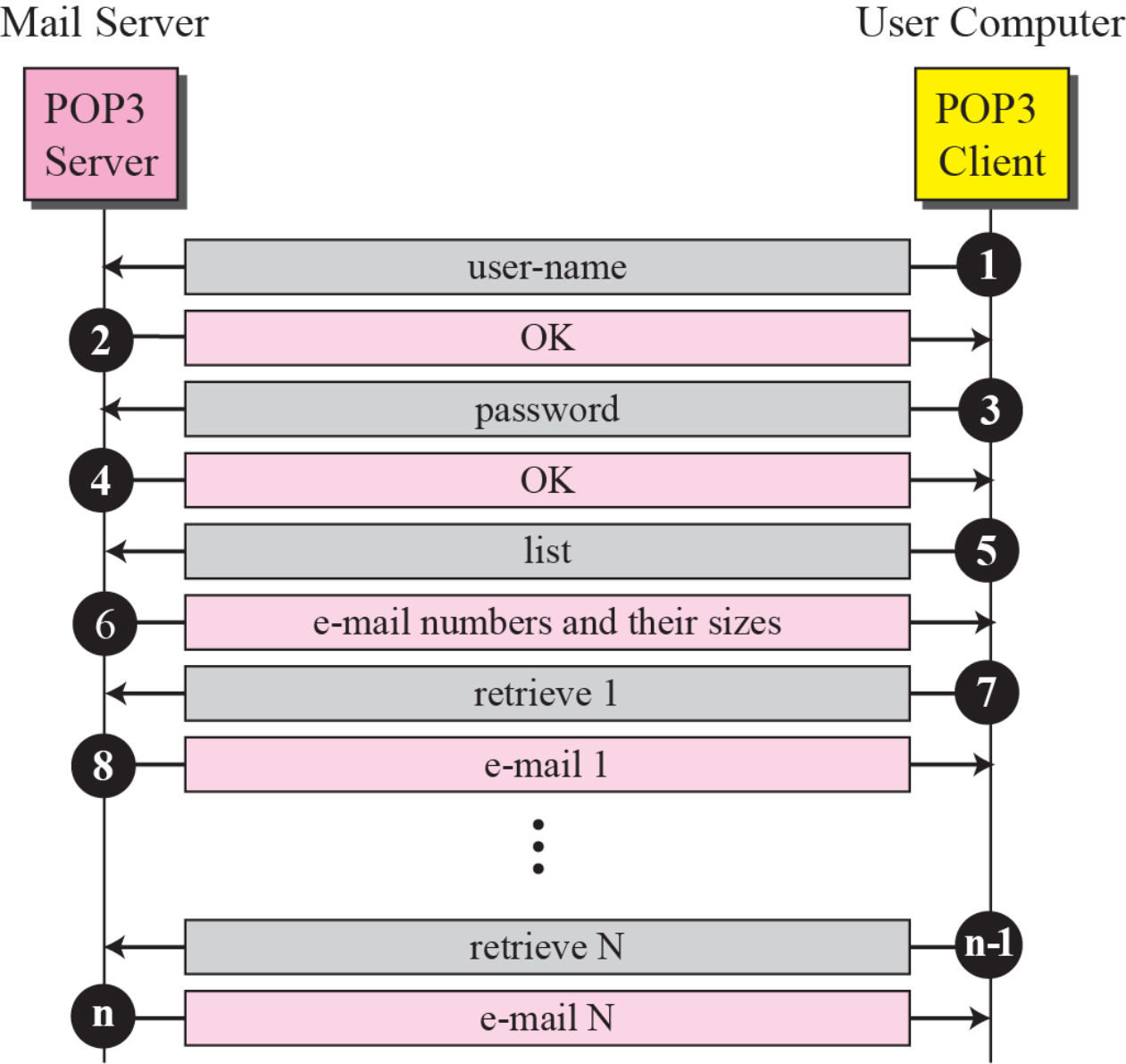
POP3 Transaction Flow
Typical Session:
1. Client → Server: user-name
2. Server → Client: OK
3. Client → Server: password
4. Server → Client: OK
5. Client → Server: list
6. Server → Client: e-mail numbers and their sizes
7. Client → Server: retrieve 1
8. Server → Client: e-mail 1
   ...
n-1. Client → Server: retrieve N
n. Server → Client: e-mail N
Characteristics:
- Simple download protocol
- Typically downloads and deletes from server
- Three states: Authorization, Transaction, Update
- Uses TCP port 110
Analogy: Like going to a post office box, taking all your letters home, and the post office empties your box
IMAP (Internet Message Access Protocol)
IMAP Advantages over POP3
Key Features:
- Messages remain on server
- Can organize messages in folders on server
- Can access same mailbox from multiple devices
- Can download headers only, then fetch specific messages
- Supports searching messages on server
- More complex but more powerful than POP3
Use Cases:
- Multiple device access (phone, tablet, computer)
- Managing large mailboxes
- Slow internet connections (can browse headers first)
Your experience: Gmail and iCloud Mail use IMAP-like protocols, which is why you can see the same emails on your phone, tablet, and computer!
MIME (Multipurpose Internet Mail Extensions)
ตะก่อน Email ส่งได้แต่ Text Eng ล้วน ๆ แล้วอะไรทำให้มันส่งภาษาไทย, รูปภาพ, File ได้ล่ะ?
หน้าที่หลัก ๆ ของ MIME เลยก็คือ แปลงข้อมูลอะไรก็ได้ที่ไม่ใช่ ASCII 7-bit ธรรมดา (รูปภาพ, ภาษาอื่น) ให้ระบบ MTA ดั้งเดิมที่เข้าใจแต่ ASCII 7-bit ได้
Purpose of MIME
Problem:
- Original email system only supports 7-bit NVT ASCII format
- Cannot send non-ASCII data (images, videos, other languages, etc.)
Solution:
- MIME transforms non-ASCII data to NVT ASCII at sender
- MTA sends through Internet
- MIME transforms back to original data at receiver
MIME Process Flow
[Alice's Non-ASCII file]
     ↓
[MIME encoding to 7-bit ASCII]
     ↓
[E-mail System transfer]
     ↓
[MIME decoding from 7-bit ASCII]
     ↓
[Bob receives original Non-ASCII file]

Analogy: Like translating a document to a universal language for shipping, then translating it back to the original language when it arrives
MIME Headers
ใน Email มันจะมีการเพิ่มข้อมูลส่วน Header เพื่อบอกรายละเอียดของ MIME เช่น
Content-Typeบอกว่าข้อมูลที่แนบมาเป็นอะไร,Content-Transfer-Encodingวิธีเข้ารหัสแบบไหน
Email with MIME Structure
┌─────────────────────────────────────────────────────┐
│ E-mail header (From, To, Date, Subject)             │
├─────────────────────────────────────────────────────┤
│ MIME-Version: 1.1                                   │
│ Content-Type: type/subtype                          │
│ Content-Transfer-Encoding: encoding type            │
│ Content-Id: message id                              │
│ Content-Description: textual explanation            │
├─────────────────────────────────────────────────────┤
│ E-mail body                                         │
└─────────────────────────────────────────────────────┘
MIME Header Fields
- MIME-Version: Indicates MIME version (usually 1.1)
- Content-Type: Specifies data type and subtype
- Content-Transfer-Encoding: Specifies encoding method used
- Content-Id: Unique identifier for this message
- Content-Description: Human-readable description of non-textual content
MIME Content Types and Subtypes
Data Types in MIME
| Type | Subtype | Description |
|---|---|---|
| Text | Plain | Unformatted text |
| HTML | HTML format (see Appendix E) | |
| Multipart | Mixed | Body contains ordered parts of different data types |
| Parallel | Same as above, but no order | |
| Digest | Similar to Mixed, but default is message/RFC822 | |
| Alternative | Parts are different versions of the same message | |
| Message | RFC822 | Body is an encapsulated message |
| Partial | Body is a fragment of a bigger message | |
| External-Body | Body is a reference to another message | |
| Image | JPEG | Image is in JPEG format |
| GIF | Image is in GIF format | |
| Video | MPEG | Video is in MPEG format |
| Audio | Basic | Single channel encoding of voice at 8 KHz |
| Application | PostScript | Adobe PostScript |
| Octet-stream | General binary data (eight-bit bytes) |
Real-world example: When you attach a photo to an email in Gmail, it might be encoded as
Content-Type: image/jpeg
MIME Content Transfer Encodings
Encoding Types
| Type | Description |
|---|---|
| 7bit | NVT ASCII characters and short lines |
| 8bit | Non-ASCII characters and short lines |
| Binary | Non-ASCII characters with unlimited-length lines |
| Base64 | 6-bit blocks of data are encoded into 8-bit ASCII characters |
| Quoted-printable | Non-ASCII characters are encoded as an equal sign plus an ASCII code |
Base64 Encoding
เหมาะมาก ไฟล์รูปภาพ, ไฟล์โปรแกรม อะไรที่เป็น Binary ล้วน ๆ เลย
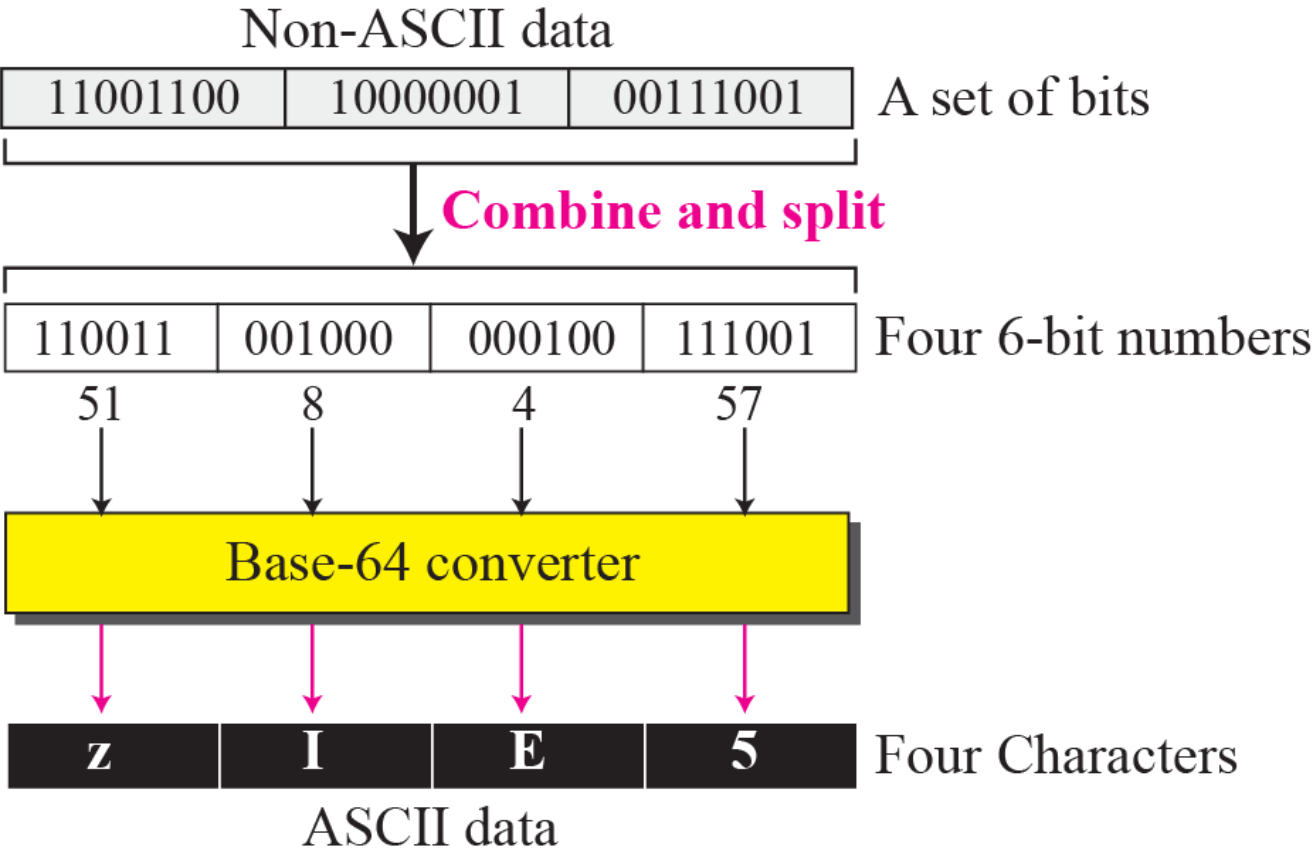
How Base64 Works
Process:
- Take 3 bytes (24 bits) of non-ASCII data
- Combine and split into four 6-bit groups
- Convert each 6-bit group to a printable ASCII character
- Result: 4 ASCII characters for every 3 bytes of data
Example:
Non-ASCII data (3 bytes):
11001100 | 10000001 | 00111001

Combine and split into 6-bit groups:
110011 | 001000 | 000100 | 111001
  51       8        4       57

Convert to Base64 characters:
  z        I        E        5
Efficiency:
- Input: 3 bytes (24 bits)
- Output: 4 characters (32 bits in ASCII)
- Expansion: 33% size increase
Analogy: Like converting a complex instruction manual into simple pictograms that anyone can understand, but it takes more space
Base64 Conversion Table
| Value | Code | Value | Code | Value | Code | Value | Code |
|---|---|---|---|---|---|---|---|
| 0 | A | 16 | Q | 32 | g | 48 | w |
| 1 | B | 17 | R | 33 | h | 49 | x |
| 2 | C | 18 | S | 34 | i | 50 | y |
| 3 | D | 19 | T | 35 | j | 51 | z |
| 4 | E | 20 | U | 36 | k | 52 | 0 |
| 5 | F | 21 | V | 37 | l | 53 | 1 |
| 6 | G | 22 | W | 38 | m | 54 | 2 |
| 7 | H | 23 | X | 39 | n | 55 | 3 |
| 8 | I | 24 | Y | 40 | o | 56 | 4 |
| 9 | J | 25 | Z | 41 | p | 57 | 5 |
| 10 | K | 26 | a | 42 | q | 58 | 6 |
| 11 | L | 27 | b | 43 | r | 59 | 7 |
| 12 | M | 28 | c | 44 | s | 60 | 8 |
| 13 | N | 29 | d | 45 | t | 61 | 9 |
| 14 | O | 30 | e | 46 | u | 62 | + |
| 15 | P | 31 | f | 47 | v | 63 | / |
Special characters:
+represents value 62/represents value 63=used for padding at the end
Quoted-Printable Encoding
เหมาะกับข้อมูลที่ส่วนใหญ่เป็นข้อความหรือว่า Text อยู่แล้ว แต่มึตัวอักษรที่ไม่ใช่ ASCII ปนมาเล็กน้อย เช่น Email ภาษาไทยที่มีสระ/วรรยุกษ์
Overview
- Full Name: Quoted-Printable (QP encoding)
- Purpose: Binary-to-text encoding using printable ASCII characters
- Best Used: When data has a small non-ASCII portion
Encoding Rules
For non-ASCII characters:
- Sent as 3 characters
- Format:
=XXwhere XX is hexadecimal representation of the byte
Example:
Mixed ASCII and non-ASCII data:
00100110 | 01001100 | 10011101 | 00111001 | 01001011
    &         L         9D         9          K

After Quoted-printable encoding:
00100110 | 01001100 | 00111101 | 00111001 | 01000100 | 00111001 | 01001011
    &         L          =          9          D          9          K
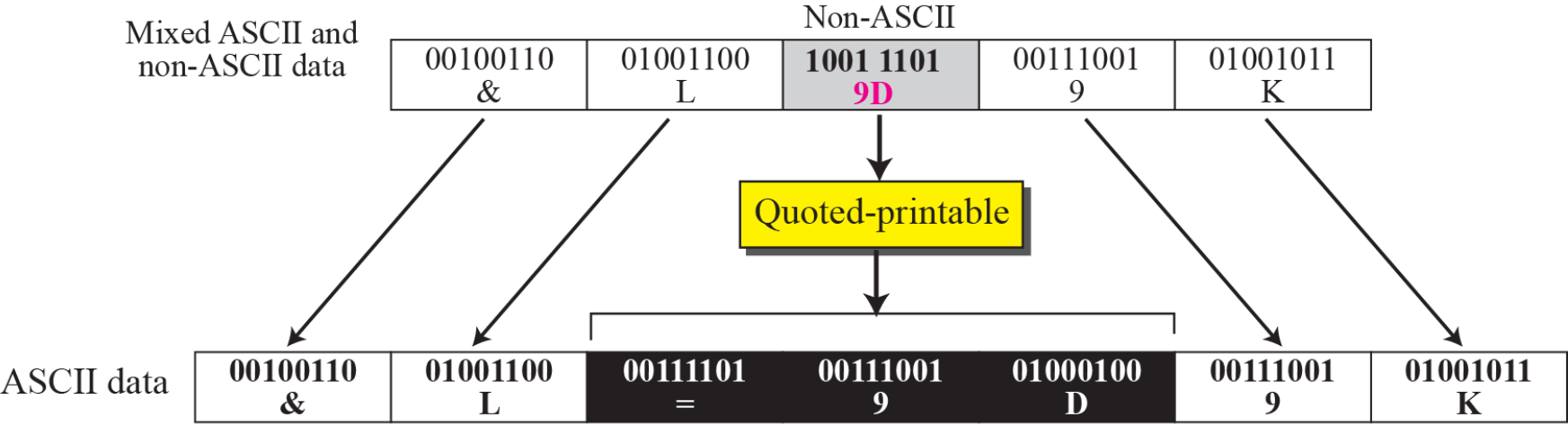
Result: &L=9D9K
- ASCII characters (
&,L,9,K) remain unchanged - Non-ASCII byte (
10011101=9Din hex) becomes=9D
Efficiency:
- More efficient than Base64 when most data is ASCII
- Only expands non-ASCII bytes (3 characters per byte)
Use case: Perfect for emails with mostly English text but containing a few special characters or emoji
Web-Based Email
อันนี้คือจะเป็น Mail ที่อยู่ในเว็บพวก gmail.com ไรงี้ มาดูกันว่ามันต่างกับสิ่งที่มัน Installed มาบนเครื่องอย่าง Apple Mail ยังไงบ้าง
Overview
- Modern websites provide email services to anyone with access
- Common providers: Gmail, Hotmail (Outlook), Yahoo Mail
- Key concept: Uses web browser as the user interface
Case 1: Sender Uses Web-Based, Receiver Uses Traditional
Components:
[Alice] --HTTP--> [Alice's Site] --SMTP--> [Internet] --SMTP--> [Bob's Site] --HTTP--> [Bob]
         Web        SMTP Server                          SMTP Server
         Browser                                                        Traditional
                                                                        Client
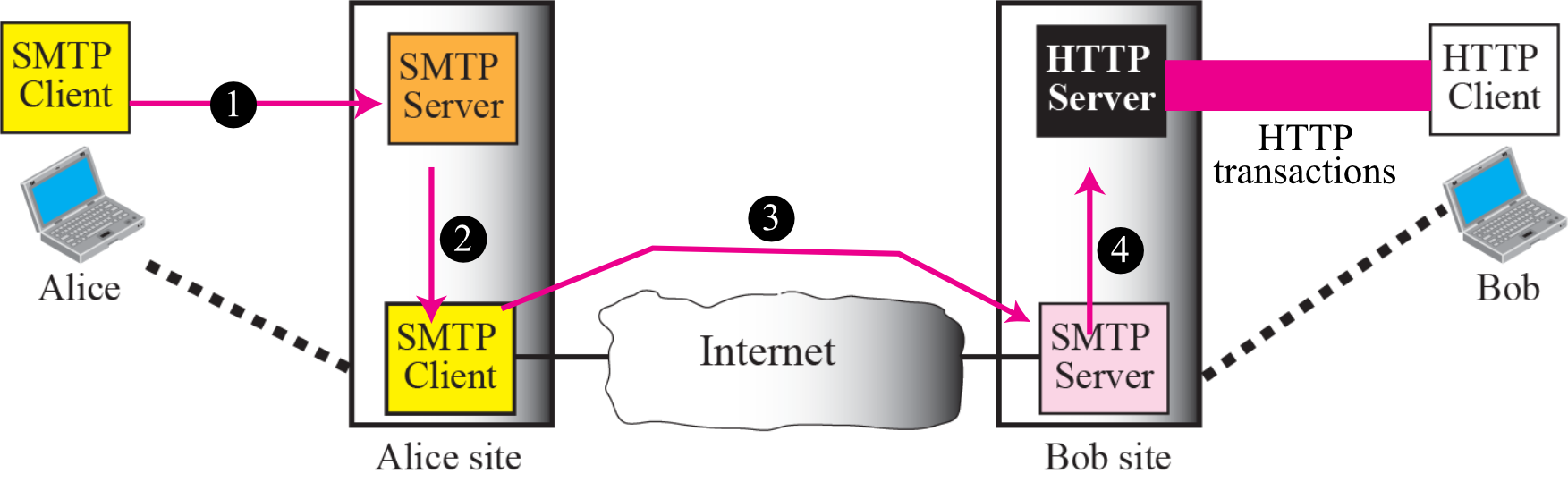
Flow:
- Alice uses HTTP to send via web browser
- Alice's site has both HTTP Server and SMTP Client
- SMTP Client pushes to recipient's SMTP Server via Internet
- Bob uses HTTP transactions to retrieve from his site
จริง ๆ คือเราคุยกับ Web Server ผ่าน HTTP แทนที่จะคุยกับ Mail Server ด้วย POP/IMAP โดยตรง แต่ว่า Background มันก็ยังใช้ Technology เหล่านั้นอยู่
Your Gmail experience: When you send an email from Gmail's website, this is what's happening behind the scenes!
Case 2: Both Use Web-Based Email
Components:
[Alice] --HTTP--> [Alice's Site] --SMTP--> [Bob's Site] --HTTP--> [Bob]
         Web      HTTP Server              HTTP Server    Web
         Browser  SMTP Client              SMTP Server    Browser
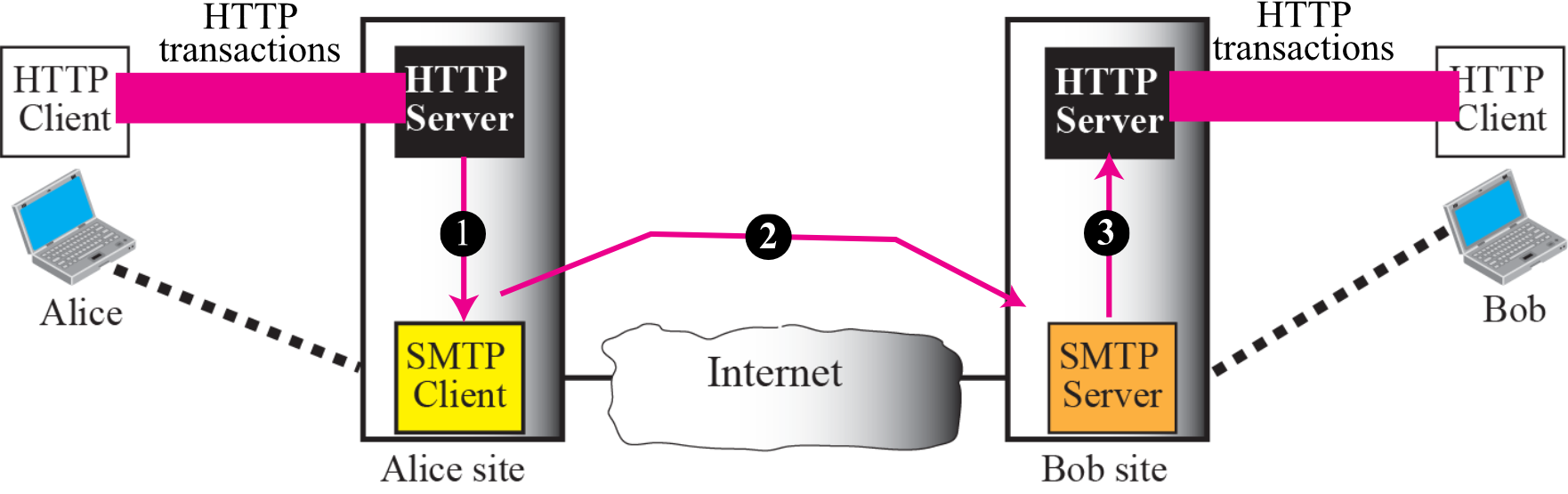
Flow:
- Alice uses HTTP transactions to submit email
- HTTP Server receives and passes to SMTP Client
- SMTP Client sends to Bob's SMTP Server via Internet
- Bob uses HTTP transactions to retrieve email
Characteristics:
- No traditional email client needed
- All interaction through web browser
- Server handles all SMTP operations
- User only sees HTTP interface
Real-world example: Both you and your friend checking Gmail or iCloud Mail through web browsers - this is Case 2!
Email Security
Security Protocols for Email
1. Pretty Good Privacy (PGP)
มาตรฐานที่ใช้เข้ารหัส Encryption เนื้อหา Email ทำให้คนที่ดักข้อมูลระหว่างทาง อ่านไม่ออก + Digital Signature เป็นการยืนยันว่าส่งมาจากผู้ส่งคนนั้นจริง ๆ (1, 2)
Features:
- Encrypts email content
- Decrypts received emails
- Authenticates messages with digital signatures
- Can encrypt stored files
- Popular program for email encryption
Usage:
- Individual users can implement
- Often used for sensitive communications
- Provides end-to-end encryption
2. Secure MIME (S/MIME)
Features:
- Internet standard for email security
- Digitally signs MIME-based email data
- Uses public key encryption
- Ensures message integrity and authenticity
Encryption Key Types
ทุกคนมีกุญแจอยู่ 2 ดอก ทำงานคู่กัน
- Public Key - กุญแจสาธารณะ เปิดเผยได้ ใครรู้ก็ได้
- Private Key - กุญแจส่วนตัว เก็บเป็นความลับสุดยอด ห้ามให้ใครรู้
สมมติ A จะส่งข้อความลับหา B: A จะต้องเอา Public Key ของ B มาใช้ในการเข้ารหัสข้อความ แล้วส่ง Email ที่เข้ารหัสแล้วไปให้ B พอ B ได้รับ ก็จะใช้ Private Key ของตัวเอง มาถอดรหัส Email นั้น ๆ ก็จะอ่านได้
Public Key
- Availability: Available to everyone
- Storage: Publicly accessible repository or directory
- Purpose: Anyone can use to encrypt messages to you
- Security: Safe to share openly
Private Key
- Availability: Known only to the owner
- Storage: Kept secret and secure
- Purpose:
- Decrypt messages encrypted with your public key
- Sign messages to prove they came from you
- Security: Must never be shared
Email Encryption Process
[Sender] → Use recipient's PUBLIC KEY to encrypt → [Encrypted Email] → [Internet]
                                                                           ↓
[Recipient] ← Use own PRIVATE KEY to decrypt ← [Encrypted Email arrives]
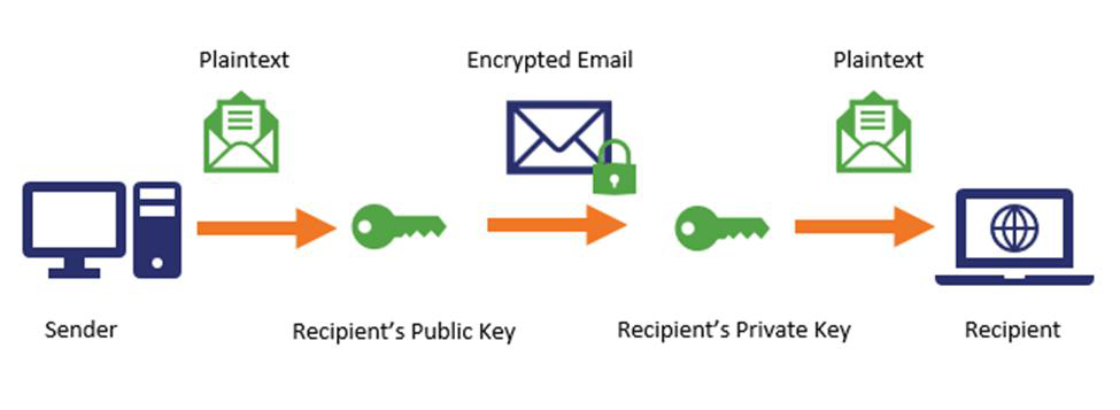
Flow:
- Sender encrypts plaintext with recipient's public key
- Encrypted email travels through internet
- Recipient decrypts with their own private key
- Plaintext is recovered
Analogy: Public key is like a padlock you give to everyone - they can lock messages, but only you have the key to unlock them!
Summary
Key Concepts Review
- Email Architecture:
- Four scenarios explain different email delivery methods
- Fourth scenario (both via LAN/WAN) is most common today
- User Agent (UA):
- Provides services for reading, sending, receiving email
- Two types: command-driven and GUI-based
- Message Transfer Agent (MTA):
- Handles email delivery between servers
- Uses SMTP protocol
- Works in client-server pairs
- Email Transfer Phases:
- Connection establishment (HELO)
- Message transfer (MAIL FROM, RCPT TO, DATA)
- Connection termination (QUIT)
- Message Access Agents (MAAs):
- POP3: Downloads and typically deletes from server
- IMAP: Keeps messages on server, allows organization
- MIME:
- Transforms non-ASCII data to ASCII format
- Enables sending images, videos, attachments
- Multiple content types and encoding methods
- Base64: For binary data (33% size increase)
- Quoted-printable: For mostly ASCII with some non-ASCII
- Web-Based Email:
- Uses HTTP for user interaction
- SMTP still used for server-to-server transfer
- Examples: Gmail, Outlook, Yahoo Mail
- Email Security:
- PGP: Popular encryption program
- S/MIME: Internet standard for secure email
- Uses public/private key cryptography
Quick Reference
Port Numbers
- SMTP: Port 25 (or 587 for submission)
- POP3: Port 110
- IMAP: Port 143
- HTTP: Port 80
- HTTPS: Port 443
Protocol Summary
- SMTP: Push protocol for sending
- POP3: Pull protocol for retrieval (download & delete)
- IMAP: Pull protocol for retrieval (keep on server)
- HTTP/HTTPS: Web-based email access
Common Response Codes
- 220: Service ready
- 250: Command successful
- 354: Start sending message
- 421: Service unavailable
- 550: Mailbox unavailable
Additional Resources
Terms to Remember
- UA: User Agent (your email client)
- MTA: Message Transfer Agent (email server software)
- MAA: Message Access Agent (retrieval software)
- SMTP: Simple Mail Transfer Protocol (sending)
- POP3: Post Office Protocol (simple retrieval)
- IMAP: Internet Message Access Protocol (advanced retrieval)
- MIME: Multipurpose Internet Mail Extensions (attachments)
- MUA: Mail User Agent (another term for UA)
- NVT: Network Virtual Terminal (ASCII format)