Learning Objectives
- Explain user interfaces
- Explain the concept of human-computer interaction, including user-friendly interface design
- Summarize the seven habits of successful interface designers
- Summarize the 10 guidelines for user interface design
- Design effective source documents and forms
- Explain printed output report design guidelines and principles
- Describe three types of printed output reports
- Discuss output and input technology issues
- Describe output and input security and control issues
- Explain emerging user interface trends, including modular design, responsive web design, and prototypes
User Interfaces
- Describes how users interact with a computer system
- Features that affect two-way communications between the user and the computer
- Central to usability: user satisfaction, support for business functions, and system effectiveness
- Features that affect two-way communications between the user and the computer
- Apple introduced the graphical user interface (GUI) — complete with mouse and screen icons
- In a user-centered system, the distinction blurs between input, output, and the interface itself
- Most users work with a varied mix of input, screen output, and data queries as they perform day-to-day job functions
Think of a user interface like a car's dashboard — it doesn't matter how powerful the engine is if the driver can't easily read the gauges or find the controls.
Human-Computer Interaction (HCI)
- The relationship between computers and people who use them to perform their jobs
- Covers everything from smartphones to global networks
- Includes all communications and instructions to enter input and obtain output in the form of screen displays or printed reports
- Transparent user interface: does not distract the user — the interface "gets out of the way" so the user can focus on their task
A transparent UI is like a well-designed tool handle — you don't think about it, you just use it.
Seven Habits of Successful Interface Designers
1. Understand the Business
- Designer must understand the underlying business functions
- Must understand how the system supports business goals
2. Maximize Graphical Effectiveness
- A well-designed interface enables rapid learning
- Use visuals purposefully to guide users, not just decorate
3. Think Like a User
- Designer must see the system from the user's perspective
- Avoid designer bias — what is obvious to the developer may not be obvious to the user
4. Use Models and Prototypes
- Designers can present initial screen designs as a storyboard
- Users test the design and provide feedback before full development
5. Focus on Usability
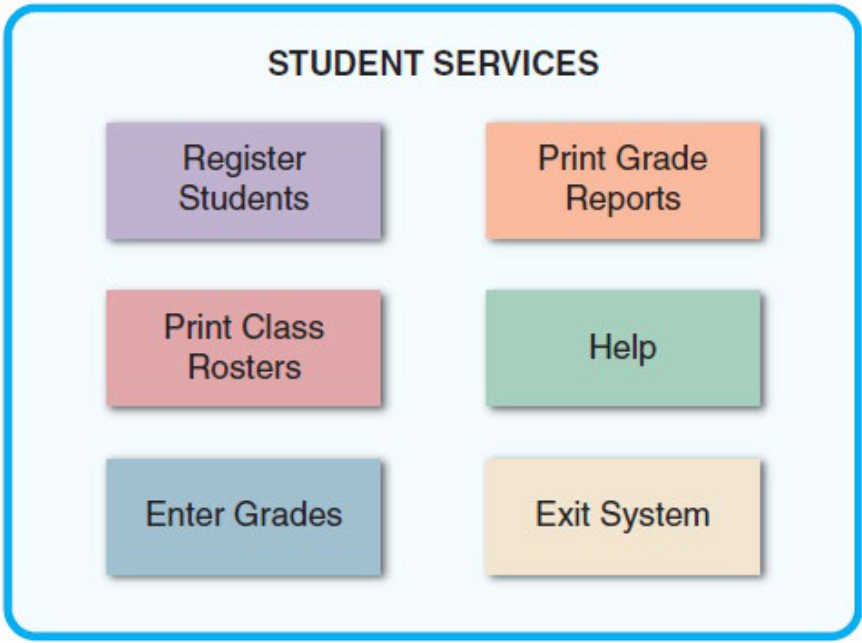
- Include main options in the opening screen
- Offer a reasonable number of choices that a user can easily comprehend
6. Invite Feedback
- Monitor system usage and solicit user suggestions
- Determine if features are being used as intended by observing and surveying users
7. Document Everything
- Document all screen designs for later use by programmers
- User-approved sketches and storyboards can be used to document the user interface
Think of interface design like architecture: great architects understand how people will actually live in a space, sketch blueprints, get feedback, and document everything before building.
Guidelines for User Interface Design
Guideline 1: Easy to Learn and Use
- Focus on system design objectives
- Create a design that is easy to understand and remember
- Provide commands, actions, and system responses that are consistent and predictable
- Allow users to correct errors easily
- Clearly label all controls, buttons, and icons
- Select familiar images that users understand
- Provide on-screen instructions that are logical, concise, and clear
- Show all commands in a list of menu items — dim unavailable commands
- Make it easy to navigate or return to any level in the menu structure
Guideline 2: Enhance User Productivity
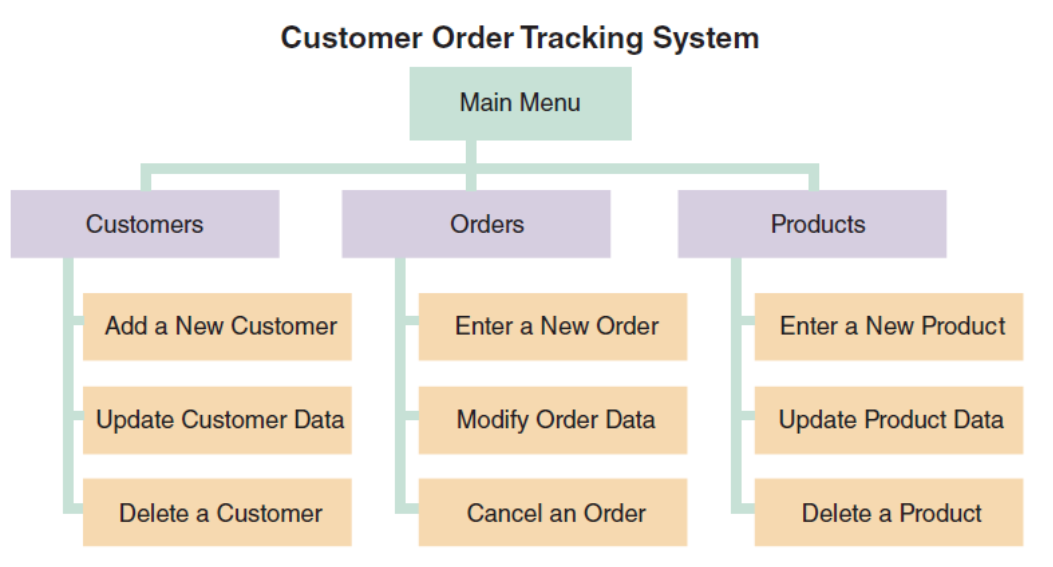
- Organize tasks, commands, and functions into groups that resemble actual business operations
- Create alphabetical menu lists or place frequently used items at the top
- Provide shortcuts for experienced users
- Use default values if the majority of values in a field are the same
- Use a duplicate value function, but allow users to toggle it on or off
Guideline 3: Provide a Fast-Find Feature
- If available, consider a natural language feature that allows users to type commands or requests in normal text phrases
Guideline 4: Provide Flexibility
- Offer several alternatives for how users can accomplish tasks
Guideline 5: Provide Users with Help and Feedback
- Ensure help is always available on demand
- Provide both user-selected help and context-sensitive help
- Provide a direct route for users to return to where they requested help
- Include contact information
- Require user confirmation before data deletion
- Provide an "Undo" key
- When a command contains an error, highlight the erroneous part
- Use hypertext links to assist users
- Display messages at a logical place
- Alert users to lengthy processing
- Allow messages to remain on screen long enough to be read
- Let users know whether a task was successful or not
- Provide a text explanation for icon/image control buttons
- Use messages that are specific, understandable, and professional
Guideline 6: Create an Attractive Layout and Design
- Use appropriate colors to highlight different areas of the screen
- Use special effects sparingly
- Use hyperlinks to navigate to related topics
- Group related objects and information
- Keep screen displays uncluttered
- Display titles, messages, and instructions in a consistent manner
- Use consistent terminology
- Ensure commands and similar mouse actions have the same effect
- Require the user to confirm entry by pressing Enter or Tab
- Remember the color convention: red = stop, yellow = caution, green = go
Guideline 7: Provide Consistent Commands
- Provide a keystroke alternative for each menu command
- Use familiar commands if possible
- Provide a Windows look and feel interface
- Avoid complex terms and technical jargon
Guideline 8: Enhance the Interface
- The opening screen is important as it introduces the application
- Use a command button to initiate an action
- Create customized menu bars and toolbars
- Add a shortcut feature that lets a user select a menu command
- If variable input data is needed, provide a dialog box that explains what is required
- A toggle button makes it easy to show on/off status
- Use list boxes that display available choices
- Use an option button (radio button) to control user choices
- Use check boxes to select one or more choices from a group
- When dates must be entered, use a calendar control
Guideline 9: Focus on Data Entry Screens
- Use the form filling method whenever possible
- Restrict user access to screen locations where data is entered
- Provide a way to leave the data entry screen at any time without entering the current record
- Provide a descriptive caption for every field
- Provide a means for users to move among fields in a standard or custom order
- Allow users to add, change, delete, and view records
- Design the screen form layout to match the layout of the source document
- Display a sample format using an input mask
- Require an ending stroke for every field
- Do not require users to type leading zeros for numeric fields or trailing zeros
- Display default values
- Display a list of acceptable values for fields, and provide meaningful error messages
- Provide users with an opportunity to confirm the accuracy of input data before submission
Guideline 10: Use Validation Rules
| Validation Check | Description |
|---|---|
| Sequence Check | Data must be in a predetermined sequence |
| Existence Check | Applies to mandatory data items (cannot be blank) |
| Data Type Check | Ensures data fits the required type (e.g., number only) |
| Range Check | Verifies data falls between a specified minimum and maximum |
| Reasonableness Check | Identifies values that are questionable, but not necessarily wrong |
| Validity Check | Used for data items that must have certain specific values |
| Combination Check | Performed on two or more fields to ensure consistency together |
| Batch Controls | Totals used to verify batch input |
Think of validation rules like airport security checkpoints — each one catches a different type of problem before bad data "boards the plane" and enters the system.
Guideline (Additional): Manage Data Effectively
- Data management impacts company efficiency, productivity, and security
- Enter and verify data as soon as possible
- Each data item should have a specific type
- Collect input data as close to its source as possible
- In an efficient design, data is entered only once
Guideline (Additional): Reduce Input Volume
- Input necessary data only
- Do not input data that can be retrieved from system files or calculated from other data
- Do not input constant data
- Use codes as they are shorter than the data they represent
Source Document and Form Design
- GIGO (Garbage In, Garbage Out): quality of output depends entirely on quality of input
- Source document: collects input data, triggers an input action, and provides a record of the original transaction
- A good form layout makes the form easy to complete and provides enough space
- Order and placement should be logical
Source Document Zones
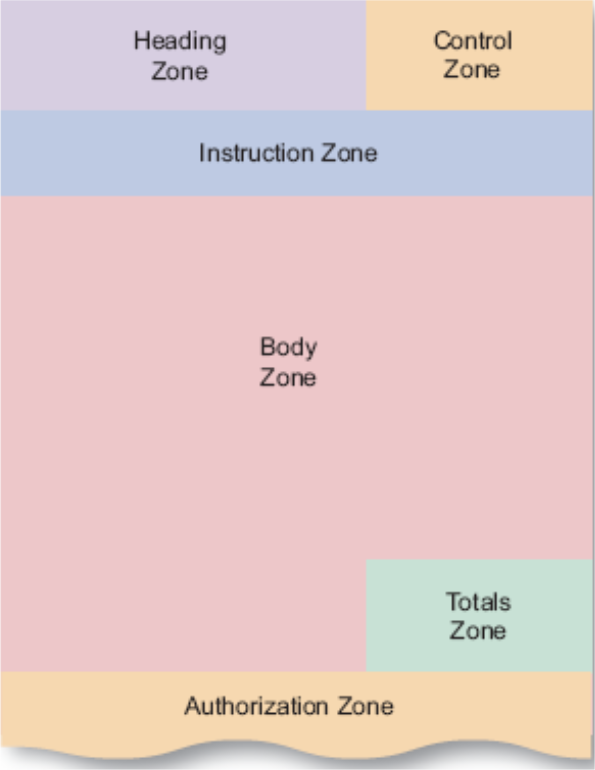
| Zone | Purpose |
|---|---|
| Heading Zone | Title and identification information |
| Control Zone | Form number, date, version info |
| Instruction Zone | Directions for completing the form |
| Body Zone | Main data entry area |
| Totals Zone | Subtotals and totals |
| Authorization Zone | Signatures and approvals |
A source document is like a recipe card — it has a title at the top, instructions in the middle, and a place to note who approved it at the bottom.
Printed Output
Questions Before Designing Printed Output
- Why is this being delivered as printed output?
- Who wants the information, why is it needed, and how will it be used?
- What specific information will be included?
- Will printed output be for a specific device?
- When and how will the information be delivered, and how often must it be updated?
- Do security or confidentiality issues exist?
Report Design
- Organizations strive to reduce flow of paper and printed reports
- Users often prefer to view screen output first, then print only what they need
- Printed output is used in turnaround documents
- Reports must be easy to read and well organized
- Database programs include a variety of report design tools
Report Design Principles
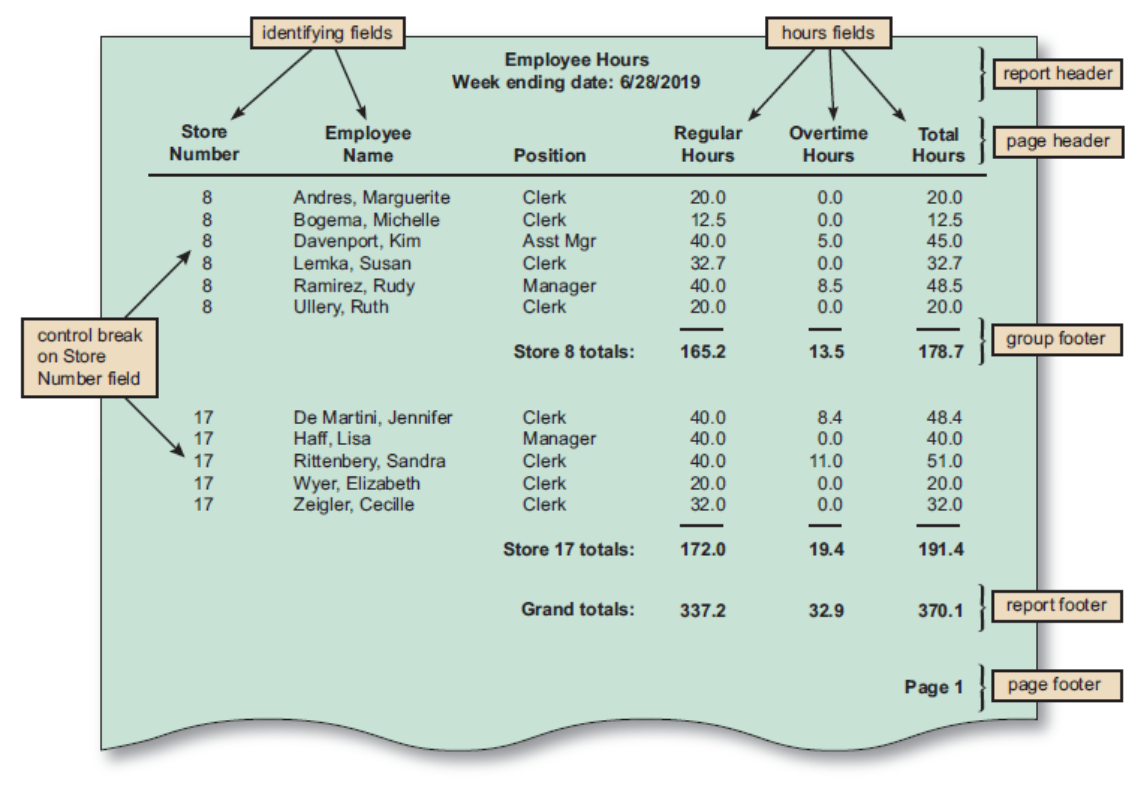
- Report headers and footers
- Page headers and footers
- Repeating fields
- Consistent design
Types of Reports
| Report Type | Description |
|---|---|
| Detail Report | Produces one or more lines of output for each record processed — can be quite lengthy |
| Exception Report | Displays only records that meet specific conditions — useful for targeted information |
| Summary Report | Provides comprehensive/aggregated data overview |
Detail = every transaction receipt; Exception = only the transactions that were flagged; Summary = the monthly bank statement total.
Technology Issues
Output Technology
- Output can be delivered in many ways beyond screen and print
- Documents must be accessible from workstations, notebooks, tablets, smartphones, and other devices
- Internet-based information delivery: allows users to download files and documents; companies use webcasts for customers and investors
- Email: essential for internal and external business communication
- Blogs: useful for posting news, reviewing current events, and promoting products
- Instant messaging: useful for team members in collaborative situations
- Wireless devices: data transmitted using the Internet across a wide array of devices
- Digital audio, images, and video: can be captured, stored digitally, attached to email, or inserted into documents
- Automated fax/faxback systems: allow customers to request a fax via email, website, or telephone
- Podcasts: used as sales/marketing tools and for employee communication
- Computer output to digital media: used when many paper documents must be scanned and stored digitally for quick retrieval
- Specialized forms of output: portable/web-connected devices, retail point-of-sale terminals, ATMs, special-purpose printers, plotters, electronic detection of embedded data
Input Technology
- Batch input: data entry performed on a specified time schedule (daily, weekly, monthly)
- Online input: enables immediate validation and availability of data
- Source data automation: combines online data entry and automated data capture using RFID tags, magnetic data strips, or smartphones
- Trade-offs:
- Manual data entry is slower and more expensive than batch input
- Decision to use batch or online input depends on business requirements
Security and Control Issues
Output Security and Control
- Companies use output control methods to maintain output integrity and security
- Output security protects privacy rights and shields the organization's proprietary data from theft or unauthorized access
- Diskless workstation: network terminal that supports a full-featured user interface but limits the printing or copying of data
Input Security and Control
- Ensures data is correct, complete, and secure
- Information should be traceable
- Procedures must be put in place for handling source documents
- Data security policies and procedures protect data from loss or damage
- Companies should have a records retention policy that meets legal requirements and business needs
- Audit trail files and reports should be stored and saved
Input security is like a bank vault's entry log — every deposit/withdrawal is recorded, traceable, and only authorized personnel can access it.
Emerging Trends
Modular Design
- Individual components called modules connect to a higher-level program or process
- Each module is designed to perform a single function
Responsive Web Design
- Focus on how GUI artifacts are presented on the device is handled automatically by the underlying framework
- The interface adapts to different screen sizes without manual adjustment
Prototyping
- Involves a repetitive sequence of analysis, design, modeling, and testing
Types of Prototypes
| Type | Description |
|---|---|
| System Prototyping | Produces a full-featured, working model of the information system |
| Design / Throwaway Prototyping | Used to verify user requirements, then discarded; implementation continues |
Trade-offs: Benefits of Prototyping
- Users and developers can avoid misunderstandings
- Developers create accurate specifications based on the prototype
- Managers can evaluate working models more effectively than paper specs
- Helps develop testing and training procedures
- Reduces risks that occur when a finished system fails to support business needs
Trade-offs: Potential Problems with Prototyping
- Rapid pace of development can create quality problems
- System requirements cannot be tested adequately using a prototype
- In complex systems, the prototype can become unwieldy and difficult to manage
- Clients may want to adopt the prototype with few/no changes, leading to increased maintenance costs later in the SDLC
Prototyping is like building a movie set before constructing a real building — it's fast and shows what things will look like, but it's not meant to be permanent.
Summary
- When designing the user interface, it should be transparent
- Guidelines: easy to learn and use; enhance user productivity; easy to get help or correct errors; minimize input data problems; provide feedback; attractive layout and design; use familiar terms and images
- Types of printed reports: detail, exception, and summary reports
- Input methods: data capture and data entry
- Security and control plays an important role in system design
- Emerging trends: modular design, responsive web design, and prototyping